 Backstamp
 is an app for iPhone and iPad, for people who collect convention exclusives and trade them at cons. It keeps a record of what you own, a list of what you are hunting, the people you trade with, and Main Stage, where posts go. This guide follows the app the way you meet it: getting started, then each tab in the order the tab bar shows them (Curate, Acquire, Connect), then the shade you pull down from the top, your lanyard card and your code, then Settings, and last the answers about the whole app: privacy, no signal, appeals and what to do when something goes wrong. It describes build 22 (TestFlight lists it as 1.1.0 (22)). What is dimmed or missing is under Not here yet.
A piece is one thing you own. Your wall is all of them. A name in bold, like Save, is something you can see on the screen: a button, a tab, a field or a switch. The way to a screen is written as the app names it, a step at a time: Curate › Sets is the Sets chip on the Curate tab. On an iPad the screens use the iPad layout, with centred columns and forms in sheets, and turning the iPad keeps what you were typing and any sheet that is open.
The pictures are drawn from the app’s own screens, in the Pin Wall look, light, with sample pieces and people in them. Your screens show your own, in the look you chose.
Contents
- Getting started:
- Curate:
- Curate › Add a piece:
- How do I add a pin?
- What does the name box do when I add a piece?
- How do I pick a Category and a Franchise?
- What is the Series box?
- How do I add a name of my own?
- What are the 16 kinds?
- How does the name box search?
- How do I record condition?
- How do I record where it came from?
- What else can I record about a piece?
- Curate › a piece:
- How do I log what a piece is worth?
- How do I add or remove a photo?
- How do I edit, delete or share a piece?
- How do I let go of a piece?
- How do I put a let-go piece back?
- Where are the pieces I let go?
- What is trade stock?
- How do I add extras for trade?
- How does the iPhone cut out my own photo?
- What is a catalog picture?
- What is the shared catalog?
- How do I add my piece to the shared catalog?
- How do I link a piece to a catalog entry?
- What is on a catalog entry’s page?
- What is “Is this yours?”
- How do I suggest a shop?
- Curate › Sets:
- Curate › Achievements:
- What are achievements?
- How do I open my achievements?
- What is on the Achievements page?
- What happens when I earn one?
- How do I share an achievement to Main Stage?
- What are points and tiers?
- How do I see another member’s achievements?
- What are the boards?
- How do I leave the leaderboards, or come back?
- What is the worth notice?
- Acquire:
- How do I add a want?
- How do I search or narrow my wants?
- What do Grail, Want, Filler and the ceiling mean?
- What do the Tell me when switches do?
- How do I change or remove a want?
- How do I pause a want?
- How do I say I got something I want?
- How do I want something that is not in the catalog?
- What is Who has one?
- How do I find a want at BlizzPins?
- How do I look for a want on eBay or Mercari?
- Acquire › the catalog:
- How do I search the catalog?
- How do I say I have it or I want it?
- What is Something looks wrong here?
- How do I see the Pinny Arcade catalog?
- What is on a Pinny pin’s sheet?
- How do I say I have a Pinny pin or want one?
- Where else do Pinny pins show?
- Can I bring my PinnyPals list over?
- What is BlizzPins?
- Connect › Main Stage:
- What is on Main Stage?
- How do I narrow Community to one kind of post?
- What is For you?
- What is Your interests?
- How do I mute a franchise or a kind?
- What do I pick when I join?
- How do I post, and who sees it?
- How do I add a video to a post?
- How do videos play?
- How do I like, save or comment?
- How do I search posts?
- How do hashtags work?
- How do I tag a con?
- Where are the posts about a piece or a con?
- How do I edit a post?
- How do I hide a post?
- How do I delete my post, or report one?
- How do I undo a delete or a hide?
- Why is my post waiting, or hidden?
- How do I share a new piece to Main Stage?
- Connect › Contacts:
- What do Close, Trusted and Met once mean?
- How do I invite a friend?
- How do I see my invites, or revoke one?
- How do I find someone by email?
- What is on a person’s page?
- How do I look through a contact’s collection and wishlist?
- How do I follow someone?
- What does a follower see?
- How do I see or remove my followers?
- How do I report or block someone?
- How do I report someone’s photo?
- How do I remove someone from my contacts?
- Connect › Messages:
- Connect › a trade:
- How do I start a trade?
- How do we finish a trade?
- How do I counter an offer?
- What are trade photos?
- How do I say how a swap went?
- How do I vouch?
- How do I call a trade off?
- Where are all my trades?
- How do I save my address?
- How do I share my address, and who sees it?
- How do I add tracking to a trade?
- Connect › Cons:
- How do I find a con and say I am going?
- How do I visit a con’s own website?
- How do I suggest a con that is not listed?
- How do I add a banner picture to a con I suggest?
- How do I check in?
- What does a PAX show’s page add?
- How do I put my badge photo on my lanyard card?
- What are ribbons?
- How do I check out?
- Can Backstamp offer to check me in when I arrive?
- Connect › Cons › Here I am:
- The Council or Admin tab:
- Who sees Admin, and what is in it?
- How does a member become council?
- How do I change a member’s @handle?
- How do I move a member to a new email?
- How do I change a con or its banner?
- How do I place a con’s floor plan?
- How do council members rename or remove a spot?
- How do I review members’ own names?
- How do I approve an entry for the shared catalog?
- How do I add a shop to the shared catalog?
- The shade:
- Your lanyard card and your code:
- Settings:
- How do I open Settings?
- How do I change the theme?
- How does Backstamp follow my phone’s settings?
- How does Backstamp work with VoiceOver?
- How do I choose my own @handle?
- How do I choose my avatar?
- How do I change my email address?
- How do I add a passkey, and sign in with it?
- How do I add a backup email?
- What if I cannot get into my inbox?
- How do I add my Facebook, Instagram or Discord?
- How do I say how to reach me, and where I trade?
- Where are the house rules and the privacy policy?
- What is kept on my phone, and what happens when I sign out?
- How do I sign out everywhere?
- Settings › Notifications:
- Settings › Your data:
- Privacy:
- With no signal:
- Appeals and private talks:
- If something goes wrong:
- Not here yet:
Getting started
Back to ContentsInstall Backstamp from TestFlight, join with Apple or your email, and the welcome pages show you round. This part also says how to move about the app, and how updates arrive.
How do I install Backstamp?
Back to ContentsBackstamp is in testing, through Apple’s TestFlight, on iPhone and iPad. Anyone 16 or older can join, and there is nothing to buy.
- On your iPhone, open the invitation, https://testflight.apple.com/join/dX56tD6W, or scan the code on the website’s testing page, https://backstamp.quest/testing.
- If the phone does not have Apple’s TestFlight app yet, the page takes you to it in the App Store. Install it, then open the invitation again.
- In TestFlight, accept the invitation and install Backstamp. Its icon joins your home screen.
Open Backstamp and join (how). TestFlight shows which build you have and offers the next one when there is one; most changes come to the app itself as an update (how). To tell us what broke, take a screenshot and send it from TestFlight, or write to hello@backstamp.quest.
How do I join?
Back to ContentsAnyone can join. You do not need an invite.
- Open Backstamp. The first screen has Sign in with Apple and Continue with email. Under them is a quiet Have an invite code? link. A quiet Sign in with a passkey button sits under Continue with email. It signs in someone who already has a passkey and never makes an account (how).
- To join with Apple, tap Sign in with Apple and follow Apple’s sheet. Backstamp signs you in, or makes your account if you are new. You do not need a code.
- To join with email, tap Continue with email, type your address and tap Send link. The Check your email screen opens. Tap Open Mail to open the phone’s mail app, then open the email on this phone and tap the button in it. The button opens Backstamp straight away, with no browser. On a phone without the app, it opens a page on Backstamp’s website that says “Opening Backstamp” and hands the link on to the app. That page has a button in case nothing happened. Or tap Paste the code, type the six characters from the same email, and tap Continue. If the phone will not open Mail, a note says so; open it yourself.
The link and the six characters last 15 minutes. There is no password. You must be 16 or older to join. The first screen says so, and under that line it says “By continuing you agree to the terms of use and the house rules.” Each name is a link that opens that page of Backstamp’s website. The same lines stand on the invite and email steps.
An invite is optional. If a friend has sent you one, tap Have an invite code?, type the code and tap Continue. Or tap the link in their message, and Backstamp opens with the code filled in. Then type your email address and tap Send link, as above. An invite works once.
If you joined by email, other people see a made-up handle for you (such as @member-k7m2x9qa) until you set a name. In Settings tap the row with your name at the top, type a Display name and tap Save. To pick the handle too, see How do I choose my own @handle?
How do I sign in again?
Back to ContentsUse the way you joined. The same button works for a member and for someone new. Tap Continue with email, type your address, tap Send link, then use the button (Open Mail opens your mail app) or the six characters as above. Or tap Sign in with Apple. If you added a passkey, tap Sign in with a passkey and use Face ID or Touch ID. If the email does not come, tap Send it again or Use a different email. If you cannot open the inbox at all, see What if I cannot get into my inbox?
What do I see the first time?
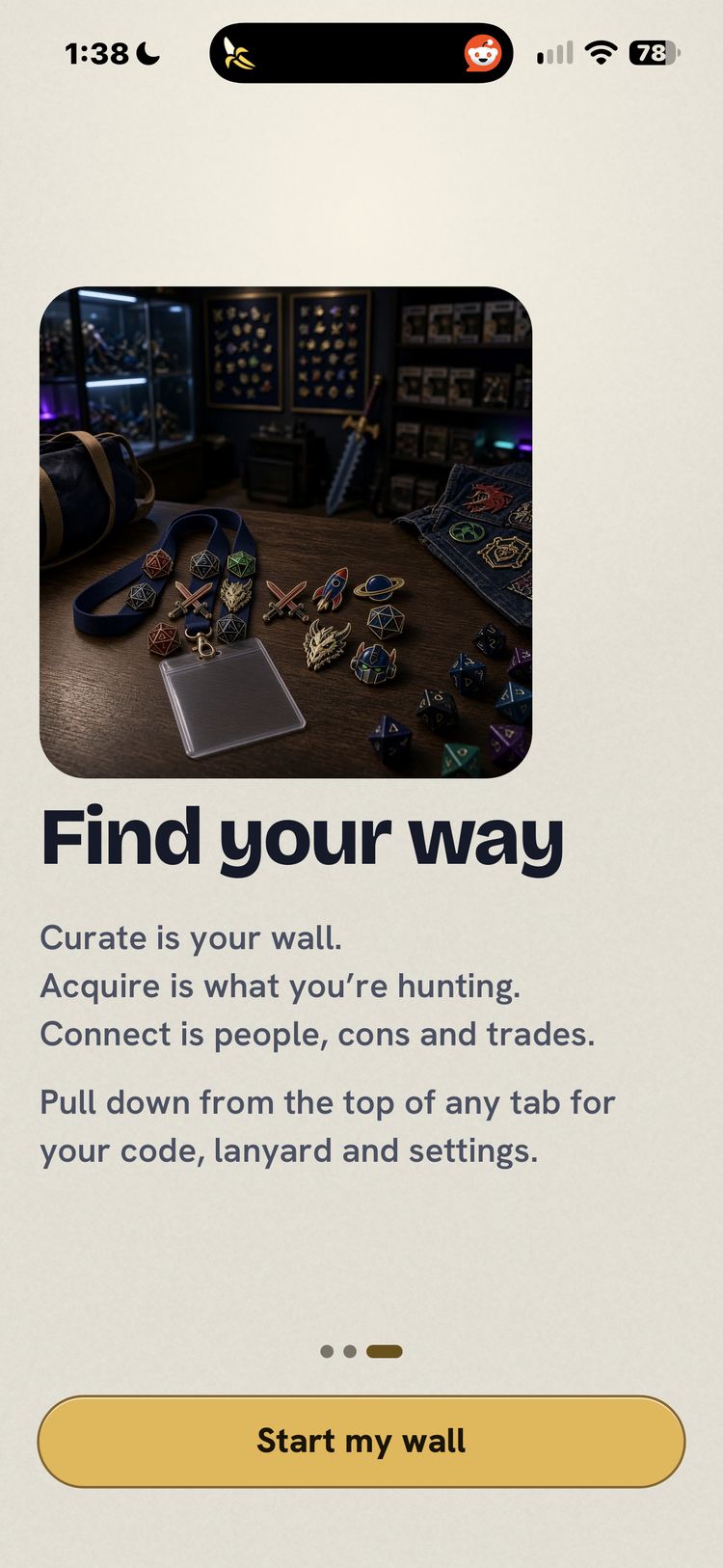
Back to ContentsThree short pages: “Photograph it once” (front, back, the box or card it came with), “Values stay yours” and “Find your way”. The last one names the three tabs (Curate is your wall, Acquire is what you’re hunting, Connect is people, cons and trades) and ends with “Pull down from the top of any tab for your code, lanyard and settings.” Tap Next, or Skip. Tap a dot to go to that page, or swipe left or right to turn the pages; a swipe never ends them. A new member then sees one more step, where you pick what you collect (how). Start my wall on the last page, or at the end of that step, opens your empty wall, where Add your first piece opens the form for a new piece (how), and a quiet Import a spreadsheet button sits under it (how). These pages show once on a phone, after your first sign-in there. They do not come back after a sign-out. To see them again, open Settings and tap How Backstamp works, the first row under About.
What are the three tabs for?
Back to ContentsThe tab bar at the foot of the screen has three tabs, in this order, and each has its own part of this guide.
- Curate is your wall: every piece you own, with your own photos and your private record of each. Nothing on it is shared until you say so. A round Achievements button at the top, beside the magnifier and the plus button, opens your achievements.
- Acquire is your wishlist: the pieces you are hunting, how badly, and the alerts that tell you when one turns up.
- Connect is people and Main Stage: Main Stage (its For you, Contacts and Community views), your Contacts in their tiers, the list of Cons, and your Messages (how).
- Council members and admins have a fourth tab, Council or Admin, with what needs them (who sees it).
How do I go back, or get to the top of a list?
Back to ContentsA screen you open slides in over the one you were on. To go back, tap the back link at the top left, or swipe from the left edge of the screen. A form with something typed and not saved asks first, whichever way you leave it, with Keep editing to stay: Discard this piece? on Add a piece, Discard this post? on New post, Leave without saving? on a con’s admin page, and Discard your changes? on Edit details, Edit post, Condition, Where from, Profile, Your address, Your BlizzardItems name, Suggest a con and Add a con. Tapping a tab or an alert that would take you off the form asks the same. While a form is saving, or one of those questions is up, the swipe back does nothing.
Most screens you open keep the tab bar at the foot: tap a tab to close them and go to that tab. A message thread, a post, New post, a trade, Add a piece, the scanner, Your code and the lanyard card cover the tab bar.
To take a list back to the top, tap the tab you are already on. On Curate the wall jumps there at once; with Reduce Motion on in the phone’s settings, every list does.
A quick flick down on the edge of the shade opens it, and a flick up closes it. A sheet that has come up from the bottom can be pulled away by its grabber or its title.
Some rows swipe left for their action: red when it cannot be undone, such as Remove on a want, and gold when it can, such as Unfollow in your Following list. They are your wants, Messages, Saved posts, Sets, Your invites, Followers, Following, Blocked and Passkeys, and each asks first. The first row on a list that swipes (your wants, Messages, Sets, Saved posts, Followers and Following) nudges open and back once, to show it can. A light tick under your finger says when the shade lands, when a swipe row comes to stay open, and when you tap Like or Save.
How do updates reach my phone?
Back to ContentsMost changes reach Backstamp as an update, with no trip to TestFlight. Backstamp looks for one each time you come back to it. While an update comes down, a small bar over the tab bar says Downloading an update and fills as it comes. Then it says An update is ready: tap Restart and Backstamp opens again on the update, and says Backstamp was updated once (a tap puts that away, and it goes by itself after a few seconds). The bar shows only on Curate, Acquire and Connect themselves, never over a screen opened from them, where a restart would lose what you were typing. Its close button puts it away until you next come back to Backstamp; the update then takes over the next time you close Backstamp fully and open it again.
After an update the newest note in What’s new opens as a sheet (where the notes are). Settings › About › Update names the update you are running. A new build, with new parts of the phone in it, comes through TestFlight instead.
What if Backstamp says it is too old?
Back to ContentsEvery request the app makes tells Backstamp’s server which version of the app it is, and nothing else about your phone. When the server needs a newer copy, the app shows one plain screen in place of everything: Update Backstamp, with the words “This version of Backstamp is too old. Update it from TestFlight to keep going.” There is nothing to tap on it. Install the newest build from TestFlight and open Backstamp again.
Curate
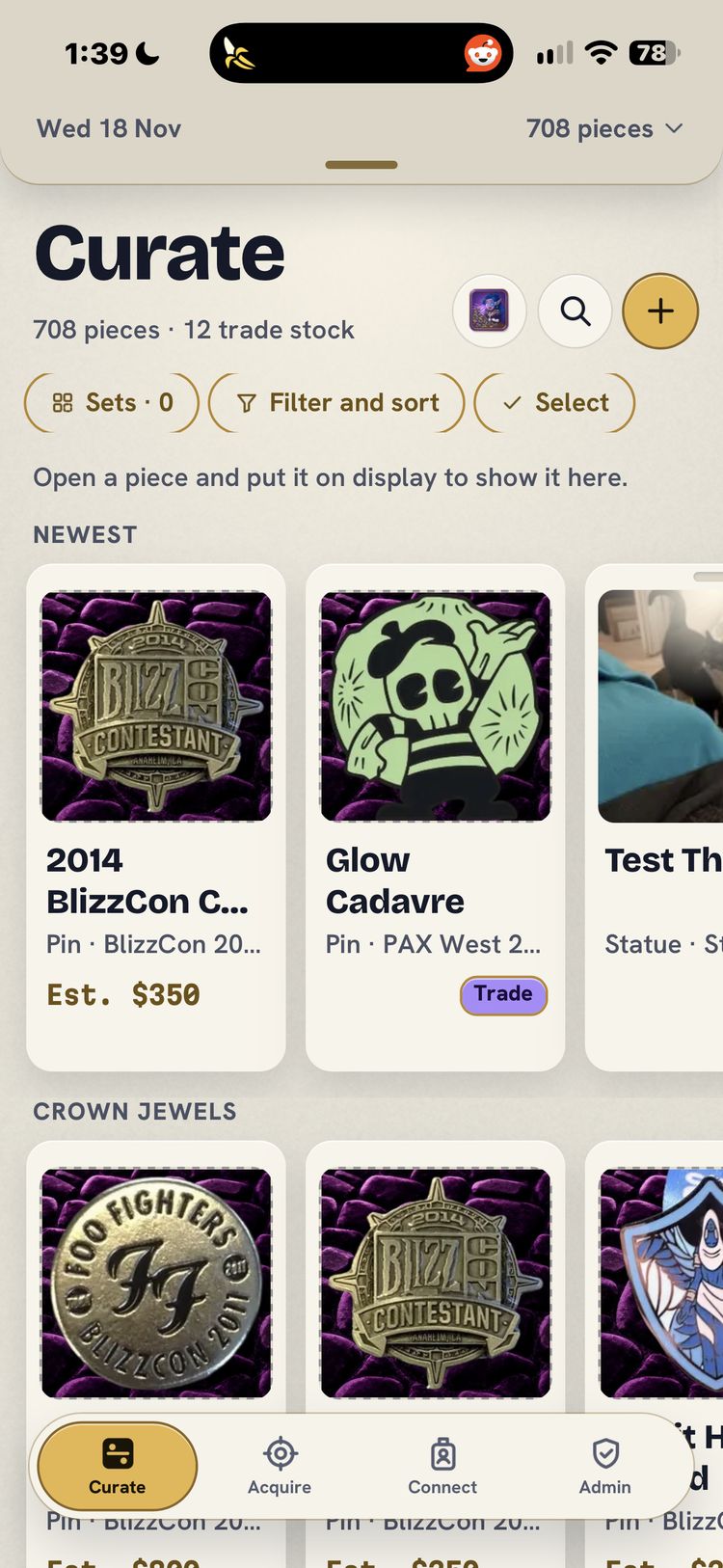
Back to ContentsCurate is the first tab: your wall, every piece you own, with your own photos and your private record of each. Nothing on it is shared until you say so. At the top are the round Achievements button, the magnifier and the plus button. Under the title are the counts and three chips, Sets, Filter and sort and Select, then the rows that scroll sideways, then the wall.
What do the numbers and rows on my wall mean?
Back to ContentsUnder the title, one line gives the counts, such as “128 pieces · 4 sets · 23 trade stock”, each part only when there is something to count. What your pieces are worth in total is on the shade, with the rest of the dashboard.
Above the wall, while Kind, Category, Franchise and Show are all on All and Sort by is Newest added, up to three rows scroll sideways. On display holds the pieces you chose to put there, in the order you set; it shows as soon as one piece is on display. With none, one quiet line stands where it would: “Open a piece and put it on display to show it here.” Once you have twelve pieces or more, two more rows join it. Newest holds the last eight pieces you added. Crown jewels holds the eight worth the most. Crown jewels is not shown until eight pieces have a worth. How do I put a piece on display?
Under Year, Kind, Series and Franchise, each heading also shows what that group is worth.
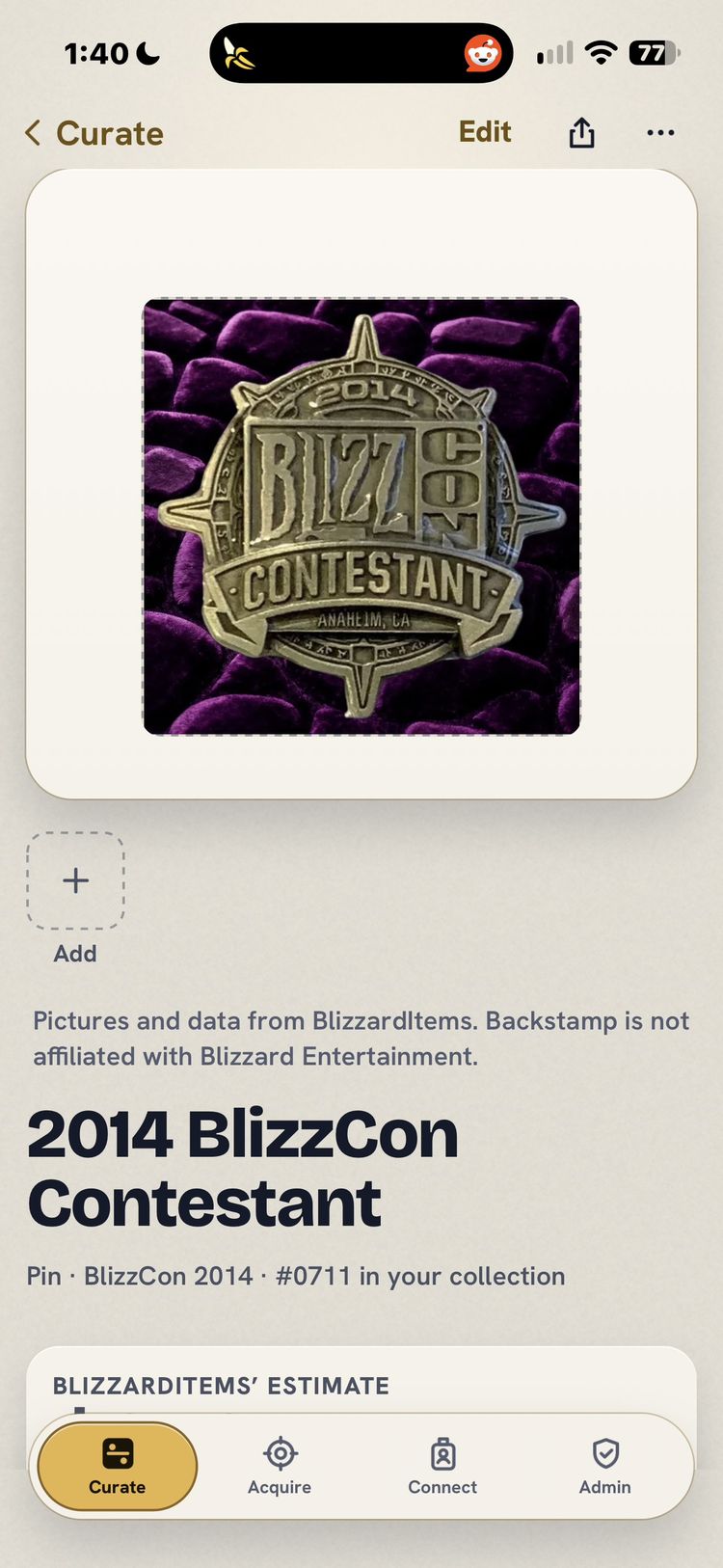
A piece with no photo of its own shows BlizzardItems’ picture on a flat, dashed tile, with the piece alone cut out of its background (what is a catalog picture?). A value that is BlizzardItems’ estimate is marked Est. Pieces that are the same show as one card with ×3 (see extras for trade). On a long wall, two round buttons float at the bottom right once you have scrolled past a screen: Back to top, and To the bottom until the foot is near. At the very foot of the wall a quiet Import a spreadsheet button opens the spreadsheet page; it is not there while you search, choose pieces or have Show: Missing on. VoiceOver reads a card’s name, how many pieces it stands for, its kind and origin, its value or estimate, and every mark it has.
How do I search my wall?
Back to ContentsOn Curate, tap the magnifier beside the plus button. A row that says Search your wall opens under the title, with the keyboard up. Type what you are looking for. Every word you type must be found in a piece’s name, kind, origin, series, franchise or year. Capitals do not matter. The wall narrows as you type, and a quiet line under the row says how many pieces match. If none match, the wall says Nothing on your wall matches.
Search looks through the whole wall, not only what Kind, Category, Franchise and Show have narrowed it to, and it works with no signal. To close it, tap the close button at the end of the row. The words are cleared, and the wall is as it was.
How do I narrow the wall?
Back to ContentsOn Curate, under the title, is a row of chips: Sets, Filter and sort and Select. Tap Filter and sort and a bar of pickers opens under the row; tap it again to fold it away. The chip says how many pickers are on, and is lit while any is. It starts folded each time Curate opens. Each picker has its name above it and the choice it has made in the box under that, which starts as All. Tap one and the phone’s own menu opens with its choices; tap a choice to take it. On a narrow phone the pickers wrap onto more rows. On an iPad held sideways they stand in the sidebar instead, unfolded.
- Kind: All, then each kind your wall has, with how many pieces, from the 16 kinds. A kind the app does not list, and a piece with no kind, count as Other.
- Category: All, then each category your wall has, with how many pieces, in the menu’s order, yours last. It sits before Franchise, and is left out while your whole wall is in one category.
- Franchise: All, then each franchise your wall has, with how many pieces, the fullest first. With a Category chosen it lists only that category’s franchises. A piece from the BlizzardItems catalog sits under its game, such as Warcraft or Overwatch.
- Show: All, For trade (pieces on trade stock), Verified, On display (the pieces you put in the row at the top of the wall), With a value (pieces that show a figure on their card: a value you logged, or BlizzardItems’ estimate), No value yet (no value of yours and no estimate either: the pieces the shade counts as “with no value”), Estimate only (no value of yours, so the card shows BlizzardItems’ estimate), No photo of mine (no photo of the piece itself: none at all, or only a receipt or certificate), Duplicates (pieces you have two or more of) and Missing (what is that?). A choice is listed only when you have a piece for it, except Missing, which is always there. Under On display every piece is its own card, with no ×3.
- Sort by: see How do I sort the wall or group it?
Kind, Category, Franchise and Show work together: a piece has to match all of them. A picker that is narrowing the wall, or has put it in another order than Newest added, is lit. Choose All in a narrowing picker to put the rest back. If they together match no piece, the wall says Nothing matches. The counts in the menus are of pieces on the whole wall, and they work with no signal. Sets stays in the chip row (in the sidebar on an iPad).
How do I sort the wall or group it?
Back to ContentsOn Curate, tap Filter and sort, then Sort by, the last of the pickers. It shows the order the wall is in. The menu is Sort by, with eleven choices:
- Newest added: the pieces you added last come first. The wall starts in this order.
- Oldest added: the pieces you added first come first.
- Name A–Z and Name Z–A.
- Year newest and Year oldest: by the year the catalog gives the piece, or the year you typed for a piece of your own. Pieces with no year come last.
- Kind: in the order of the 16 kinds, then Other.
- Series and Franchise: the wall is put in that order.
- Value: the pieces worth the most come first, by the figure on their card (your latest value, or BlizzardItems’ estimate). Pieces with none come last.
- What you paid: the pieces you paid the most for come first. Pieces with no price come last.
Year, Kind, Series and Franchise also group the wall under headings, each with how many pieces it has. The order you choose is kept on the phone. Sorting needs a signal, so Sort by waits (dimmed) when there is none.
What does Show: Missing do?
Back to ContentsOn Curate, tap Filter and sort, then Show, and choose Missing. It is always on the list. The wall becomes the catalog’s pieces that you do not have, each a dimmed card with the catalog’s picture on a dashed tile (BlizzardItems’ figure is marked Est.; a Pinny pin shows no price). The line under the title says how many, such as “Missing 412 of 1,275”. Tap a card to open the catalog’s sheet for the piece, where I have it, I want it and I have extras to trade are. A piece you say you have leaves the list. Choose All under Show to get your wall back. It needs a signal, and while it is on the magnifier waits, because search looks through your wall.
A switch, BlizzardItems | Pinny Arcade, stands over the pickers. It opens on the catalog you have more pieces from. For BlizzardItems the pickers are Kind (All, Pin, Patch, Vinyl figure and any other kind your wall holds), Franchise (the catalog’s own), Show and Sort by (Newest first, Oldest first, A–Z, Z–A). Kind starts from the kind your wall was showing. BlizzardItems has pins, patches and vinyl figures only, so for any other kind the wall says so and asks you to choose one of those. For Pinny Arcade the pickers are PAX show, Year, Set, Show and Sort by, and the count reads such as “Missing 1,820 of 1,823”.
How do I put a piece on display?
Back to ContentsOn display is the one row on your wall that you fill yourself, and it comes first. Open a piece, tap More, then Put on display, or turn on its On display switch (“In the row at the top of your wall”), next to For trade. The piece joins the back of the row, and a note at the top says On display, with Undo for five seconds.
- To bring a piece to the front, open it, tap More, then Move to front.
- To take a piece off, open it and turn its On display switch off, or tap More, then Take off display. The pieces behind it move up.
More shows Put on display for a piece that is not in the row, and Move to front and Take off display for one that is. You can have 12 pieces on display. The 13th is refused with “12 pieces are already on display. Take one off first.” and nothing changes. Changing what is on display needs a signal. The row shows while every picker is on All and Sort by is Newest added, and while nothing is on display a quiet line on the wall says how to put a piece there. To see only those pieces as a wall, choose On display in Show. Anyone who could already see a piece can see it in that row. Nobody gains sight of a piece by being on display. A piece traded away shows no switch.
How do I change several pieces at once?
Back to ContentsOn Curate, tap Select at the end of the chip row, or hold a card down. Tap cards to choose them: each gets a ring and a tick, and a ×3 card says All 3. A card of several is chosen whole; to change one of them, open the piece. A bar over the tab bar says how many pieces are chosen, with Done, and five buttons:
- For trade: a menu offers Mark 3 pieces for trade and Take 2 pieces off trade, whichever apply.
- Display: Put 3 pieces on display or Take 2 pieces off display. More than the 12 the row holds is refused before anything is sent, with “Your display is full”.
- Add to set: Add to which set? lists your sets. A piece that has its place already is left, and the note says so.
- Re-file: Kind, or Category and franchise (pick a category, then one of its franchises, or No franchise).
- Delete: asks “Delete 3 pieces?” and says their photos, value history and records go; trades they were in stay in your partners’ history.
Each does what the piece’s own button does, one piece after another, and then a note says what changed. A piece that did not change stays chosen. Done, or Select again, ends the choosing. Only pieces you can see are chosen: one that the pickers or the search put out of view is let go, and Delete never counts a piece you cannot see. Select is not there under Show: Missing. With no signal a note says the change needs one. On an iPad held sideways the sidebar has Select pieces in its place (Stop choosing once it is on).
Curate › Add a piece
Back to ContentsThe plus button on Curate, or Add in the shade’s foot, opens New piece. The same form, filled in, is Edit details for a piece you have. Backstamp is for every kind of collector, not only Blizzard pins: you can add a piece or a want from any franchise, pick its category and franchise from short menus, keep names of your own for anything the menus lack, and look it up in BlizzardItems, Pinny Arcade and a shared catalog.
How do I add a pin?
Back to ContentsThe same steps add a plush, a badge, a patch or anything else.
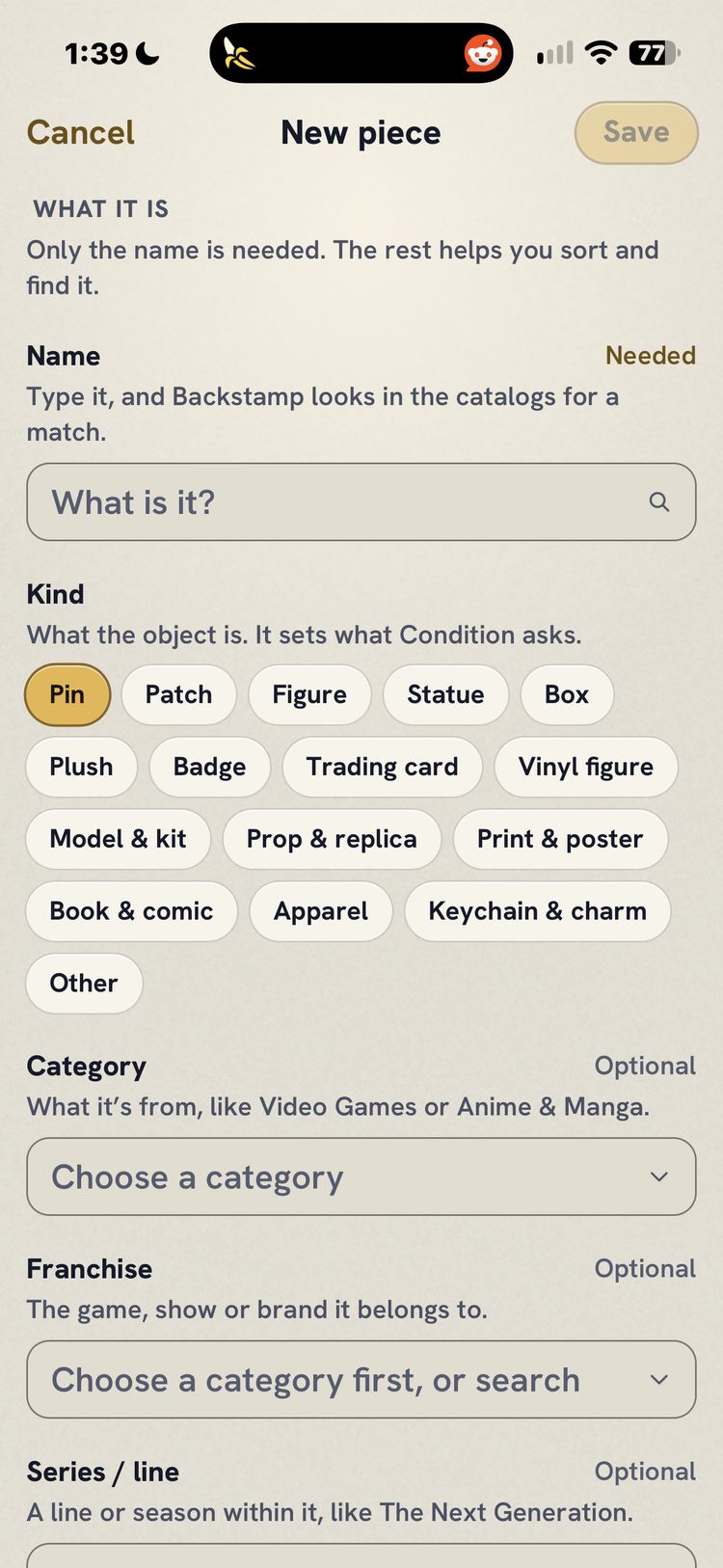
- On Curate tap the plus button at the top right. Or pull the shade down and tap Add. The New piece form opens. It has four parts: What it is, Photos, What you paid and More. Only the name is needed; the rest says Optional.
- Under What it is, fill in the details from the top. Each choice has a line under it that says what it is for. Start with Name: tap the box and a menu opens over the dimmed form, with a box at its top to type in, a list that scrolls inside the card and Done at its foot. The menu looks the piece up for you (how). Then pick a Kind from the row of chips, one of the 16 kinds. Category, Franchise and Series / line come next, each a box that opens its own menu the same way (how), and each says Optional (what is the Series box?). Year and Origin come last, and are optional too. Origin is where it is from: a con, a shop, a friend, such as BlizzCon 2013. A new piece starts empty.
- A photo is optional. Under Photos, tap Add a photo. The camera opens. Fill the square with the front of the piece and tap the camera button. The chips Front, Back, Card and Box say which shot comes next; tap one to choose. Tap Next to come back to the form, where each shot shows with its word under it. Tap a shot to take it again. The cross at the top left leaves the camera and keeps the form as it was. At the top right, beside the picture button, are a grid over the picture, the Light and the flash, which goes Off, Auto and On, its icon saying which. On a phone with an ultra-wide lens, 0.5× and 1× sit over the chips, and you can pinch to zoom. You feel a tap with each shot, the buttons turn as you turn the phone, and a photo taken with the phone upright stays upright.
- Under What you paid, Amount is optional, for example $20 or $19.99. Only you ever see it.
- Under More, a Note and Your tags are optional, and only yours (what). Trade stock is a switch, with the line “Trade stock shows to your contacts, your followers and anyone hunting for one, never with a price.” Condition and Where from open their own pages (condition, where from).
- Tap Save. The piece hangs on your wall. Or tap Save and add another, at the foot of the form: it saves the piece, says so, and opens a new form that starts with that piece’s Category, Franchise and Kind.
Save looks dimmed until there is a name, but you can still tap it: the form scrolls to Name, puts the cursor in it and says “Give it a name first.” under it in red. Save and add another does the same. Cancel asks before it throws the piece away: Discard this piece?, with Discard or Keep editing. To use a photo you took earlier, tap the picture button beside the flash, at the top right. It fills the shot that is lit. If the iPhone has not let Backstamp use the camera, the screen says so and offers Open Settings and Choose a photo.
What does the name box do when I add a piece?
Back to ContentsTap the Name box and a menu opens over the form, with a box at its top to type in. While you type, it lists pieces it finds in the BlizzardItems catalog, in the shared catalog or in the Pinny Arcade catalog, each labelled with where it came from. Tap Use beside one to fill in the name, kind, origin, franchise and series from it and to tie your piece to that catalog entry. Leave the results alone, or tap Add it as your own, and your piece stays your own. How the box decides where to look
How do I pick a Category and a Franchise?
Back to ContentsAdd a piece and Edit details ask for Name, Kind, Category, Franchise, Series / line, Year and Origin, in that order. Add a want asks for Category, Franchise, Series / line and Kind, then the name box. Add a piece opens on this form, not on the camera: a photo is optional, and the Photos part takes it (Add a photo).
Tap Category and a menu opens with 12 choices, then any of your own: Video Games, Anime & Manga, Sci-Fi, Fantasy, Comics & Superheroes, Cartoons & Animation, Movies, TV, Toys & Brands, Sports, Music and Other. With nothing typed, the menu lists all 12 and every category of your own. Tap a row to take it, or type, and the rows narrow as you type. On Add a piece and Edit details the menu is a card over the dimmed form, with a box at its top to type in, a list that scrolls inside the card and Done at its foot; Category’s opens with the keyboard down, so its list can be scrolled and picked from. On Add a want it opens under the box.
Franchise is the game, show or world the piece belongs to, such as Star Trek, Dragon Ball or Warcraft. With a category picked, the box lists that category’s franchises. Type in it and it searches every category, so you do not have to guess where something lives; each row names its category under it. Picking a row uses the menu’s spelling. The Franchise menu shows ten rows at a time and says Keep typing to see more when there are more.
Every franchise has one home category, and a piece is filed under its franchise’s category. Pick Star Trek and the category fills in as Sci-Fi; change a piece’s franchise and its category moves with it. The BlizzardItems games (Warcraft, Warcraft Rumble, Overwatch, Diablo, StarCraft, Hearthstone, Heroes of the Storm and BlizzCon) are franchises under Video Games, and pieces from the BlizzardItems catalog are filed under them. The ones that belong to Blizzard as a whole are under Blizzard Entertainment. Pinny Arcade is a franchise under Video Games too.
If a menu lacks what you collect, add a name of your own. The menus stay short on purpose.
What is the Series box?
Back to ContentsSeries / line is a free box for the line inside a franchise, such as The Next Generation under Star Trek, or Z under Dragon Ball. It is marked Optional. Type anything. Chips under the box suggest the series you typed before under that franchise, then a few well-known ones for the biggest franchises; tap a chip to take it. It is not a menu, and nothing you type there joins one. It shows after the kind and origin in the line under the piece’s name on its page. The wall’s search, Sort by and its series headings use it too, for any piece the catalog gives no series of its own; a BlizzardItems or Pinny Arcade piece goes by its catalog’s series.
How do I add a name of my own?
Back to ContentsType it in Category or Franchise (in the box at the top of the menu, on Add a piece and Edit details). The first row under the box reads Add “…” as your own, with Only in your menus under it; tap it. A franchise of your own goes under the category you have picked, or under Other. A category of your own can hold your own franchises.
A name of your own is yours alone. It shows on your own pieces and wants wherever they show (your wall, a trade, your lanyard card, your page), and it is tagged Yours in your lists. If the word filter catches it, it shows to you alone until council has looked at it. It never appears in anyone else’s menu, filter or search. Names are compared with capitals and spaces ignored, so “star trek” and “Star Trek” are the same name. A name of your own counts toward your pieces and your worth, but not toward franchise badges (why).
Did you mean …? When you tap Save and the franchise you typed is close to one on the menu, such as “star trek tng”, a card asks Did you mean Star Trek?. It says what Use Star Trek does: your piece takes the menu’s name, and “TNG” goes into Series / line if that is empty. Keep mine keeps what you typed as your own name, which only you see. The same near match shows in the list as you type, as a row with Moves “TNG” to Series under it.
Council looks at the names that several members have made. If one is added to the menu, your pieces and wants under it move to the menu’s franchise on their own, with no alert, and the badges it reaches are awarded (how). Franchise names that members typed before the menus existed were sorted out when the menus arrived: a name that matched a menu franchise was filed under it, and any other became its owner’s own name, under Other.
What are the 16 kinds?
Back to ContentsKind is a row of chips, and it is one fixed list: Pin, Patch, Figure, Statue, Box, Plush, Badge, Trading card, Vinyl figure, Model & kit, Prop & replica, Print & poster, Book & comic, Apparel, Keychain & charm and Other. You cannot add a kind of your own. Funko and Cute But Deadly pieces are Vinyl figure. The kind decides which condition form the piece has.
How does the name box search?
Back to ContentsThe name box on Add a piece, Edit details and Add a want looks the piece up as you type (from the second letter), and heads its results with where they came from. It decides by the franchise and kind you picked:
- A Blizzard franchise (Warcraft, Warcraft Rumble, Overwatch, Diablo, StarCraft, Hearthstone, Heroes of the Storm, BlizzCon or Blizzard Entertainment) with the kind Pin, Patch or Vinyl figure, or with no kind picked yet: it searches BlizzardItems, as the catalog search on Acquire does. The heading reads BlizzardItems · 2, and the credit line shows under the results. A result you already have is marked Have.
- Pinny Arcade with the kind Pin, or with no kind picked yet: it searches the Pinny Arcade catalog, whether or not you have a Pinny piece. The heading reads Pinny Arcade · 2, each result shows the pin’s name and then its show, year and edition size or odds (“PAX West 2019 · LE 1,700”), and the credit “Pin data from PinnyPals · pin art © Penny Arcade” shows under the results. A result you already have is marked Have.
- Any other franchise or kind (Pinny Arcade with a kind other than Pin too): it searches the shared catalog, in the franchise you picked. The heading reads Shared catalog · 2. An entry made from a shop says From Sideshow (or the shop’s name); one a member offered says Shared catalog. An entry is always under a franchise on the menu, so a franchise of your own finds none.
- No franchise picked: it searches BlizzardItems (for a Pin, Patch or Vinyl figure, or no kind yet) and the shared catalog, and Pinny Arcade too (for a Pin, or no kind yet) once you have a Pinny piece or a Pinny want. The heading names the ones that found something, such as BlizzardItems and shared catalog · 5 or BlizzardItems, Pinny Arcade and shared catalog · 7.
Tap Use beside a result to fill in the name, kind, origin, franchise and series from it and to tie your piece or want to that entry. The last row is always Add it as your own, which keeps what you typed, with “Keeps “…” as you typed it. Only you see it in menus.” under it. When nothing is found, Suggest a shop sits under it (how). BlizzardItems’ own catalog screen on Acquire and its pickers work as they did.
How do I record condition?
Back to ContentsOn the new piece form tap Condition. For a piece you already have, open it and tap Edit beside “Condition”. Pick Overall: Mint, Near mint, Good or Worn. Under “Close look” set Moon gap, Enamel, Plating and Post. Under “Pin-backs” set the Count and the Type. Backstamp is for what is stamped on the back. Tap Save.
That is the pin’s form. The form follows the piece’s kind. A piece whose kind is Patch, Figure, Vinyl figure, Statue or Box has Overall and one “Close look” group of its own, in place of the pin’s. A Trading card has Overall, Graded by, Grade, Packaging and Notes. Model & kit, Prop & replica, Print & poster, Book & comic, Apparel and Keychain & charm have Overall, Packaging and Notes. A piece of any other kind, such as Pin, Plush, Badge or Other, has the pin’s form. Tap a row to pick its answer, which is Yes or No, or a word:
- Patch: Backing (Iron-on, Sew-on, Velcro, Magnet or Other), Edge intact, Fraying, Loose stitching, Fading, Stains.
- Figure, vinyl figure and statue: Packaging (Sealed, Opened or Loose), Box condition (Mint, Near mint, Good, Worn or Damaged), Paint rubs, Breaks or repairs, Missing parts, Accessories complete, Base present, Yellowing.
- Box: Crushed corners, Tears, Sun fading, Sealed or opened (Sealed or Opened), Inserts present.
- Trading card: Graded by (PSA, BGS or CGC), Grade (1 to 10, in half steps), Packaging (Sealed, Opened or Loose), and Notes, your own words, up to 280 characters.
- Model & kit, Prop & replica, Print & poster, Book & comic, Apparel and Keychain & charm: Packaging (Sealed, Opened or Loose) and Notes, as for a card.
A row you leave alone is not recorded. The piece’s page lists what you did record.
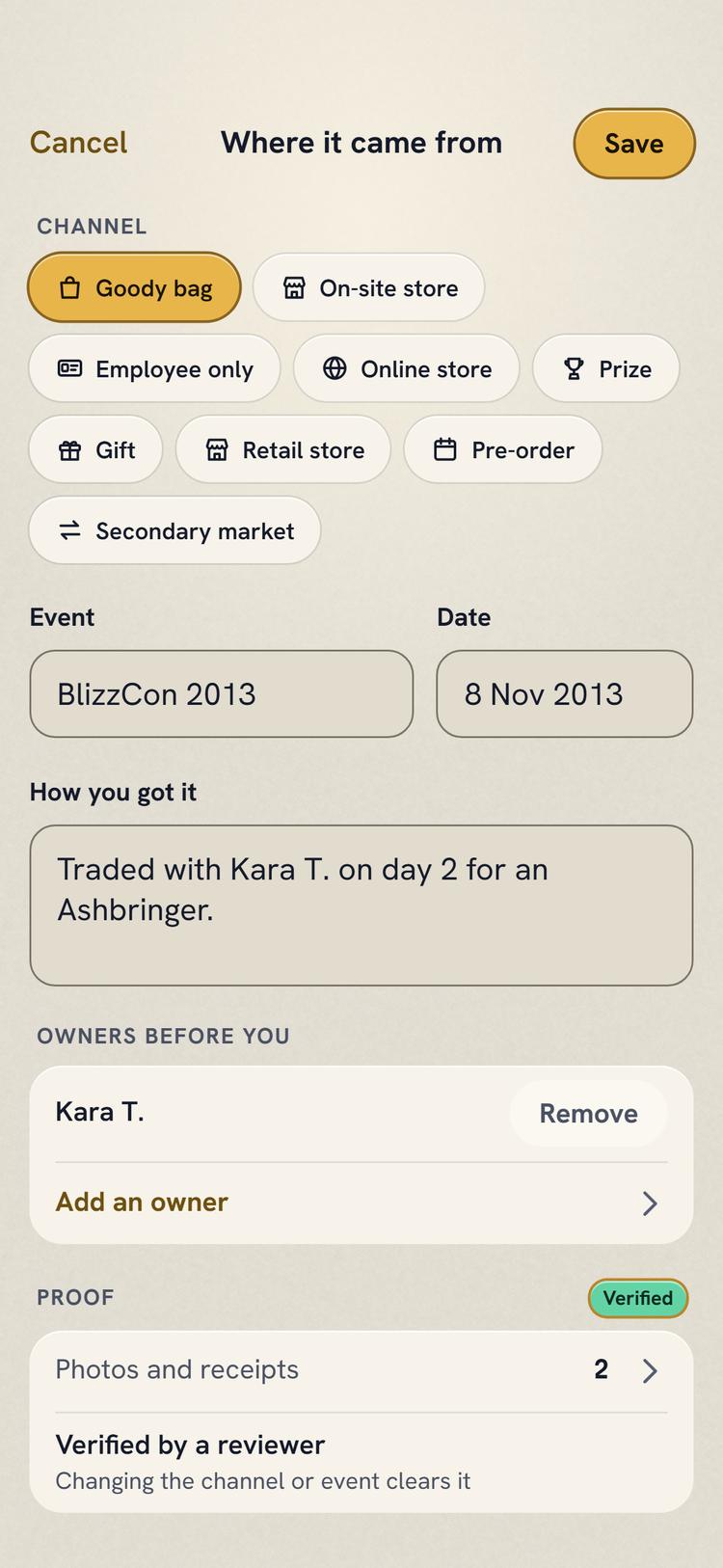
How do I record where it came from?
Back to ContentsOn the form tap Where from. For a piece you already have, open it and tap Edit beside “Where it came from”. Under “Channel” pick Goody bag, On-site store, Employee only, Online store, Prize, Gift, Retail store, Pre-order or Secondary market. Fill in Event, Date (write it like 8 Nov 2013, or Nov 2013) and How you got it. A small calendar button at the end of the Date box opens the phone’s own calendar: pick a day and tap Done (Clear empties the box, Today picks today). Use Add an owner for each owner before you. Tap Save.
Proof comes after the piece is saved. Open the same form and tap Photos and receipts to add a photo or a receipt. A proof is added as soon as you choose it; Cancel does not take it back. The form says: “A reviewer will see what you send, including any price on a receipt.” Then tap Ask for verification. A reviewer checks your proof, and the piece is marked Verified when they have. Changing the channel or the event later clears the mark.
What else can I record about a piece?
Back to ContentsAdd a piece and Edit details take a few more details, in the parts called What it is, What you paid and More.
- Bought on sits under Amount, in What you paid, on both forms. Type the day, such as 8 Nov 2013, or tap the small calendar button at the end of the box, pick the day and tap Done (no day after today can be chosen). It carries the lock Only you: it is private, like what you paid.
- Year sits under Origin, on both forms: the year a piece of your own came out, from 1900 to next year. Anything else gets the card “That isn’t a year”. It is left out for a piece linked to BlizzardItems or to a Pinny Arcade pin, which keep the catalog’s year. Members who can see the piece see its year in the line under its name, on your shelf and in Who has one, unless the origin already says it (BlizzCon 2013, in 2013).
- Note and Your tags are in More, on both forms, each with the lock Only you. A tag shows as a small chip with a remove mark. Type a new one in the box and add it with the keyboard’s Done, or the Add that shows once something is typed. A tag holds up to 30 characters and no slash, and “Murlocs” and “murlocs” are one tag. On the piece’s page the note has its own box, Your note, under Where it came from, and the tags are under it: each has a small x that takes it off, with Undo for five seconds, and a round + at the end of the row opens Add a tag.
- Rarity, Edition and Redeemed are on Edit details only, so the quick Add stays short. Open the piece, tap Edit, and look under More.
- Rarity is a row of chips. Tap one to pick it, and tap the lit one again to clear it.
- Edition has two boxes: the piece’s number (No.) and the size of the run (Run size), for a piece that is 3 of 500. The number can’t be above the run size, and where the catalog gives an edition size, neither can be above it.
- Redeemed is a switch under Trade stock. It says the piece’s code has been used.
Tap Save as usual. Edition numbers and whether a piece is Redeemed show with the piece to the people who can see it. Bought on, your note and your tags show to nobody else.
Curate › a piece
Back to ContentsTap a piece on your wall to open its page: its photos, its name and marks, what it is worth, the For trade and On display switches, its condition and where it came from, your note and your tags. Edit, Share and More are at the top right. A piece you typed in yourself can also be offered to the shared catalog, or linked to an entry in it.
How do I log what a piece is worth?
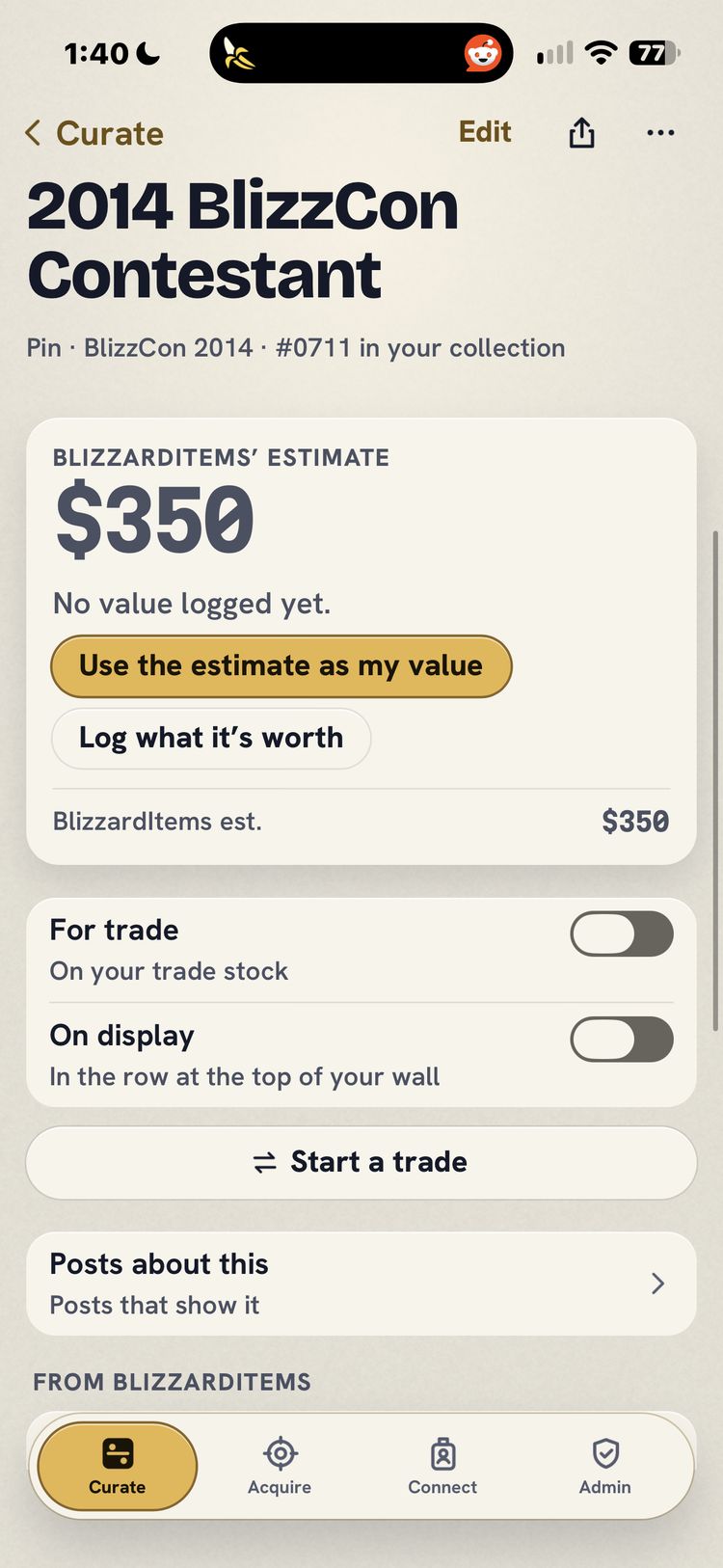
Back to ContentsOpen the piece and tap Log what it’s worth. Type the value today, for example $85, and why if you like. Tap Save. Undo shows for five seconds. Every value you log is kept. The What it’s worth card comes right after the piece’s name, so what it is worth, what you paid and Log what it’s worth show without scrolling. Under it, Value history lists every value you logged, newest first: the amount, the day and your note. The latest three show, then Show all (and Show fewer). A value you logged yourself has a Delete button. It asks “Delete $70 from 14 Aug 2026?”; Delete value takes it out for good, and what the piece is worth then follows the entry before it. A value made from what you paid, or from sold listings, has no Delete. Only you see values. Deleting needs a signal.
A piece from the catalog that has a BlizzardItems estimate shows Use the estimate as my value. One tap logs that estimate as your own value, dated today, with a toast and an Undo. It is yours and private like any value you log. It shows when the estimate is not already your latest value.
How do I add or remove a photo?
Back to ContentsOpen the piece. To add, tap the dashed Add thumbnail at the end of the row of photos, then tap Camera or Library. With Camera, take the shot, tap Next, then Save. With Library, choose up to four photos from your phone. Each one fills a shot the piece does not have yet, in the order Front, Back, Card, Box. Any more are kept as Other. Library photos are added straight away.
To remove, bring the photo up, tap More, Remove this photo, then Remove photo. Undo shows for five seconds. A photo that is held as proof has to come off under “Where it came from” first.
Backstamp keeps a small copy of each piece’s front photo for the wall, so the wall loads quickly. You never see or manage it. It goes when the photo does.
How do I edit, delete or share a piece?
Back to Contents- To edit, open the piece and tap Edit at the top right, or More (the round button beside Share) then Edit details. The form opens filled in. Change it and tap Save.
- To delete, tap More, Delete piece, then Delete piece again. Its photos, its values and its record go for good.
- To share, tap Share, the round button at the top right. The iPhone’s share sheet opens with the front photo and the name. It never carries a value, what you paid, or a receipt.
How do I let go of a piece?
Back to ContentsOpen the piece, tap More, then Let go. It is not offered for a piece you traded away in a swap, since that piece is already off your wall. A sheet opens with three choices, Sold, Gifted and Lost: tap one. The date is today; tap it to pick another day from the phone’s own calendar. The note box is optional and private. For Sold, a Sold for box is optional and private too. Type a plain number, such as 12.50; anything else says “Sold for needs a plain number, like 12.50.” Under them the sheet says: “Badges you already earned stay earned. Your counts and worth go down.” Tap Let go.
Letting go does what a swap does to the piece: it comes off trade stock and off On display, it leaves your posts, and a wishlist alert that stood on it stops being new. Its history stays. It stops counting toward your counts and your collection’s worth, and an offer already waiting from it is refused (“That piece has been let go. Put it back on your wall to offer it.”). An offer that is already with council keeps working. A gift is not a trade, so it counts toward no trade, vouch or trading achievement.
If the piece is on a trade that is proposed or agreed but not yet swapped, the sheet says: “This piece is on a trade with @kara. Call it off first.” Call the trade off, then let the piece go. A piece that is only marked For trade is simply unmarked.
How do I put a let-go piece back?
Back to ContentsOpen the piece. Where “Traded away” would show, its page reads “Sold · 3 Nov 2026” (or Gifted or Lost, with the day), Put back sits where Edit was, and More starts with Put back on my wall. Tap either. It is always allowed. It clears the reason, the day, the note and the Sold for, so the piece counts again. It stays off trade stock and On display, and out of posts, until you turn those on again.
Where are the pieces I let go?
Back to ContentsOn Curate, tap Filter and sort, then Show. At its foot is Let go, which opens a list of your let-go pieces, newest first, each with “Sold · 3 Nov 2026” (or Gifted or Lost) under its name. The list changes nothing on your wall, and the wall’s counts and layout stay as they are. With none yet it says “Nothing let go yet.”
What is trade stock?
Back to ContentsTrade stock is the pieces you would trade. On the form turn on the Trade stock switch, or open the piece and turn on its For trade switch (“On your trade stock”), under the card that says what it is worth. More offers the same choice, as Mark for trade or Not for trade. The piece is then marked Trade on your wall, in a filled violet mark. Your Trusted and Close contacts can see it and ask for it, and it can show on your lanyard card. On the form, a line under the switch says who sees it: “Trade stock shows to your contacts, your followers and anyone hunting for one, never with a price.” Under the For trade switch, Start a trade begins a trade with a contact you pick (how). With no contacts it stays live, with the line “Add a contact to trade with” under it; tap the button and a small menu offers Open Contacts. A piece you traded away shows neither the switch nor the button.
If the piece has no photo of your own, a card asks Add a photo of your own? and says that a photo of the piece itself shows people what you really have. Until you add one, they see the catalog’s picture. Tap Add a photo to add one now, or Not now. It asks, and never blocks: Not now still marks the piece for trade. It asks from a piece’s More menu (Mark for trade), from its For trade switch, and from the Trade stock switch on Add a piece and Edit details. Extras for trade, and a list brought over from BlizzardItems, do not ask.
On Curate, Filter and sort then Show narrows the wall to For trade, the pieces on trade stock; All puts the rest back. How do I narrow the wall? Pull the wall down to refresh it.
How do I add extras for trade?
Back to ContentsAn extra is one more piece of its own, on trade stock, so a trade moves exactly one of them. The extras of a piece take its name, kind, franchise, rarity, catalog entry and origin, and nothing that is that piece’s own: no photos, values, price paid, edition or record.
- From a piece you have: open it, tap More, then Add extras for trade. How many? opens with 1. Tap the plus or minus (up to 20 at a time), then Add 3 for trade. A note at the top says “3 added for trade”. This needs a signal.
- From the catalog: tap Add… beside the result, then I have extras to trade, and answer How many? the same way. A result you already have keeps its button for this. The result’s sheet has I have extras to trade under the other two buttons.
- To mark one piece: open it and turn on its For trade switch, or tap More, then Mark for trade. Turning the switch off, or Not for trade, takes it off trade stock. A note offers Undo for five seconds.
On Curate, pieces that are the same (the same catalog entry, or with none the same name and kind) and are both on trade stock, or both not, show as one card with ×3. The card is for the first of them; tap it to open that piece. Its page says “You have 3 of these for trade” (or “3 of these” when they are not for trade) and lists each by its item number; tap one to open it. Choose pieces on your lanyard card lists them the same way, one row with ×3, and picks one piece. The numbers under your wall’s title and in the menus of its pickers count pieces, not cards. A piece traded away leaves its card.
How does the iPhone cut out my own photo?
Back to ContentsOn an iPhone with iOS 17 or later, a piece with a photo of your own stands free at the top of your lanyard card, as catalog pieces with a cut-out picture do. When you pick it under Top of the card, the phone lifts the piece out of the photo, on the phone itself, and sends the see-through copy up, kept beside your photo. To cut one out again by hand, open the piece, tap More, then Cut out for my lanyard card; a toast says when it is done, and an alert says why when no piece was found in the photo. It needs a signal. Older iPhones keep the rounded photo. Taking the photo off the piece takes its cut-out with it.
What is a catalog picture?
Back to ContentsA catalog picture is the catalog’s picture of a piece, on a flat, dashed tile with no tag. You see it on your wall for a piece with no photo of your own, on a want, under Will trade and Looking for on your lanyard card, in the catalog, on Acquire and anywhere else the catalog’s picture shows. Each one shows the piece alone, cut out of its background, as the pieces across the top of the lanyard card do. A shop’s photo of a pin or patch on a white box, a wood table or a bag, and a picture that was already see-through, now look alike. A photo of your own takes its place on your piece. The iPhone cuts that out separately (how).
What is the shared catalog?
Back to ContentsThe shared catalog holds products that BlizzardItems does not. An entry has a name, a menu franchise, a series, a kind, a year, a maker or brand, an edition (such as SDCC exclusive) and one reference picture, on a dashed tile. It fills two ways:
- Members. Anyone can offer one of their pieces with Add this to the shared catalog (how). Council approves an entry before anyone else sees it.
- Shops. Once a week Backstamp reads the public product lists of Sideshow, Dragon Geeks, FabGear USA, HobbyLink Japan, and the SDCC and NYCC shops, and files each product it can place under a kind and a menu franchise. The Crunchyroll Store’s products come in from a file, because its site does not answer a plain request. Backstamp reads only what a shop shows the public. Blizzard pins, patches and vinyl figures are not copied, because BlizzardItems has them.
A shop’s price is the shop’s own, in the shop’s own money (“£45” from a UK shop stays £45). It is never converted, and it never counts toward what your collection is worth. Pictures are kept by Backstamp for reference, and your own photo replaces one.
How do I add my piece to the shared catalog?
Back to ContentsOpen one of your pieces and tap Add this to the shared catalog (“Offer it for every collector to find”). A piece from the BlizzardItems or Pinny Arcade catalog does not have the row, because those catalogs already have it.
The sheet asks for the Name, a Franchise from the menu (an entry is never filed under a name of your own, so pick a menu franchise even if your piece has one of yours), and, if you like, Series or line, Year, Maker or brand and Edition. The piece’s kind is shown. If the piece has a photo, Use my photo as the reference picture is a switch: on, members see your photo as the entry’s picture, and it comes off the catalog if you delete the piece. Tap Send to council.
The piece now shows Offered to the shared catalog, with “Waiting for council. It links here once they approve it.” and Withdraw. Withdraw asks first, takes the offer off council’s list and takes your photo with it. The piece stays yours. When council approves the entry, your piece is linked to it on its own and the row reads Linked to a catalog entry. While your photo is the entry’s picture, the piece’s page also has the row Your photo is on the entry (“It shows as the entry’s picture for everyone.”), with Take it off. It asks first: the entry stays, another picture of it takes your photo’s place, or none, and the photo stays on your piece. If council turns it down, the piece’s page says Not added to the shared catalog, with council’s note under it when they left one; your piece stays yours, unlinked, and you can offer it again. You can offer ten pieces in any 15 minutes. Offering and withdrawing need a signal.
How do I link a piece to a catalog entry?
Back to ContentsOpen a piece that is not linked and tap Link to a catalog entry (“Find it in BlizzardItems or the shared catalog”). A sheet opens with a search box filled in with the piece’s name, and the same results as the name box. Tap Link beside the right one. The sheet says: “Linked, this piece matches others of the same entry: Who has one, trades, and “has one” on your page.” See Who has one. A piece is never linked without your tap. A linked piece with no photo of its own shows the entry’s picture, on a dashed tile, on your wall and its page, as other members see it.
To undo it, tap More, then Unlink from the catalog entry. It asks first, and you can link again any time. Linking and unlinking need a signal.
What is on a catalog entry’s page?
Back to ContentsTap Linked to a catalog entry (or Offered to the shared catalog) on a piece to open its entry. The page has the entry’s picture with a line saying whose it is (“Picture from Sideshow. Your own photo replaces it.”), the entry’s name, its franchise and series, and its facts: Franchise, Series, Kind, Year, Maker and Edition, those it has. Under Listings is each shop that sells it, with “Shop price, seen 22 Oct” (and “Out of stock” when the shop says so), the shop’s price, and View, which opens the shop’s own page in your browser. The shop sees that visit as it would any other.
Who has one · 3 lists up to three members who have the piece for trade, with a Might be the same mark on a piece a member typed by hand that may be it. See all shows when one of your wants is this entry, and opens that want’s Who has one. At the foot, I have it opens Add a piece with the entry filled in, and I want it opens Add a want the same way. Each is dimmed once you already have a piece (or a want) that is this entry, and while the entry is still waiting for council. Under everything else is Report this entry, for every member but the one who offered it: pick a reason and tap Send report, and council looks at it as at any report. With no signal the page shows the entry as you last saw it.
What is “Is this yours?”
Back to ContentsWhen council adds a catalog entry that looks like a piece you typed in yourself, Backstamp asks whether they are the same. The piece’s page shows a card, Is this the catalog’s …?, with the entry’s picture and name: tap Link it to tie your piece to the entry, or Not this one to put the question away. Every waiting question is also listed under Pieces to link on the pull-down dashboard (the row shows only while one is waiting). Nothing is linked without your tap.
How do I suggest a shop?
Back to ContentsWhen the name box finds nothing, tap Suggest a shop, under Add it as your own (“Ask for a shop that sells it to be added”). It opens on Add a piece, Edit details and Add a want alike, and any time from Settings › About › Suggest a shop. The sheet says “Backstamp reads only what a shop shows the public. An admin looks at every suggestion.” Type the Shop name, the Shop address (such as shopname.com) and What they sell, then tap Send the suggestion. A note says “Suggestion sent”. If Backstamp already reads that shop, a card says Already on the list. You can send ten suggestions in any 15 minutes. An admin adds the shop from Admin (how).
Curate › Sets
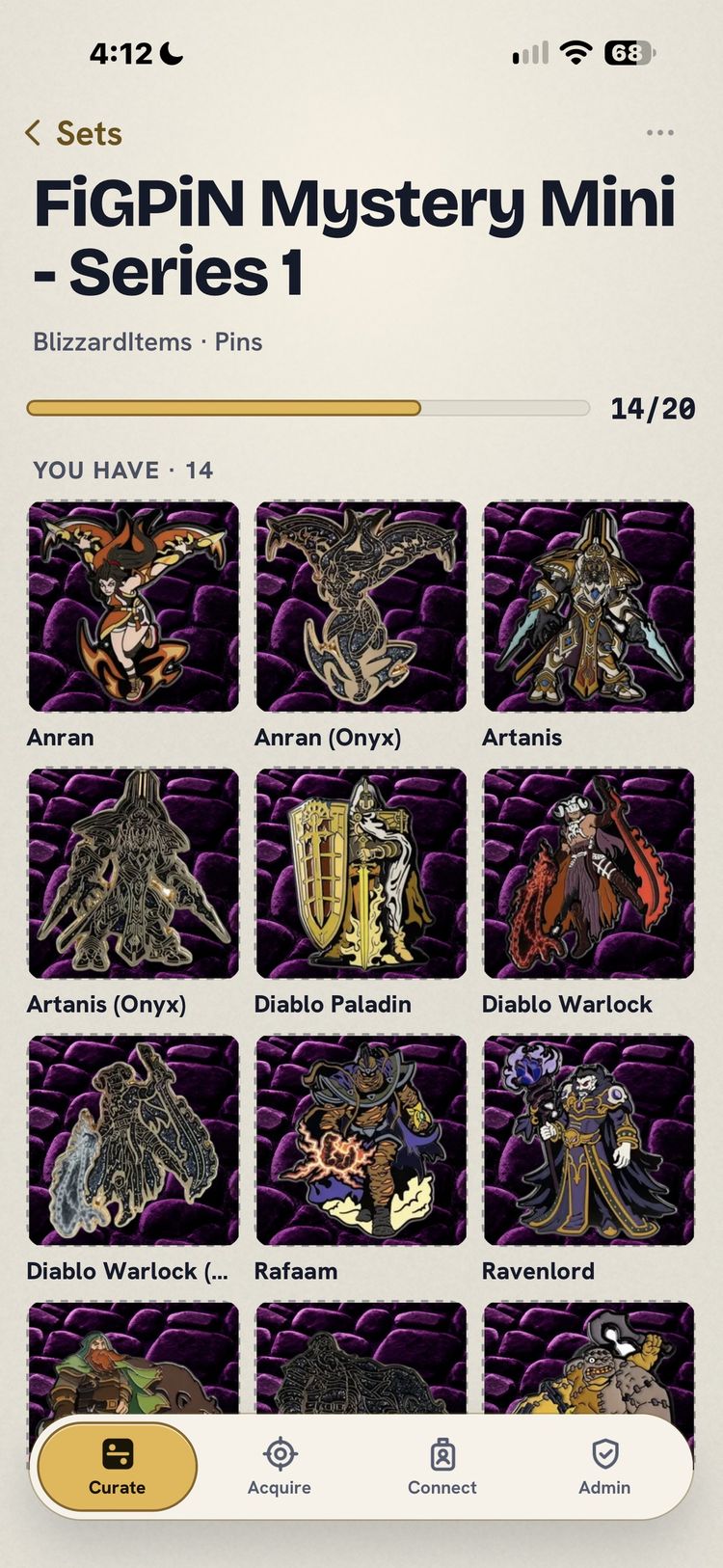
Back to ContentsSets is the first chip on Curate: the sets you made, and BlizzardItems’ and Pinny Arcade’s own series.
In a set, a piece you have shows your own photo of it. One with no photo of yours shows the catalog’s picture of it, flat, as it does on your wall, until you add your own.
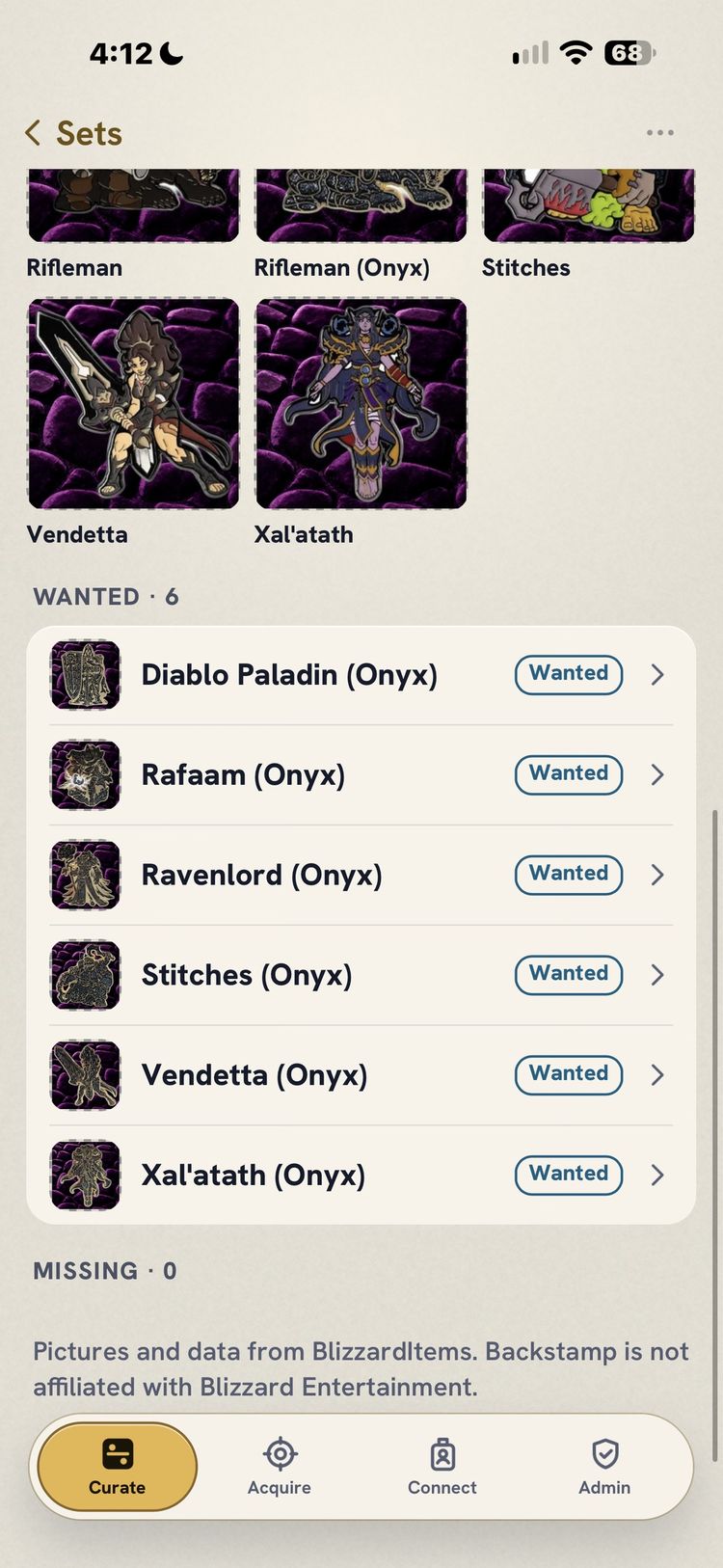
How do I make a set?
Back to ContentsOn Curate tap Sets, then the plus button (or Make a set when you have none). Type a name and tap Make a set. Open the set and tap Add a piece under its bar (a set with nothing in it says “Nothing in this set yet” and has the same button; More, then Add a piece, does it too). A sheet lists your pieces that are not in the set yet, with Search your pieces at the top. Tap a piece to put it in: the sheet stays open for the next one, counts “N added”, and Done puts it away. The bar counts how much of the set you have. More also has Rename and Delete set; deleting a set leaves your pieces and wants alone. A place whose piece you no longer have is listed under “Missing” with Want beside it, which puts it on your wishlist.
A set of your own can also hold a place for a piece you do not have yet. At the foot of “Missing”, tap Add a missing piece, type a name such as “Series 1 figure 4” and tap Add. The sheet stays open, emptied, for the next name; Done puts it away. Until a piece fills it, the place reads as Missing, with Want beside it. To fill a place you made by name, tap it and pick one of your pieces from the sheet that opens. To take a place out, swipe it left for a red Remove; it asks first, and your pieces and wants stay.
What are series sets?
Back to ContentsSets also lists BlizzardItems’ own series, beside the sets you made. Under a series set’s name is a quieter line, such as “BlizzardItems · Pins” (or Patches, or Cute But Deadly), and a bar of how much of it you have. A series set you have finished wears Complete.
Sort by, over the list, has two orders: Your sets first (your own, in the order you made them, then the series in BlizzardItems’ order) and Closest to complete.
Tap a series set to open it. You have · 4 shows the pieces you own, with your own photos. Wanted · 2 lists the pieces you are missing that are already on your wishlist, each marked Wanted. Missing · 6 lists the rest. Want beside a missing piece puts it on your wishlist in one tap. Tap a piece you don’t have to open its catalog page. A series set has no More menu: it is BlizzardItems’ own, so you cannot rename or delete it.
Curate › Achievements
Back to ContentsThe round Achievements button at the top of Curate opens your achievements. The shade’s Achievements row and Settings › Profile open them too.
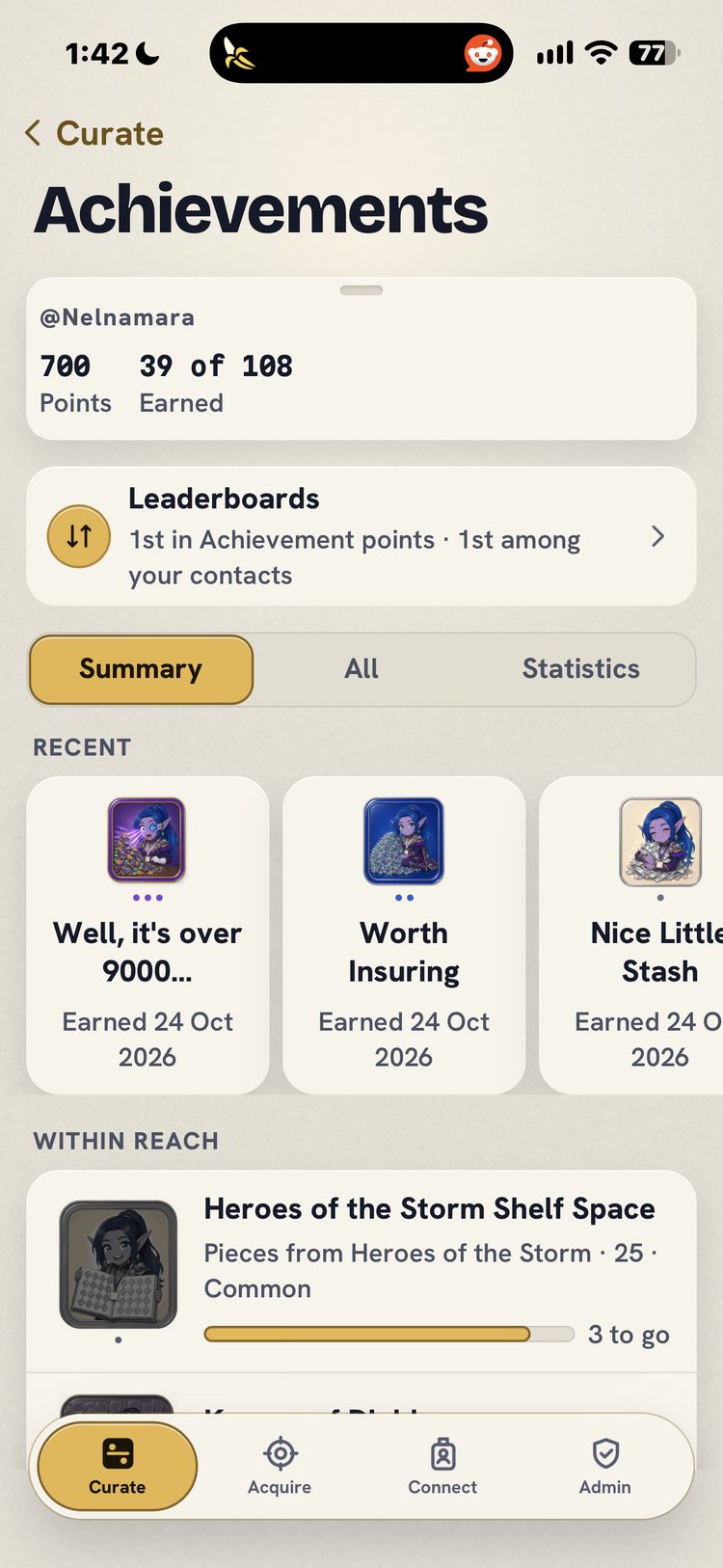
What are achievements?
Back to ContentsBackstamp gives out achievements for what you do: the cons you check in at, the trades you finish, the people you meet, the pieces you own, what your collection is worth, and more. Each has its own badge, a chibi Nel picture made for Backstamp. They have been live since 25 Oct 2026. What members had already earned was awarded then, and dated the day they earned it where Backstamp’s records show the day.
They sit in eight families: Cons, Trading, People, Community, Collection, Series, Worth and Feats. Most are ladders, such as Cons attended 1, 5, 10, 25 and 50. Pieces from one franchise is a ladder for each franchise you collect, and Con Season is earned once for each year: 6 cons, a trade at a con and 5 people met, all in that year. A year you did not complete shows on All as Ended, with how far you got toward each of the three, such as “4 of 6 cons · 0 of 1 trade at a con · 3 of 5 people met”. The year is the calendar year in UTC: it ends 31 Dec at midnight UTC, which is 4 p.m. Pacific, so a check-in late on New Year’s Eve in the US counts for the next year. A few feats are hidden: you see only a veil and a riddle until you earn one, and nobody else sees even that. Nothing you earn is taken away.
Backstamp’s server does the counting, from what you do in the app:
- A con counts when you have its ribbon, that is, when you checked in at the venue (what are ribbons?). A test con counts for nobody.
- A trade counts when both of you have confirmed it. The same piece traded back and forth counts once.
- People met are people you swapped or scanned codes with in person. Someone who only joined with your invite does not count.
- Worth is your whole collection’s total, in whole dollars, counted with estimates (see the worth notice).
- A franchise counts toward Pieces from one franchise and the Franchises count only when it is on the menu (how names work). A piece linked to a Pinny Arcade pin counts under Pinny Arcade, wherever you filed it. A name of your own still counts toward your pieces and your worth. When a name of yours joins the menu, the badges it reaches are awarded at once, dated back to when you added the pieces that reached them, and the moment plays the next time you open Backstamp. A badge you have already earned stays earned.
How do I open my achievements?
Back to ContentsThere are three ways in.
- From Curate: tap the round Achievements button at the top, beside the magnifier and the plus button. It shows your newest badge, or a cup before you have one.
- From Settings: tap the row with your name at the top (Profile), then Achievements, under your initials. It shows your points and how many you have earned.
- From the shade: pull the shade down and tap the Achievements row.
A “You earned” row on the shade opens the page too.
What is on the Achievements page?
Back to ContentsAt the top is a plate with your Points and how many you have Earned. Under it, the Leaderboards row says where you stand, such as “12th in Achievement points · 4th among your contacts”. Tap it to open the boards. Three views sit under that, Summary, All and Statistics. Pull the page down to ask again. With no signal it shows your last look, under a “No signal” banner.
- Summary has Recent (your latest five, newest first, each with its date), Within reach (up to three that you are closest to, each with a bar and how far, such as “3 to go” or “$720 to go”) and By family (each family with how many of it you have earned, and its points). Tap a family to open All at it.
- All has a panel for each family, headed with its name and how many of it you have. Two small chips, Wall and List, choose how it is drawn, and the phone keeps your choice.
- On Wall, badges stand three across (four on an iPad, two at the largest text sizes) with the name under each. An earned badge shows its picture. A badge you have not earned is the same picture greyed and dimmed. A hidden feat you have not earned shows a veil and “Hidden feat”. Tap an earned badge to play its moment again. A replay is headed with its tier, such as Epic achievement, dims the page behind it, and a tap anywhere closes it. Tap one you have not earned for a card with its name, what it takes (such as “Cons attended · 5”), its tier and points, and how far along you are. Tap OK to close it. A veil’s card shows its riddle.
- On List, each achievement is a row with its name, its tier and points, and “Earned 12 Sep 2026” or how far you have to go. A hidden feat shows only its riddle until you earn it, then a line that says how you earned it. An earned worth achievement says “with estimates”.
- Statistics has Your numbers (Cons attended, Trades completed, People met, Posts, Pieces on your wall and Franchises), Pieces by franchise, and Collection worth: one total with the words “with estimates”.
Achievements are checked as you act: a trade finished, a ribbon, a code swapped. Your Statistics are counted each time you open the page. The boards are worked out again about once an hour, so a board can run a little behind. On Summary and All, a line at the foot says: “Anyone who can open your page sees what you’ve earned. Hidden feats show once earned.”
What happens when I earn one?
Back to ContentsA card drops in at the top of the screen, where alerts appear. It shows the badge, its name, what it took (such as “Cons attended · 5”), its tier and points, and the date. A hidden feat’s veil lifts as its badge lands.
- It plays when you open Backstamp, when you come back to it, and when you open the Achievements page, for anything you earned and have not seen. It stays about 8 seconds, or until you tap it or swipe it up. The screen under it keeps working (a replay is the exception).
- Several in a row come one after another, with a count such as “2 of 9” and Skip. Skip puts the rest away. When more than three land at once, each shows for a moment and then settles into a short line of cards under the front one, with “×N earned” beside Skip.
- A card waits while a sheet, New post or the worth notice is up.
- To see one again, tap its badge on All.
- Each one also puts a “You earned” row on the shade. An achievement is never sent as an alert, and there is no switch for it.
How do I share an achievement to Main Stage?
Back to ContentsOn the card, tap Share to Main Stage. New post opens with the achievement’s card as its picture, the words “Earned Badge Drawer on Backstamp.” (change them if you like), as a Show-off, for the audience you used last. Nothing is sent until you tap Post. Once it is shared, the button on that card reads View post.
The card shows the badge, the achievement’s name, its tier and points, the date and your @handle, in your current theme. A worth achievement shows its name and “with estimates”, never an amount, and can be shared only once you have answered the worth notice (until then Backstamp says “Look at the worth notice first.”). An achievement can be shared once: “You’ve already shared this one.” Delete the post to share it again. To share an older one, tap its badge on All, and then Share to Main Stage.
What are points and tiers?
Back to ContentsEvery achievement has a tier, and a tier is worth points: Common 10, Rare 25, Epic 50 and Legendary 100. Hidden feats and metas, such as Con Season, carry no points. Your points are the sum of what you have earned. They show on the plate, on the Achievements rows of the shade and of Profile, and on the Achievement points board.
How do I see another member’s achievements?
Back to ContentsOpen their page. Under the buttons is a strip with their points and how many they have earned (“Achievement points · 12 earned”), and their latest four badges, or “No achievements yet”. It is on the page of someone who is not a contact yet too. Tap it to open their Achievements.
Under their points, a Leaderboards row says where they stand in Achievement points, such as “12th in Achievement points”, and where they stand among your contacts when they are one of them. It shows for no one who has left the leaderboards or has no points yet. Tap it to open the boards.
It has the same three views, with what they have earned and nothing else: no Within reach, no “N to go”, no badge they have not earned, and no hidden feat before it is earned. The Wall or List choice you made applies there. Their Collection worth shows under Statistics only once they have seen the worth notice. Their Posts counts only the posts you may see. Nothing of it is kept on your phone, so it needs a signal. A block hides the two of you from each other here, as it does everywhere.
What are the boards?
Back to ContentsSix boards rank members: Pieces owned, Worth, Cons this year, Trades, People met and Achievement points. Open them from the Leaderboards row on your Achievements page, or on another member’s. They are Backstamp’s own, not the BlizzardItems leaderboards (see your standing there).
- At the top of the list, Everyone and My contacts choose who is ranked. My contacts is you and the people in your Contacts.
- Each board shows your place and your figure, such as “41st of 1,204 · 128 pieces”. It says “Not placed yet” while your figure is 0, and “No one yet” when nobody is on it.
- Tap a board for its top 50: place, name and figure. Your own row is marked “You”. When you are further down, your place is pinned under the list. Tap someone else’s row to open their page. Members with equal figures share a place.
- Pieces owned counts every piece on a wall, and has a Franchise picker once there is more than one franchise to pick from. Worth is the one total, “with estimates”, rounded for other members as your page shows it (what they see). Cons this year counts cons checked in at the venue this year, and is named for the year: Cons in 2026, for instance. Trades are finished ones, confirmed by both. People met are codes swapped in person.
- Only members with a figure above 0 are listed, and Worth lists only members who have seen the worth notice. A member who has left the boards, or whose account is being deleted, is not listed. Neither is anyone a block hides from you, and your places are counted without them.
- The figures are worked out again about once an hour, so a board can be a little behind. With no signal a board shows its last look.
How do I leave the leaderboards, or come back?
Back to ContentsIn Settings, tap Privacy. Under Leaderboards, turn on Leave the leaderboards. The line under it says: “Takes you off every board. Your page and your achievements, worth milestones included, still show.” You come off every board the next time anyone opens one. Everyone starts on the boards, so the switch starts off.
To come back, turn it off, or tap Join the boards on the list of boards or on a board. While you are off, that page says “You’re not on the boards. You left them in Settings › Privacy. Your page and your achievements still show.” and the list says “Top 50” in place of your place. Leaving takes you off the lists and nothing else. It does not hide your achievements or your collection’s total from your page.
What is the worth notice?
Back to ContentsA card shown once, over Curate, before your collection’s worth first shows to other members. Its title is “Your collection’s worth now shows”. It says that what a collection is worth now shows on your page and on the Worth board, at a con like anywhere else, and that what you paid, each piece’s own value and your wishlist ceilings stay private. Under that is how others will see you: your name with “Collection worth” and your total, “with estimates”. It has two buttons:
- Carry on keeps you on the boards.
- Leave the leaderboards takes you off them (how to come back). Your total still shows on your page.
A tap outside the card does nothing; answer with one of the two buttons. If the answer cannot be sent, a toast says so and the card stays. Until you have answered it, nobody else sees your total, your worth achievements or your place on the Worth board, and the points others see for you leave out the points of the worth achievements. Your own total is always yours to see.
Acquire
Back to ContentsAcquire is the second tab: your wishlist, the pieces you are hunting, how badly, and the alerts that tell you when one turns up. Under the title, the On the hunt band says how many of your wants are with people going to your next con, such as “3 of your wants are with people going to BlizzCon 2026”. With no next con, it says how many of your wants a contact has one to trade for, “No contact has one to trade yet”, or “Everything on your list is paused”. The title line counts your wants. Then come the chips All, Grail, Want and Filler, the pickers, and your wants.
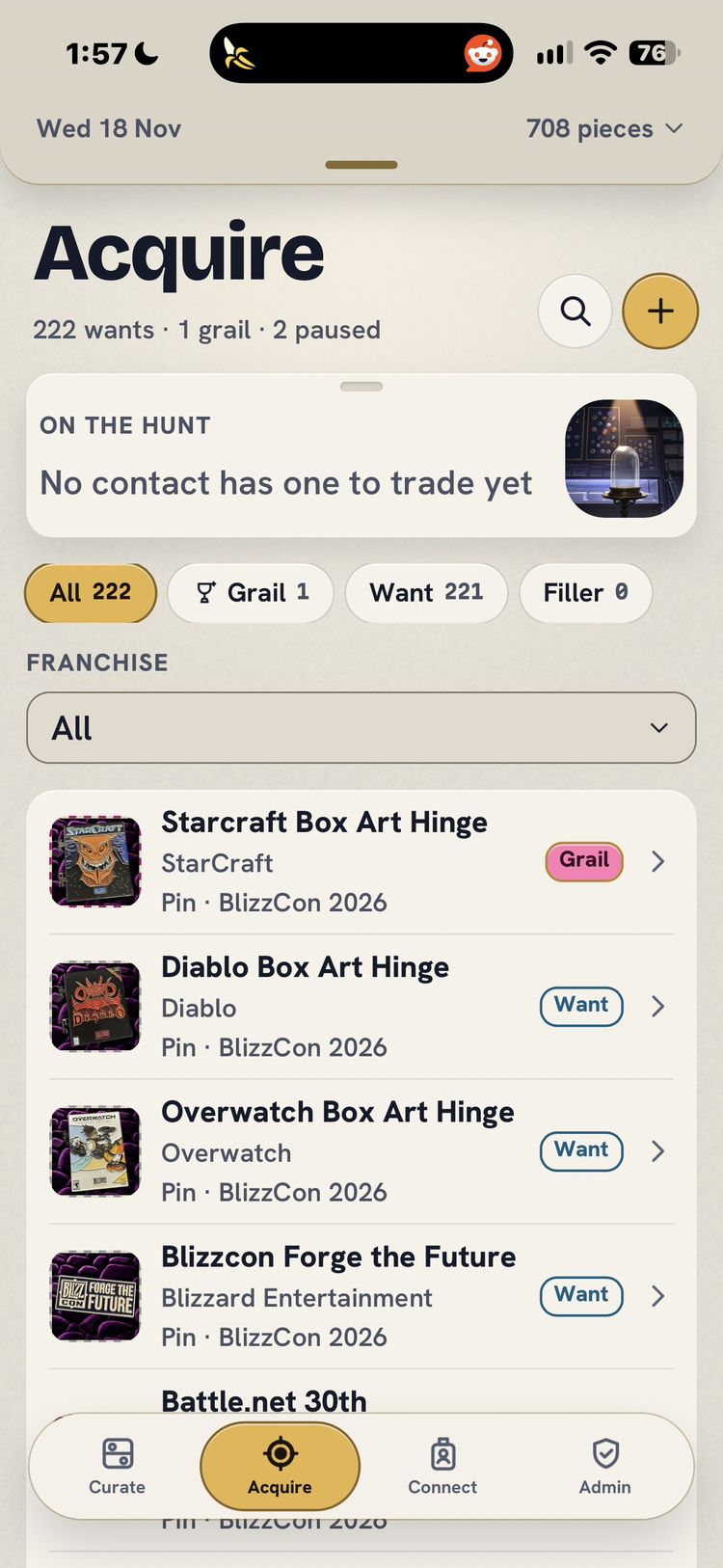
How do I add a want?
Back to Contents- On Acquire tap Search the catalog. It is on the empty list, and also under every search of your wants once you have typed something, as Search the catalog for “…” with your words in it, where it looks for those same words. The catalog opens, on BlizzardItems or on Pinny Arcade (how to switch).
- Search for the piece and tap I want it beside it. (Anywhere else the button reads Add… and opens a small menu.)
- The “Add a want” sheet opens. Set Priority, Ceiling and At least if you like, then tap Add to wishlist.
A want starts from the catalog, from Want on a missing place in a set, or from the plus button, whose Add a want form takes anything, whether the catalogs hold it or not (see below). The first time you save a want, if the phone has not been asked about notifications yet, Backstamp asks first: “Tell me when a want turns up?” Tap Yes, tell me and the phone asks to allow notifications; tap Not now and Backstamp does not ask again (more).
The sheet has no box for a version of a piece, such as “LE 500, gold back”: a version is its own listing in the catalog, so search for the version you want and add that listing.
How do I search or narrow my wants?
Back to ContentsOn Acquire, tap the magnifier. A row that says Search your wants opens under the title, with the keyboard up. Type what you are looking for. Every word you type must be found in a want’s name, kind, origin, franchise or series. Capitals do not matter, and paused wants are searched too, whatever chip or picker is on. The list narrows as you type, and a quiet line under the row says how many match, such as “2 wants”. The first line under the search row is Search the catalog, there from the moment the search opens; once you type, it reads Search the catalog for “…”, with your words, and a tap looks for them in the catalog. If none match, the list says Nothing on your list matches, and the same button stands under it. To close the search, tap the close button at the end of the row.
Under the chips All, Grail, Want and Filler are three pickers, Kind, Category and Franchise, drawn like Curate’s. Tap one and the phone’s own menu opens with its choices and how many wants each leaves. A picker with only one choice is left out, and Category shows only when your wants are in more than one category. A picker that is narrowing the list is lit. On an iPad held sideways they stand in the sidebar.
Each want’s row has its franchise on a line of its own. A want linked to a shared catalog entry shows that entry’s picture on a dashed tile. When a contact has a piece for trade that fits, a line of its own under the want shows the swap icon and, in bold green words, “Kara T. has one to trade”. The ceiling under it is small and quiet, with the lock Only you.
What do Grail, Want, Filler and the ceiling mean?
Back to ContentsPriority says how badly you want it: Grail for the top of your list, Want for the ordinary ones, Filler for nice to have. The chips on Acquire show one priority at a time, and grails are marked on your lanyard card. The sheet says the same in a quiet line under Priority: “Grail: top of your list. Want: on the hunt. Filler: nice to have.”
Ceiling is the most you would pay. It carries a lock: only you ever see it. Type a number; 1,200 reads as twelve hundred. Leave it empty for none. A line under the box says “The most you’d pay. Only you see it.” At least is the worst condition you would take: Any, Good, Near mint or Mint. Under it, a Needs a certificate row asks that a piece carry a certificate. Rows say “Certificate” where a piece has one, and never show the certificate’s picture. A piece on trade stock never has a price, so the ceiling changes nothing there. It holds back one alert: a want linked to a BlizzPins product is not told the product is in stock while the shop’s price is above the ceiling (see BlizzPins). At least does change two things: which pieces count for Someone lists one to trade, and which pieces Who has one lists. A piece nobody has graded does not meet anything above Any.
What do the Tell me when switches do?
Back to Contents- Someone lists one to trade tells you when any member marks a matching piece for trade. A match is on the piece’s name and variant, and it has to meet the At least you set. A want that asks for a certificate is told only of a piece with a certificate among its proofs. You are told once for each piece. The alert does not name them. Who has one does, and so can the want’s row on Acquire, as in “Kara T. has one to trade”.
- Someone here has one (at a con) tells you, while you are checked in at a con, when a contact checked in at the same con has one that you are allowed to see and that meets your At least. People who are not your contacts never count.
- It’s added to the catalog again tells you when a piece that had left the BlizzardItems catalog comes back.
A new want starts with the first two on. The same want and the same piece alert you at most once in 7 days. A piece that came in with an import sets off the first two only once the import’s 24-hour Undo window has closed (what is that?).
How do I change or remove a want?
Back to ContentsTap the want on Acquire. The same sheet opens, filled in. Change it and tap Save. To remove it, tap Remove at the foot of the sheet, then Remove. Or swipe the want’s row left for a red Remove; it asks first.
How do I pause a want?
Back to ContentsTap the want on Acquire, then Pause at the foot of the sheet. A paused want stays on your list, in its own group called Paused under the others, in quieter type with the word “Paused”. While it is paused it gets no alerts of any kind, it is left off your lanyard card, and it is not counted in the totals under the title (the line there says how many are paused). Tap it and Resume to switch it all back on.
How do I say I got something I want?
Back to ContentsTap the want on Acquire, then I got it, under Save. Add a piece opens at its details, with the name, origin, kind, franchise and series filled in from the want, as the catalog’s I have it fills them in. Tap Save, and add photos afterwards as for any piece. I got it is there only on a want that is already on your list.
How do I want something that is not in the catalog?
Back to Contents- On Acquire, tap the plus button, or Add a want under the list. Or search the catalog for it: when nothing is found, tap Add it as a want and what you searched for becomes its name.
- The form asks for the same details as Add a piece, in the same order: Category, Franchise, Series / line and Kind (how), then a name box that searches for you (how). Tap Use beside a result to want that piece, or Add it as your own to keep what you typed. Add a Ceiling and the rest if you like.
- Tap Add to wishlist.
A want you typed in, with no BlizzardItems piece behind it, is marked Not in the catalog on Acquire. It shows on your lanyard card like any other, and Someone lists one to trade still works for it: any member who marks a piece of the same name for trade can set it off. It never gets the catalog alert, so its sheet has only two of the three Tell me when switches. You can change its name, kind, category, franchise and series later from the same sheet.
How do I send a missing piece to BlizzardItems?
Back to ContentsOn Acquire, open a want marked Not in the catalog and tap Send to BlizzardItems. Its sheet says what will go: the name, the kind and, when there is one, the DB ID. It also says that you finish the message and send it on BlizzardItems’ own page, and that you add a photo there. Tap Copy and open BlizzardItems. Backstamp copies a ready message to your clipboard and opens BlizzardItems’ contact page in the app’s own browser, with the name and kind filled in. Paste the message there, add your name, your email and a photo, and send it yourself. Backstamp sends nothing to BlizzardItems, and never sees the message.
Afterwards the want says “Sent to BlizzardItems on 22 Nov 2026”, and the button is not shown again. That day is the only thing Backstamp keeps. Any member can use it, except a suspended one, who does not see it.
What is Something looks wrong here?
Back to ContentsA short list of catalog items is known to be wrong on BlizzardItems: some have a year that conflicts with the rest of the entry, some a picture that is not the piece, and some a rarity marked Unknown. Such an item’s sheet in the catalog has Something looks wrong here under View on BlizzardItems. Tap it and the sheet described in How do I send a missing piece to BlizzardItems? opens, with the item’s name and DB ID, and what looks wrong written in. Copy, open and send on BlizzardItems’ own page, as there. Nothing is marked on the item afterwards, and a suspended member does not see the action.
Connect › Main Stage
Back to ContentsTap a want on Acquire. Under the Tell me when switches, over Find it at BlizzPins, is a button, Who has one · 4, with the number of pieces that other members have marked for trade and that fit your want. When that number is not known it reads Who has one. Tap it.
The page is titled Who has one, with the want’s name over it and a line such as “4 for trade · Pin · BlizzCon 2019 · Good or better”.
- This piece · 3 lists pieces that fit both the name and the variant. Other variants · 1 lists the same piece in another variant.
- Every piece meets the At least you set on the want, and the certificate if the want asks for one. A piece nobody has graded does not meet an At least above Any; it is in Close instead.
- Close · 2 lists the near misses: the same piece in a condition under your At least, one nobody has graded yet, or one with no certificate on a want that needs one. Each row has one line that says why, such as “Graded Worn. You asked for Good or better.” Close shows only when there are near misses, is not counted in the number on the button, and never sends an alert. When nothing fits fully, the button on the want reads Who has one · 2 close.
- Each row has a picture (their own photo, or the catalog’s picture on a dashed tile), the piece’s name, a line about it with its year and condition, and who has it: their name and @handle. Someone you have added as a contact is marked Contact. A green dot on their picture means they are checked in at the same con as you, and have let you see that. People at the same con come first within each list, then your contacts. Tap the person to open their page.
- Message opens a conversation with them. Propose a trade starts a trade with that piece already picked, and it works for anyone’s piece.
- Might be the same · 2 is a third list, under the others. It holds pieces that members typed by hand, with no catalog entry, in the same franchise on the menu as your want and with a similar name. Each row carries a Might be the same mark. It is a guess, so look at the picture and the words before you propose a trade.
A want that is linked to a shared catalog entry (what is that?) also matches every piece that members have linked to the same entry.
The foot says: “Pieces marked for trade, as each member lets you see them. Nothing here carries a price.” The BlizzardItems credit line shows under it when a catalog picture is on the page. Anyone you blocked, or who blocked you, is not listed. With no signal the page shows the matches from your last look.
When nobody has one, the page says “Nobody here has this yet” and offers Tell me when someone here has one. It is the same switch as Someone lists one to trade on the want’s sheet.
How do I find a want at BlizzPins?
Back to ContentsBlizzPins is a shop with its own list of Blizzard pins (see What is BlizzPins?). To be told when a want is in stock there, open the want on Acquire and tap Find it at BlizzPins. Backstamp lists the products that look like your want, by name and year, at most ten. Tap the right one; each says In stock or Sold out. If the shop lists the product in colours as choices of their own, Which colour? asks for the colour too. Then tap Link it. You confirm once, and Backstamp never guesses. If no product looks like your want, the sheet says so and Search BlizzPins opens the shop’s own search in your browser. A want links to one BlizzPins product, because each colour or version is its own listing.
Once linked, an At BlizzPins group on the want shows In stock at BlizzPins or “Sold out at BlizzPins right now. You’ll be told when it’s back in stock.”, the shop’s Asking price (only you see it), and View at BlizzPins, which opens the product’s page in your browser. The shade row that tells you it is in stock takes you to the shop’s page too. There is no Buy button, and Backstamp sells nothing. When the product comes into stock you get a Wishlist alert, under Wishlist alerts, once each time it comes back, not every day it stays in stock. A paused want gets no alert. With a Ceiling on the want, a product priced above it counts as not in stock for that want, so no alert comes until the price is at or under it; a want with no ceiling, or a product with no price, is told at any price. On the want, a product that is in stock but over its ceiling reads “In stock, but over your ceiling. You’ll be told when it comes down.” If the shop stops listing the product, the group says “BlizzPins no longer lists this one.” and there is no View at BlizzPins. Unlink takes the link off. Finding, linking and unlinking need a signal.
How do I look for a want on eBay or Mercari?
Back to ContentsOn a want’s page, on a catalog item’s sheet, and on the page of a piece of yours that came from a catalog, Look on eBay and Look on Mercari open that site’s own search for the piece’s name in your browser. Backstamp has no account with either site and reads nothing from them, so it cannot tell you what is listed or for how much: it only takes you to the search. Those sites see your visit as they would any other. Automatic watching for listings is not built (see Not here yet).
Acquire › the catalog
Back to ContentsSearch the catalog, on Acquire, opens Backstamp’s own copy of two catalogs, with a switch at the top: BlizzardItems | Pinny Arcade.
BlizzardItems is a catalog of Blizzard collectibles. Backstamp carries its own copy of the catalog: names, reference pictures and both of the site’s public prices.
Pinny Arcade is the programme of exclusive pins sold at PAX shows. Backstamp keeps its own copy of PinnyPals’ public list of every Pinny Arcade pin, from 2013 to today: each pin’s name and picture, its show and year, its edition size or blind-box odds, its set, and its page on Pinny Arcade’s own PINdex. Where PinnyDB lists the same pin, it adds the release date, the original price and notes. Backstamp reads both once a week, so a new PAX’s pins arrive within the week.
In both, a picture shows the piece alone, cut out of its background, on a dashed tile (more).
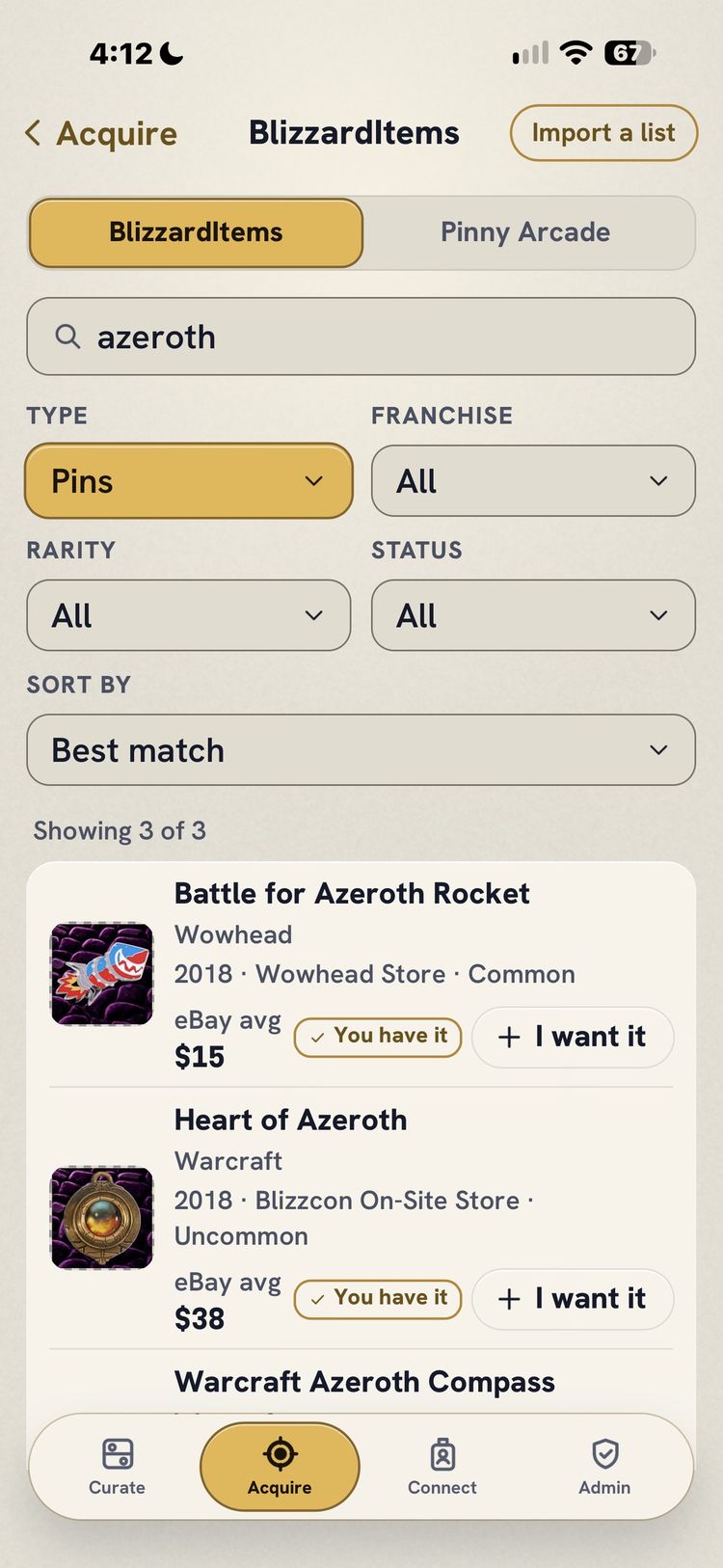
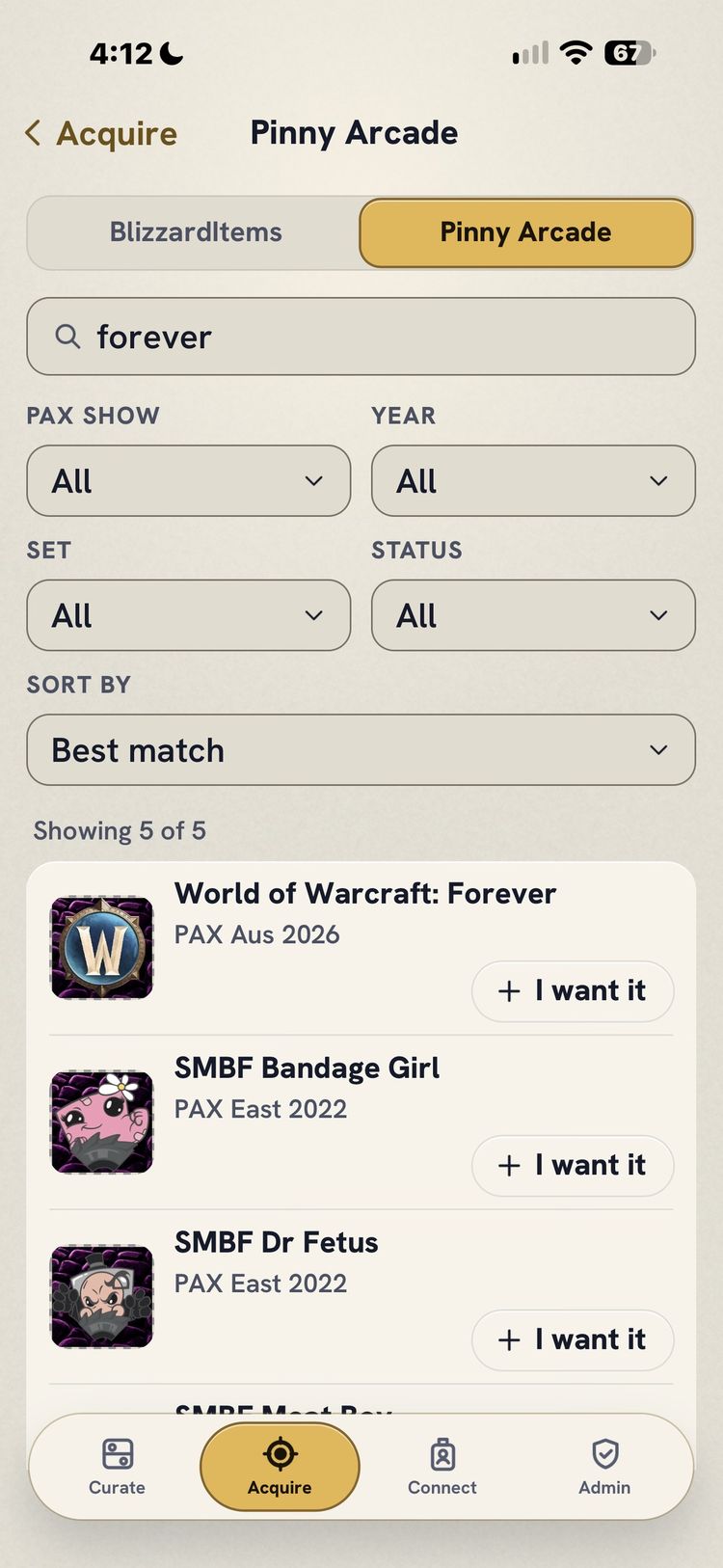
How do I search the catalog?
Back to ContentsOn Acquire, tap the magnifier, then Search the catalog, the first line under the search row (on an empty list it is the list’s own button). If you had typed words, the catalog looks for them; otherwise type a name. Each result shows its picture, its franchise and series, its year, source and rarity, and the two prices: eBay avg and BlizzardItems est. A result says You have it or Wanted (a blue outline) when it is already on your wall or your wishlist.
Over the search field a switch, BlizzardItems | Pinny Arcade, picks the catalog (Pinny Arcade); this section is about BlizzardItems. Under the search field is a bar of five pickers, as on blizzarditems.com. Each has its name above it and the choice it has made in the box under that. Tap one and the phone’s own menu opens with its choices. They stand two to a row, or one to a row at the largest text sizes. A picker that is narrowing the list, or has changed the order, is lit.
- Type: All, Pins, Patches, Funko or Cute But Deadly, each with its count. The catalog opens on Pins. All makes the search look in all four.
- Franchise and Rarity list All and then the choices of the section Type is set to, or of every section together when Type is All. Rarity waits, dimmed, where nothing is graded: the site grades pins alone.
- Status is All, Owned, Missing or Wanted.
- Sort by is Newest first, Oldest first, A–Z or Z–A, and Best match when you have typed something.
The line above the results says how many there are, such as “Showing 40 of 814”. Tap Load more for the rest, or scroll to the foot of the list. Import a list is a small outlined chip in the top bar, at the right, while you search BlizzardItems.
If nothing matches, the screen says so, and Add it yourself opens Add a piece so you can add it from your own photo and details, and Add it as a want opens the form for a want that is not in the catalog.
Tap a result to open its sheet. View on BlizzardItems, the last row of the facts, opens that item on blizzarditems.com in your browser. A piece from the catalog has the same row under From BlizzardItems on its page. The foot of the list and of each sheet says: “Pictures and data from BlizzardItems. Backstamp is not affiliated with Blizzard Entertainment.” A piece’s page says it under a catalog picture too. The sheet also has Look on eBay and Look on Mercari (see How do I look for a want on eBay or Mercari?) and Posts about this.
How do I say I have it or I want it?
Back to Contents- From a result: tap the button beside it. On Acquire’s catalog it reads I want it, and opens the “Add a want” sheet at once. Anywhere else it reads Add…, and a small menu asks I have it, I have extras to trade or I want it, and the one the screen you came from suggests is listed first. I have it opens the Add a piece form with the details filled in from the catalog, and the piece is saved as that catalog entry. When you save it, you go back to the catalog, ready for the next, so that form has no Save and add another. The catalog then reads “You have it” for it. I have extras to trade asks How many? and makes that many pieces on trade stock (see extras for trade). I want it opens the “Add a want” sheet on that entry. An item you have is not offered I have it again, and one you want is not offered I want it again.
- From the result’s sheet: tap the result, then I have it, I want it or I have extras to trade in the sheet.
- You can also add the piece on Curate, type its name, and tap Use beside the catalog’s result in the name box.
How do I see the Pinny Arcade catalog?
Back to ContentsOpen the catalog (on Acquire, Search the catalog). At the top is BlizzardItems | Pinny Arcade: tap Pinny Arcade. The catalog opens on the one you have more pieces from, and on BlizzardItems while you have none. Each card shows the pin’s picture on a dashed tile, and a line with its show and year, then its edition size or its blind-box odds: “PAX West 2019 · LE 1,700”, “PAX Prime 2015 · 1 in 8”. No Pinny pin shows a price. The foot says “Pin data from PinnyPals · pin art © Penny Arcade”.
The pickers are PAX show (PAX West, PAX East, PAX Aus, PAX Unplugged, PAX South, and Other for a pin with no show), Year, Set, Status (All, Owned, Missing, Wanted) and Sort by (Newest first, Oldest first, A–Z, Z–A). Typing looks in the pins’ names, their shows and their sets, and a year finds that year’s pins.
What is on a Pinny pin’s sheet?
Back to ContentsTap a pin. Its sheet has the picture, then Show, Year, Set, Edition or Blind box, and where PinnyDB lists it Released, Original price and How it was sold, with PinnyDB’s notes under them. The original price is what it sold for at the show, never what it is worth. A row with nothing in it is left out. View on the PINdex opens the pin on Pinny Arcade’s site in your browser. A pin PinnyPals no longer lists says “No longer listed on PinnyPals”, and your piece of it stays as it is. The foot says “Pin data from PinnyPals · pin art © Penny Arcade”, and “Release details from PinnyDB” where those show. The sheet also has Posts about this, Look on eBay and Look on Mercari.
How do I say I have a Pinny pin or want one?
Back to ContentsOn its sheet: I have it opens Add a piece filled in from the pin (its name, Pinny Arcade, Pin, its show and year) and saves the piece as that pin. I want it puts it on your wants in one tap. I have extras to trade asks How many? and makes that many pieces on trade stock.
Or from Add a piece: pick Pinny Arcade (under Video Games) and Pin, type part of the pin’s name and pick it from the rows labelled Pinny Arcade. With no franchise picked, Pinny’s rows show beside BlizzardItems’ and the shared catalog’s once you have a Pinny piece or want. A Pinny pin of a Blizzard game is still a Pinny pin: it files under Pinny Arcade.
Where else do Pinny pins show?
Back to Contents- Your wall: a Pinny piece with no photo of its own shows its pin’s catalog picture, under the heading Pinny Arcade, and its page has From Pinny Arcade with the pin’s rows.
- Show: Missing on your wall has the same switch: Pinny Arcade lists the pins you do not have, with a count such as “Missing 1,820 of 1,823”.
- Sets, once you have a Pinny piece or want: every PAX show under PAX shows and every set under Pinny Arcade sets, each with how many of its pins you have. A pin counts once, and having all of a set’s pins is having the set.
- Since you last looked, once you have a Pinny piece or want: “12 new Pinny pins” after a PAX adds pins. The first copy of the catalog was never news.
- A want of a Pinny pin can tell you when the pin is back in the catalog, as a BlizzardItems want does.
- Other members see your Pinny piece’s catalog picture on your shelf, your lanyard and in trades, with the Pinny credit.
- Pinny Arcade’s franchise badges count your Pinny pins as any franchise’s badges count its pieces.
Can I bring my PinnyPals list over?
Back to ContentsNot yet: it is on the roadmap. Nothing reads your lists on PinnyPals.
What is BlizzPins?
Back to ContentsBlizzPins (blizzpins.store) is a shop that sells Blizzard pins from every region, where BlizzardItems lists the official North American ones. Backstamp keeps its own copy of the shop’s public product list, read once a day: each product’s name, game, type, year, region and colour, a picture, the asking price, and whether it is available. Its pictures show from Backstamp’s own copy, and wherever they show the screen says “Pictures and data from BlizzPins.” New products feed the New in the catalog rows on the shade (“3 new at BlizzPins”). The shop’s asking price is shown only to the member whose want is linked to that product (How do I find a want at BlizzPins?). Backstamp has no Buy button: View at BlizzPins opens the shop’s own page in your browser, and the shop sees that visit as it would any other.
Connect › Main Stage
Back to ContentsConnect is the third tab: people and Main Stage. The control under the title switches it between Main Stage, Contacts, Cons and Messages. Main Stage comes first. Under the control a plate says what each is for: on Main Stage “Show a new piece, or a whole shelf”, on Contacts “You choose what each of them can see”, on Cons the con you are at, the one on now or the next, and on Messages what is new and what is waiting.
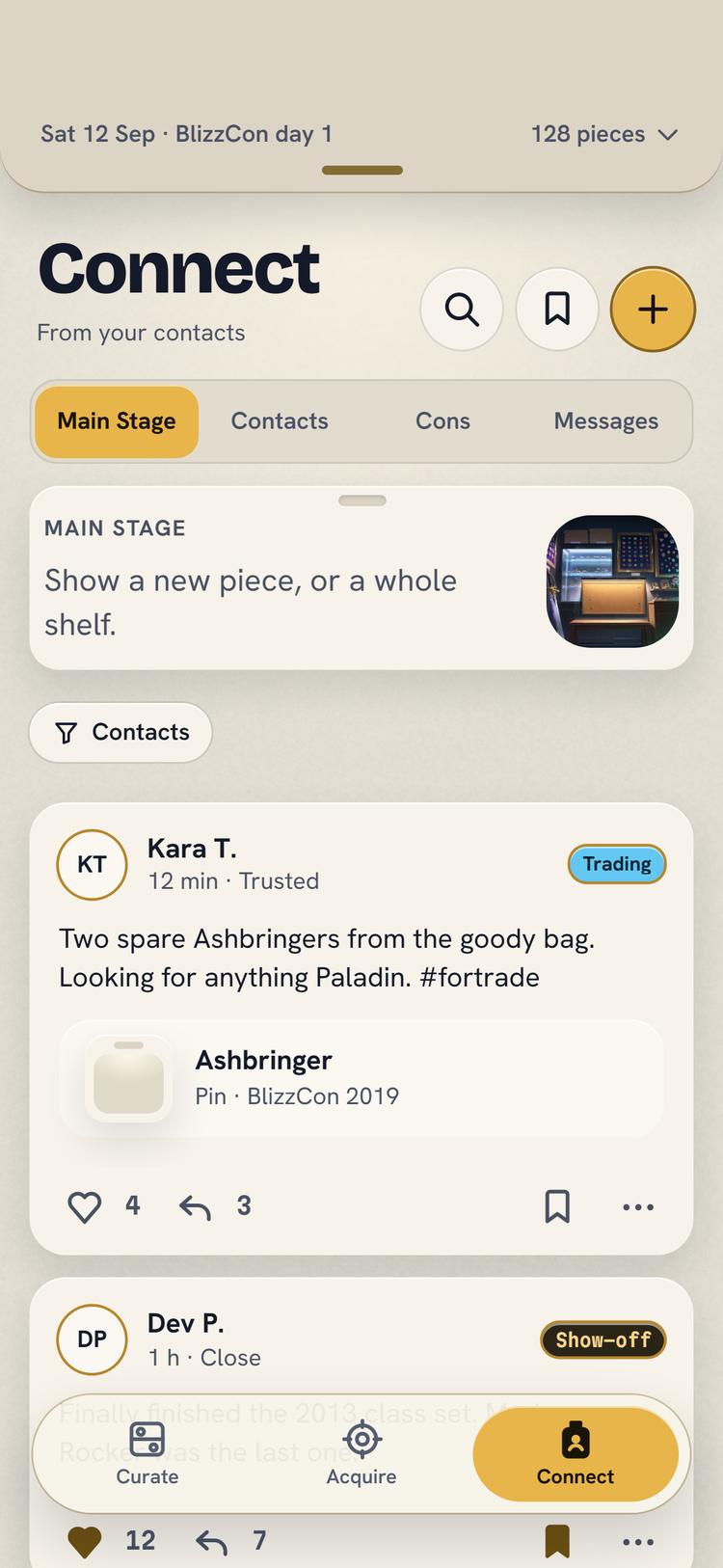
What is on Main Stage?
Back to ContentsOn Connect, the first control is Main Stage. At the top right are three round buttons: search, Saved posts (the bookmark) and New post. Under the title, one filter button says what is showing, For you, Contacts or Community · All kinds, and opens a menu titled Show. Tap a choice to switch. The menu’s last choice, Your interests, opens the page that says what For you puts first. On an iPad held sideways there is no filter button: the sidebar’s View and Kind of post rows choose, with Your interests under the View rows.
- For you shows the posts that Contacts and Community show, together, with the ones about your interests first (what is it).
- Contacts shows posts from you, the people you have added and the people you follow.
- Community shows every post sent to Everyone in Backstamp, from anyone, including your contacts and you.
Each list is newest first. In For you, the posts about your interests come first, newest first, and then the rest, newest first. Connect opens on For you once you have picked something or have a piece on your wall, and on Community until then. A view you turn to stays while Backstamp is open, and the next time you open Backstamp, Connect opens where that rule says. Each post leads with its photos, or with the pictures of its pieces. Under the pictures are the author, when it was posted, its kind (Show-off, Trading or Looking for), its words and its pieces. A post never shows a price. On a post’s own page, tap the author’s picture or name to open their page; your own post opens nothing.
How do I narrow Community to one kind of post?
Back to ContentsTap the filter button and choose a kind: Community · Show-off, Community · Trading or Community · Looking for. The button then names it, is lit, and Community shows only posts of that kind. Community · All kinds shows every kind again. Contacts has no kinds. The kind stays chosen until you close the app.
What is For you?
Back to ContentsFor you is the first of Main Stage’s three views. It shows the posts that Contacts and Community show, together: the posts about your interests first, then all the rest, newest first in each part. A post is about an interest when one of its pieces is filed under that franchise or that kind. For you puts posts in order and hides nothing, except the posts you muted. Contacts and Community show what they always did, and Community still shows everything.
Your interests are the franchises and kinds you picked, and the ones Backstamp works out each time from the pieces on your wall, the pieces on posts you liked and your open wants (the list). For you only puts in order posts you could already see. Nobody else sees your interests, and they change nothing anyone else sees.
What is Your interests?
Back to ContentsYour interests is the page that says what For you puts first. Open it from Main Stage’s filter button (its last choice) or from Settings (Your interests, in the You group).
It lists Franchises and Kinds. Under each name a line says where it came from: Picked (you chose it), Your wall (you own a piece of it), Likes (a post you liked has one) or Wants (you have an open want of it). One name can have more than one. The ones Backstamp works out change as your wall, your likes and your wants change.
- To take one off, tap its row and choose Take it off. Your wall, likes and wants do not bring it back.
- To add one, choose a Category and a Franchise, or a Kind, under Add, as in Add a piece. A menu asks Add to your interests, or Mute.
- To mute one, see How do I mute a franchise or a kind?
Backstamp keeps only what you choose: a pick, one you took off, and a mute. With none yet, the page says “Nothing yet. Add a franchise or a kind below, or add a piece to your wall.”
How do I mute a franchise or a kind?
Back to ContentsOpen Your interests. Tap a row under Franchises or Kinds and choose Mute, or choose the franchise or kind under Add and then Mute. Its posts never show in For you. Community still shows everything. A muted one moves to Muted at the foot of the page, where Unmute brings it back. A mute is yours alone and changes nothing anyone else sees.
What do I pick when I join?
Back to ContentsAfter the welcome pages, a new member sees What do you collect? It says “Pick a few franchises and kinds.” Choose from the same Category, Franchise and Kind menus Add a piece uses. Tap Start my wall to keep what you chose, or Skip to pick nothing. Either way your wall opens, and the step is shown once. What you pick is what For you puts first, until your wall, likes and wants add more. Change it any time with Your interests in Settings. Members who joined before this step are not asked.
How do I post, and who sees it?
Back to ContentsOn Connect, on Main Stage, tap the plus button, New post. Then:
- Pick Show-off, Trading or Looking for.
- Write your post. Add photos with Camera or Library, up to six.
- To attach pieces, tap Attach one of your pieces. The Attach pieces sheet opens with your wall, newest first. Each piece has its picture, its name, and its kind and origin. Type in Search your wall to narrow the list. Tap a piece to tick it. You can attach up to six, and the sheet counts them, “2 of 6”. Tap Done.
- Under Who sees it, tap the Audience row and pick who sees it: Close, Close and Trusted, Everyone I know, which means every contact of yours, or Everyone in Backstamp.
- Tap Post. It is dimmed until the post has words, a photo or a piece. Cancel asks first once you have put words, photos, a video or pieces on it: Discard this post?, with Discard or Keep editing.
The first time you post to Everyone in Backstamp, the house rules open. Tap I agree to post, or Not now to leave the post unsent. A post to everyone follows the house rules, and your first ones wait for council (see Why is my post waiting, or hidden?). There are six rules. When the rules change, as they did on 25 Oct 2026 when rule 6 was added, they open again before your next post to everyone, and you agree again.
How do I add a video to a post?
Back to ContentsA new post has Add a video. It opens your photo library for one video, through the iPhone’s own trim screen, held to 60 seconds. A video can be up to 80 MB. Add a photo too: your first photo is the video’s still picture, shown before it plays, and Post waits until there is one. The post goes up first, then its video (“Uploading video”). If the video does not get through, your post is up without it: tap Post to send the video again, or Cancel to keep the post as it is. A post with a video needs a signal. You can post 10 videos a day.
How do videos play?
Back to ContentsOn Main Stage a video plays without sound; tap it to play it full screen with the sound on. With Reduce Motion on in the phone’s settings, a video waits for your tap and shows a play mark. Videos follow the same house rules and reports as photos, and are sent as private links that expire.
How do I like, save or comment?
Back to Contents- To like, tap the heart under a post. It turns to Unlike. Tap the number beside it to see who liked it, in Liked by. Anyone who can see a post can see who liked it.
- To save, tap the bookmark at the right of the row. Saves are private: nobody is told, and no count is shown. Your saved posts are in the Saved list, opened from the bookmark at the top right of Main Stage. To take one off, tap Remove from saved.
- To comment, tap Comments under a post, or its count, to open the post. Type in the box and tap Send. On the post’s page the reply arrow puts the cursor in that box. Comments run oldest first, and Load more comments loads the rest.
Likes, saves and comments need a signal. The heart and the bookmark change at once, and go back if the server refuses.
How do I search posts?
Back to ContentsOn Connect, on Main Stage, tap the search button at the top, the first of the round buttons. Type words, #tags, the names of pieces, or @handles (“Words, #tags, pieces or @people”). Every word you type must be found: in a post’s words or in the name of a piece on it; a #word finds the tags that start with it, and an @word the members whose handle starts with it. Turn on Rare and up to see only posts showing a catalog piece graded Rare, Epic or Legendary. Results are newest first, and only ever the posts you could see on Main Stage, less the ones you hid. Search needs a signal.
How do hashtags work?
Back to ContentsWrite a #word in a post, such as #grail, and it becomes a tag. In a post, a tag is tappable and opens “Posts with this tag”, every post with it that you can see. While you type a #, the tags that start with it are offered under your words: #grail, #unicorn, #fortrade and #lookingfor first, then the ones used most. Tap one to finish the tag. Editing a post updates its tags.
How do I tag a con?
Back to ContentsWriting a post, tap the Con row under “Con tag”. Tag a con lists No con tag, the con you are checked in at under “You’re here”, the cons you are going to, and the other upcoming cons. Tap one. A new post starts with the con you are checked in at only when “Who sees you’re here” is Everyone here; otherwise it starts with no tag. A tagged post carries a chip for the con, and the con’s Posts lists it, for everyone who can see the post. You can change or remove the tag when you edit the post.
An older post, or one made from an older copy of the app, may carry the con its author was checked in at, shown as “At BlizzCon”. That mark follows the author’s “Who sees you’re here”, as it always did (see Who learns that I am at a con?).
Where are the posts about a piece or a con?
Back to Contents- A catalog item: open it in the catalog and tap Posts about this in its sheet.
- One of your pieces: open it and tap Posts about this. It lists posts showing that piece, or others of the same catalog item.
- A con: open the con’s page and tap Posts: “Posts tagged with this con”.
How do I edit a post?
Back to ContentsOn your own post, tap More, then Edit post. The form opens filled in. Change the words, the photos, the pieces or the con tag, and tap Save. Cancel asks “Discard your changes?” if you changed anything. The kind and who sees it are shown dimmed: they can’t change once a post is made. The post then says “Edited” beside its time, and its likes and comments stay.
A post that is waiting for council, or that has a report on it, can’t be edited until council decides; the app says so. If your posts to Everyone in Backstamp are still waiting for review, an edit to one of them sends it back to council, and it says Waiting for review again. On a post with a video, the first photo is the video’s still picture: it says “Still”, has no remove button, and stays first. Editing needs a signal.
How do I hide a post?
Back to ContentsOn someone else’s post, tap More, then Hide this post. It leaves Main Stage, your saved list and your search results. Nobody is told, and nothing is counted. To see it again, undo it straight away (below).
How do I delete my post, or report one?
Back to Contents- To delete your own post, tap More on the post, then Delete post. It goes at once, and Undo shows for ten seconds (see How do I undo a delete or a hide?). After that its photos, likes and comments go with it.
- To report a post, tap More, then Report this post. Pick a reason, add anything that helps, and tap Send report. Reporting a post does not block its author.
- To block the author of a post, tap More, then Block, then Block. Their page has the same choice; see How do I report or block someone?.
- To delete or report a comment, tap its More, or hold its words. Choose Delete this comment on your own comment, or on any comment under your own post. Choose Report this comment on someone else’s.
Reports are read by Backstamp’s reviewers. The person is never told who sent one.
How do I undo a delete or a hide?
Back to ContentsAfter Delete post or Hide this post, a toast at the foot of the screen offers Undo for ten seconds. Tap it and the post is back where it was. Nothing is sent to Backstamp until the ten seconds are over. Any note of this kind, here or anywhere in the app, goes away when you tap it or swipe it up.
Why is my post waiting, or hidden?
Back to ContentsCouncil looks at some posts before the community sees them. Only you see a post in these states, and a note under its words says which:
- Waiting for review: council has not looked at it yet. A member’s posts to Everyone in Backstamp wait like this until council has approved three of them. No more than three wait at once. Council members and admins are never held for this.
- Declined: council has declined it. Council’s reason is shown, when it gave one.
- Hidden: three different members have reported the post or a comment, so it is hidden until council decides.
A short list of slurs and threats also holds a post for a reviewer, whoever wrote it and whoever it is for. It shows as Waiting for review the same way. A comment with one of those words waits, hidden, until a reviewer decides. Nothing is refused for it, and you are not told which word.
How do I share a new piece to Main Stage?
Back to ContentsWhen you save a new piece with Add a piece, the wall offers Share it to Main Stage? with a Share button, for a few seconds. Tap Share, and a new post opens with that piece attached. It starts as a Show-off, to the audience you used last. Nothing is sent until you tap Post. The offer goes when you scroll the wall or leave it. A piece kept on the phone to go up later, a list imported from BlizzardItems, and a piece you edit are never offered. It also waits until there is somebody to share with: you need a contact, or to have opened Connect on this phone. Save and add another does not offer it, and nor does a save that goes back to the catalog.
Connect › Contacts
Back to ContentsContacts lists the people you added, in their tiers, with All your trades at the top. The round buttons at the top are Show my code, scan and invite.
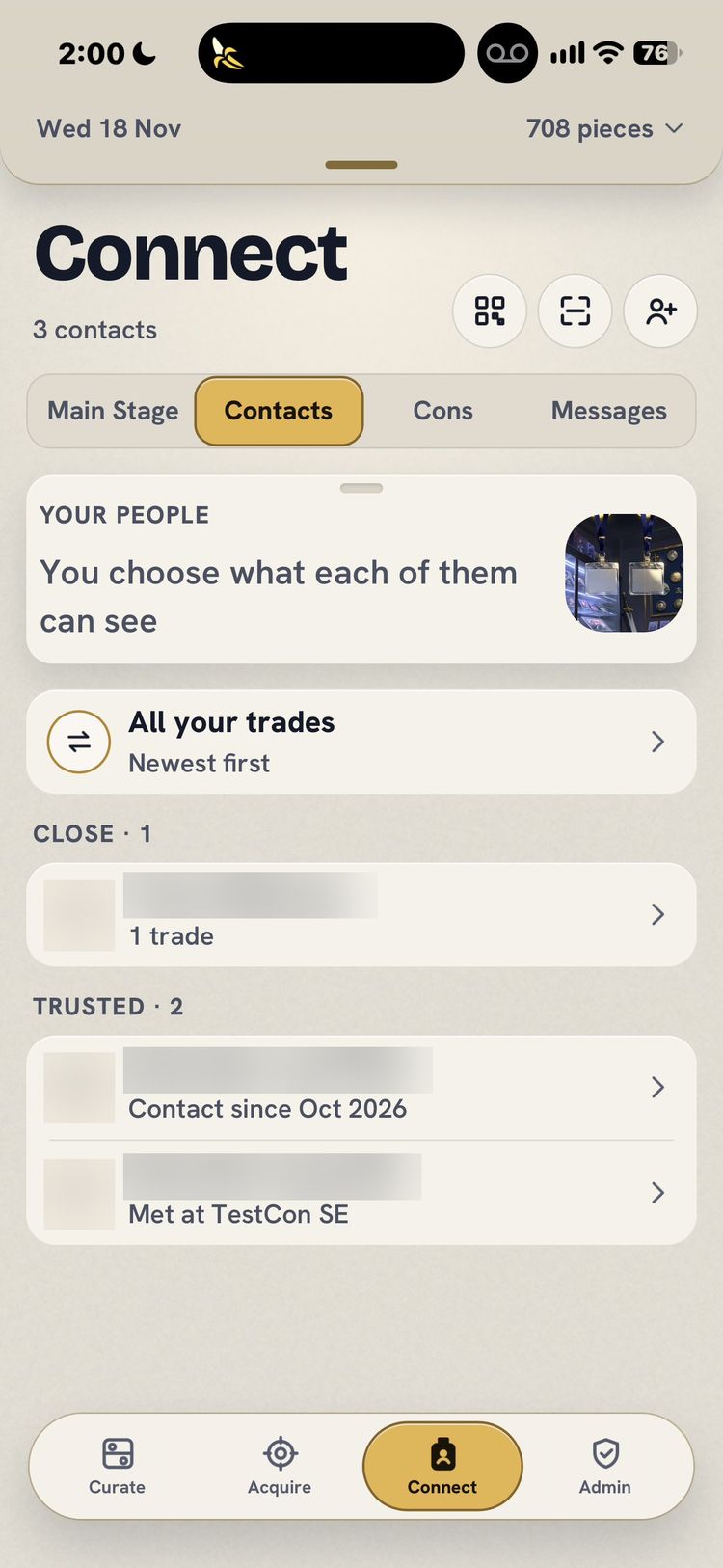
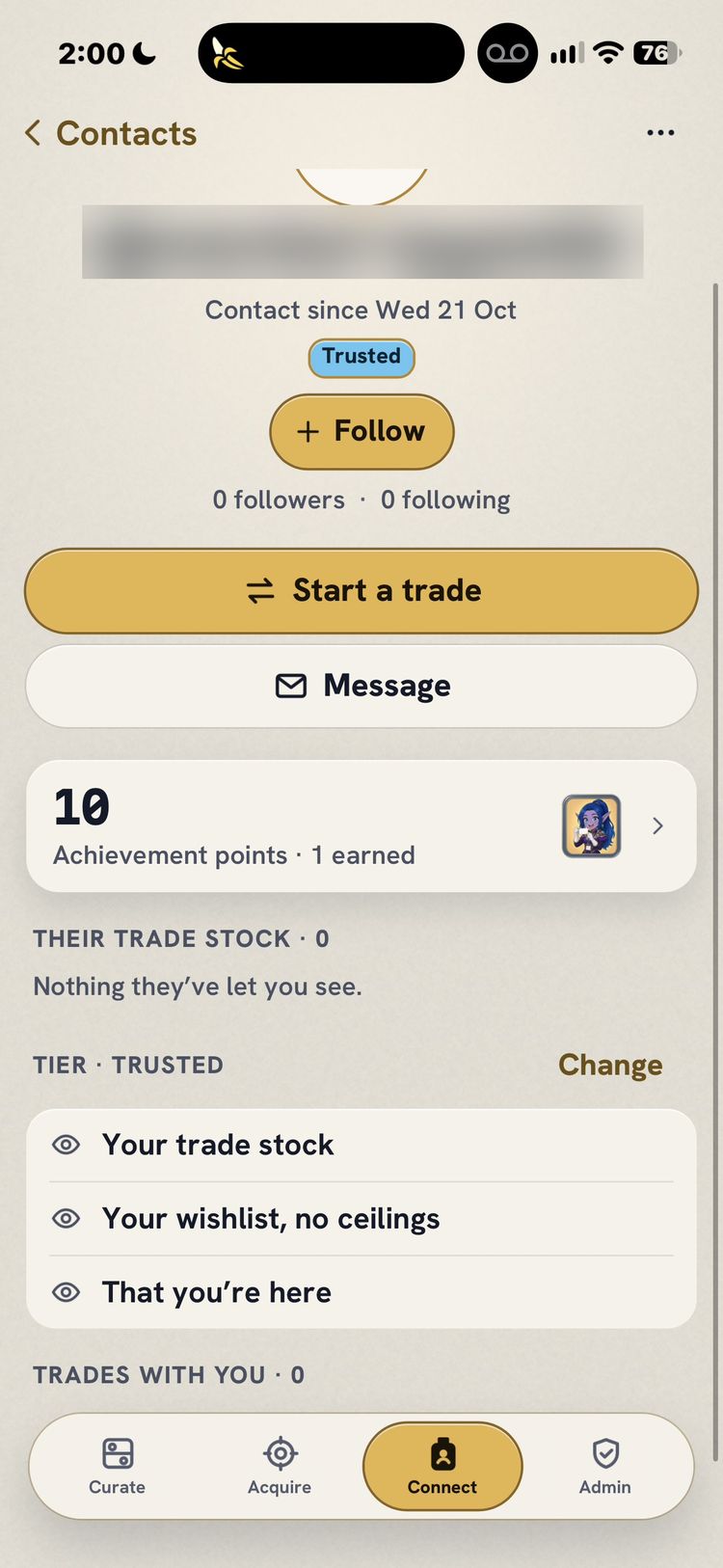
What do Close, Trusted and Met once mean?
Back to ContentsEvery contact sits in one of three tiers. The tier you give someone decides what they may see of yours. They are not told which tier you chose. What you see of theirs depends on the tier they gave you. In the app’s own words:
- Close: “Your whole collection, no values”, “Your trade stock and wishlist”, “That you’re at a con, and which”.
- Trusted: “Your trade stock”, “Your wishlist, no ceilings”, “That you’re here”.
- Met once: “Your lanyard card”, “That you’re here”.
Met once does not run out. A contact stays until you remove them. Move the person to another tier, or remove them. Your Contacts list shows the people you added. Someone who added you is not listed until you add them too.
How do I invite a friend?
Back to ContentsOn Connect tap Contacts, then the round invite button at the top, beside the scan button. On an empty Contacts list, tap Invite someone. Type an email address or a phone number, and tap Send invite.
- For an email address, Backstamp sends the invite, and the screen says it was sent. If the email cannot be sent, the invite still exists, and the screen offers the code to share by hand.
- For a phone number, Messages opens with the invite written in.
- To give a code without an email or a number, tap Share a code instead. A new code and a link go to the share sheet, and you can send them any way you like. On an empty Contacts list, Share an invite (“With Facebook, Messenger or any app on your phone.”) does the same in one tap. What it shares carries a link to backstamp.quest that opens Backstamp with the code filled in. If you put the share sheet away without sending, the next one offers the same code again while nobody has used it.
Each invite makes a new code, and each code works once. When your friend joins with your code, you are in each other’s Contacts straight away, as Met once. You are told when your friend joins. A row on the shade reads “Kara T. joined with your invite”, and a phone alert titled New contact comes with it, on its own Invites switch. Tap the row to open their page.
How do I see my invites, or revoke one?
Back to ContentsOpen the round invite button (on Connect, Contacts); its sheet is Invite someone. Under Send invite and Share a code instead is Your invites. It lists every invite you made, the waiting ones first. Each shows its code and a line such as “Made 12 Oct · Runs out 11 Nov”, “Made 12 Oct · Used” (never by whom) or “Made 12 Oct · Ended”. With none, it says “You haven’t made an invite yet.”
A waiting invite has Revoke. A card asks “Revoke this invite?” and says the code will stop working, and that anyone you gave it to won’t be able to join with it. Tap Revoke, or Keep. A new invite lasts 30 days, and 10 can wait at a time. An eleventh is refused until you revoke or use one.
How do I find someone by email?
Back to ContentsOn Connect tap Cons, then the magnifier. Type their whole email address and tap Search. This finds only people who turned on Let contacts find me by email under Settings, Privacy. The switch starts off for everyone. Their page opens with Add as a contact. Tap it, pick a tier, and tap the button at the foot of the sheet (Done adds them as Met once). On an empty Contacts list, the Find someone by email row does the same lookup: type the whole address, tap Find, and their page opens. The row says they must allow it in Settings › Privacy.
What is on a person’s page?
Back to ContentsTap a contact. You see their name, the tier you gave them, how many vouches they have (each person who vouched counts once, however many swaps they did), the chips people gave them as counts, such as “Friendly 6, On time 5”, and the con they are at when they let you see it. Start a trade begins one, and Vouch shows when a finished trade with them is waiting for your vouch. While you are checked in at a con, Here I am sits under Start a trade and sends them a Here I am. Under the buttons a strip shows their achievements (see). Their pieces come next: “Their trade stock” shows the trade pieces they let you see, three to a row. With more than three, See all 5 beside the heading shows every piece in place, and turns into Show fewer. A line under the tiles says “Tap one to message about it.” When they show you more, Everything they show you follows it (see below). After their pieces comes the box about what they see of you: “Tier” lists what they may see of yours; Change opens the three tiers, and the Move to button saves your choice. How to reach them lists the ways and groups they picked, when they have you as Close or Trusted (how to set yours). Ribbons lists the cons they checked in at, at the venue, the ones you may see; tap it to open them. Find them on lists the Facebook, Instagram and Discord they added. Facebook and Instagram open in their app or the browser. Discord copies the username, with a toast. “Trades with you” lists every trade between you; tap one to open it. More at the top right has Change tier, Report, Remove from contacts and Block.
The page of someone who is not a contact yet says “Not one of your contacts yet.” and shows how many finished trades and vouches they have, as “12 trades” and “4 vouches”, or “No trades or vouches yet.”
How do I look through a contact’s collection and wishlist?
Back to ContentsWhat you can open depends on the tier they gave you. On their page, under “Their trade stock”, a group called Everything they show you appears when they show you more than their trade stock:
- Their whole collection shows when they have you as Close. It says how many pieces.
- What they’re looking for shows when they have you as Close or Trusted. It says how many things.
Tap a row to open it. The page is titled with their name. When there are both, a two-way control at the top, such as Collection · 128 and Looking for · 9, switches between them. A piece shows its picture, its name, its kind, origin and year, and its marks; one with no photo of theirs shows its catalog’s picture. A want shows its catalog picture where it has one, how much they want it, and the worst condition they would take. The credit line for the catalog pictures stands at the foot of the list. There is no price, value or ceiling on either, ever. Their pieces do not open into a page of their own yet. The page needs a signal and keeps nothing on your phone.
How do I follow someone?
Back to ContentsOpen their page and tap Follow. Anyone can follow anyone, with no request, and the button then reads Following; tap it again to stop. Under it, “12 followers · 3 following” counts them, and each count opens that list. Posts from people you follow join Main Stage, under Contacts, beside your contacts’ posts. You can start 200 follows a day.
What does a follower see?
Back to ContentsFollowing someone shows you, besides whatever their tier lets you see:
- their posts to Everyone in Backstamp;
- every piece they marked for trade;
- their whole collection, only when they turned on Show my collection;
- their wishlist, only when they turned on Show my wishlist.
Both switches are in Settings, Privacy, under Followers, and start off. A follower never sees a value, what you paid, or a ceiling. The pieces a follower sees are what What you could trade is made of, and can be named in Propose a trade. When someone follows you, a New followers alert says so (see Which alerts can I turn on and off?); tapping it opens their page.
How do I see or remove my followers?
Back to ContentsIn Settings tap your name. Under the email, Followers and following has Followers and Following, each with its count; tap one for its list. Anyone signed in can open a member’s two lists from their page, and they show names only. In your own Followers, Remove takes someone off. They are not told and can follow you again; block them to stop that. A block, either way, ends every follow between you.
How do I report or block someone?
Back to ContentsTo block, on their page tap More, Block, then Block. They are not told. From then on they cannot see you or start a trade with you, and you do not see them. You stop being contacts in both directions, and any trade between you that is not yet swapped is called off. Finished trades stay in both your histories. To undo, open Settings, Privacy, Blocked and tap Unblock. Unblocking does not make them a contact again.
To report a person, on their page tap More, then Report. Pick a reason, add anything that helps, and tap Send report. For a handle or display name that is rude or offensive, pick An offensive name (it is offered only on a person’s own page). The sheet has an Also block them switch, which starts off each time: turn it on and they are blocked as you report. A report on its own never blocks them.
To report a post or a comment, see How do I delete my post, or report one?.
Reports are read by Backstamp’s reviewers. The person is never told who sent one.
How do I report someone’s photo?
Back to ContentsOn their page tap More, then Report their photo. It is there only while their avatar is a photo of their own. Pick a reason, add anything that helps, and tap Send report. The report names the photo as it is now. The sheet has the same Also block them switch, which starts off each time, and the person is never told who sent the report.
Backstamp’s reviewers read it. A photo that has been reported is kept until council decides, even if its owner changes it. Council can take it down with Remove photo: the member goes back to their initials and is told “Council removed your profile photo because it broke the house rules”, by a row on the shade and an alert that has no switch.
How do I remove someone from my contacts?
Back to ContentsOn their page tap More, then Remove from contacts. The screen asks “Remove Kara T. from your contacts?” and says “They are not told. You can add each other again any time.” Tap Remove.
It takes them off your list only, and nobody is told. They stop seeing what your tier let them see. Your place in their list is theirs to keep or remove.
Connect › Messages
Back to ContentsMessages, the fourth control on Connect, holds your conversations, newest first, with Requests at the top.
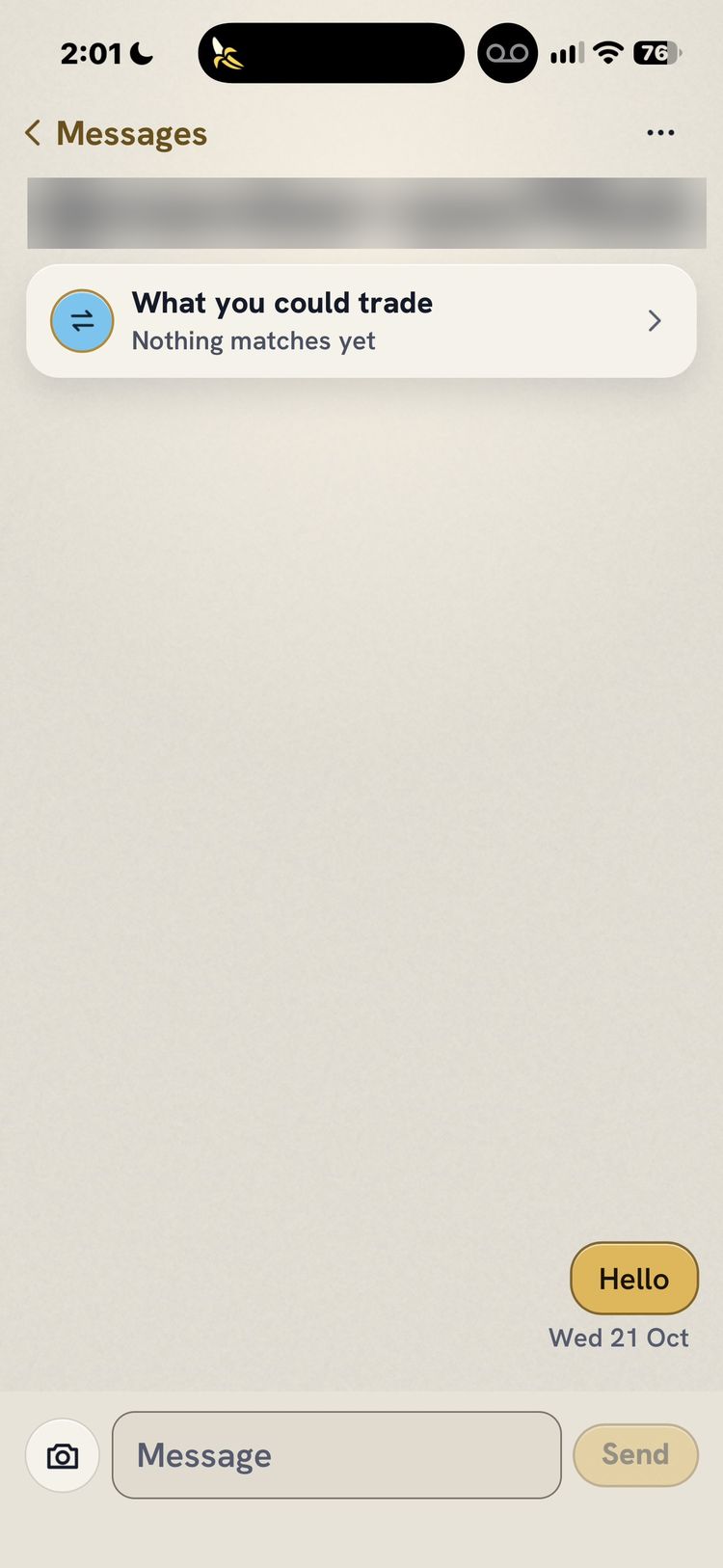
How do I message someone?
Back to ContentsThere is one conversation for each pair of people. Start it, or go back to it, from:
- A post: tap More on the post, then Message and their name.
- A person’s page: tap Message, under Start a trade. On the page of someone who is not a contact yet, it is under Add as a contact.
- A piece they have for trade: tap it in “Their trade stock”, then Message them about it.
A conversation started from a piece or a post has that piece pinned at its top, under “What this is about”. Starting from another piece adds it to the same conversation as a card, and it becomes the pinned one.
Type in the box and tap Send. The photo button offers Take a photo and Choose from library, for condition close-ups; tap a photo to open it large. A photo is handled as every photo in Backstamp is: its hidden data, such as where it was taken, is stripped, and it is sent as a private link that expires. While a conversation is open, new messages come in every few seconds.
Your conversations are on Connect, the fourth control, Messages, newest first, with how many are new. A private conversation from Backstamp’s reviewers, if there is one, is pinned at the top (what is a private talk?). On an iPad turned sideways, Messages is in the sidebar. Reading messages needs a signal; with none, the conversation shows as it was. You can still write words: the line over the box says “No signal. Messages wait on this phone and go when you’re back.” A message that waits shows as yours, with the no-signal icon and Waiting under it. It goes by itself when the signal is back, behind any message of yours still waiting before it. A photo needs a signal. Blocking the person lets what is waiting go. You can send 500 messages a day, and start 20 conversations a day with people who do not have you as a contact.
What are Requests?
Back to ContentsA first message from someone who is not one of your contacts goes under Requests, at the top of Messages, and no alert reaches your phone. Open it to read it. It says “Not one of your contacts. Accept to reply.” Accept moves it into your messages, and from then on their messages alert you. Decline asks first; they cannot message you again for 7 days, and they are not told. A message from someone who has you as a contact goes straight to your messages.
What is What you could trade?
Back to ContentsA panel in each conversation. “They have, you want” lists their pieces marked for trade that are on your wishlist, and “You have, they want” yours that are on theirs. Only the matching pieces show, never the rest of anyone’s wishlist, and never a value or a price. The match is the one Who has one uses (At least and the certificate), and near misses are not listed here. A piece with no photo of its own shows its catalog’s picture on a dashed tile, with the credit line under the tiles (BlizzardItems’, Pinny Arcade’s, or both); a person’s page does the same for their trade stock. Until you have both accepted the conversation, it shows only theirs, and of theirs only what they show you anyway: through the tier they gave you, or because you follow them. Once you have both accepted it, it shows both ways, even between strangers.
Tap pieces in the panel to pick them, then Propose a trade. The trade proposal opens with them already picked: theirs to get, yours to give (see How do I start a trade?).
How do I report, block or delete a conversation?
Back to ContentsTap More at the top right of the conversation:
- Share my address, when it is offered (see How do I share my address, and who sees it?).
- Propose a trade does what the button in What you could trade does, with any pieces you ticked there.
- Report asks for a reason and Send report, and reports the whole conversation. It does not block them. The conversation’s messages are then kept for council until it decides, as a reported Here I am is. Council never reads a conversation nobody reported. To report only one message, see How do I report one message?.
- Block asks first and tells them nothing. The conversation ends, and neither of you can message, follow or see the other’s posts.
- Delete conversation asks first and deletes it from your side only. They keep theirs. It comes back to you only with a new message, from that message on.
How do I report one message?
Back to ContentsHold one of the other person’s messages, its words or its photo. A card quotes it, with Copy and Report this message…. Tap Report this message… and the sheet opens, titled Report this message. Under its first line is that one message: who sent it, when, and the words. Pick a reason, add a note if it helps, and tap Send report. Council sees that exact message with the report.
Holding one of your own messages gives only Copy. To report the whole conversation instead, tap More, then Report (how).
Connect › a trade
Back to ContentsA trade is a swap: no price or value is ever shown to the other person. Start one from a person’s page, from a piece of yours, or from a conversation. Connect › Contacts › All your trades lists every trade you are in.
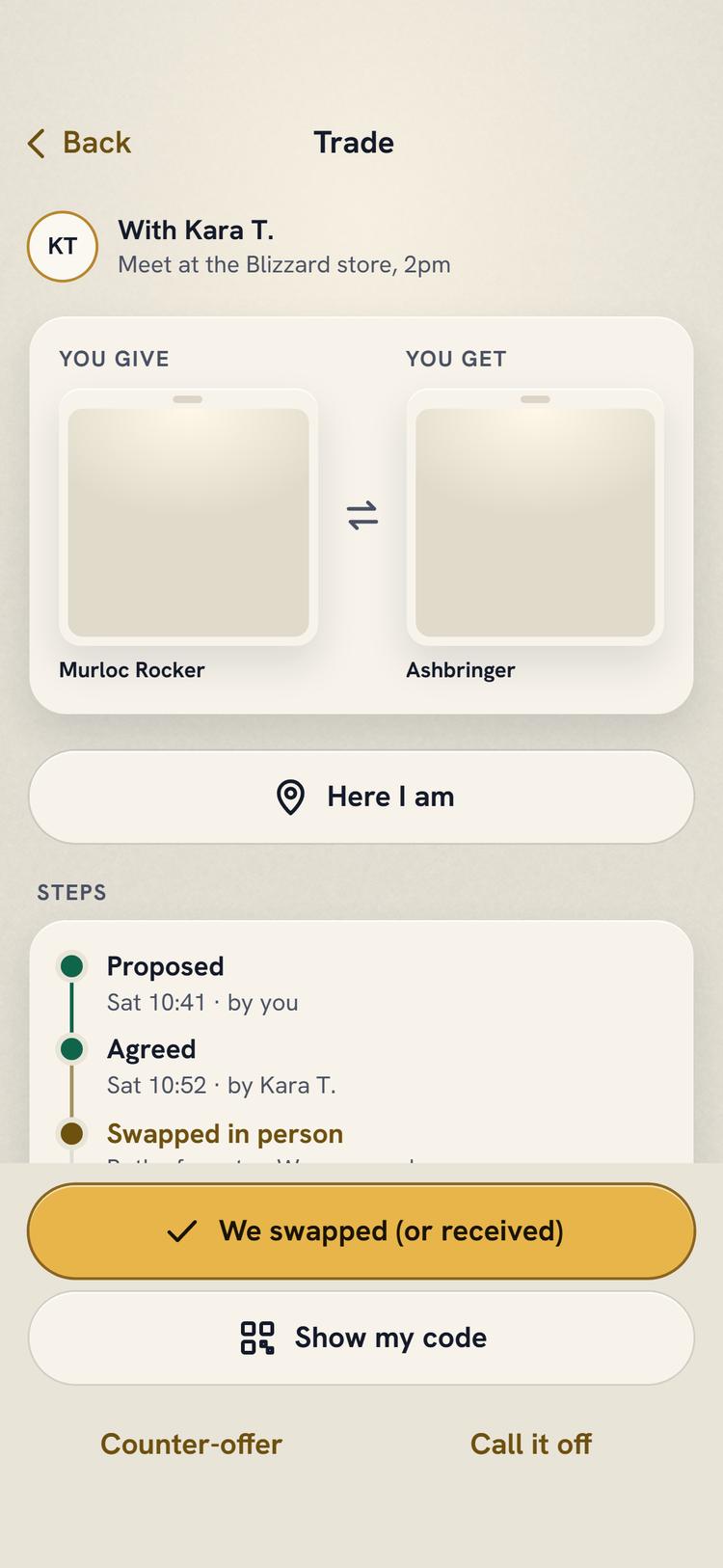
How do I start a trade?
Back to ContentsOn the person’s page tap Start a trade. Or open one of your pieces, tap Start a trade under the card that says what it is worth, and pick the contact. Under “You give” tap pieces from your trade stock. Under “You get” tap pieces from theirs. Add a Note, such as where to meet, and tap Propose. They are told. If nothing of yours is marked Trade stock, “You give” says “Nothing of yours is marked Trade stock yet. Turn it on for a piece, or say what you’d swap in the note.” If you cannot see any of their trade stock, pick what you give and say what you are after in the note. Each piece shows its own photo, and under its name the condition its owner recorded for it, such as “Near mint”, when there is one. A piece without a photo shows its catalog’s picture on a dashed tile, with the credit line under the tiles (BlizzardItems’, Pinny Arcade’s, or both), and a piece with neither shows an empty frame. The trade’s own page draws its pieces the same way. A trade is a swap: no price or value is ever shown to the other person.
How do we finish a trade?
Back to ContentsThe trade’s page shows four steps: Proposed, Agreed, Swapped in person and Vouched.
- The person who was sent the proposal opens it and taps Agree.
- Meet and swap the pieces by hand. While you are checked in at a con, Here I am on the trade’s page helps you find each other (see How do I tell someone where I am at a con?).
- Both of you tap We swapped (or received). For a trade by post, that means each of you has received yours. Or one of you taps Show my code and the other scans it and taps Add as Met once; after that, one tap of We swapped (or received) from either phone finishes it.
The current step’s button (Agree; We swapped (or received) with Show my code; or Vouch for and their name) and Call it off sit in a foot at the bottom of the screen that stays put as the page scrolls, so a long trade never pushes them out of reach. Under the other person’s name the page shows how many trades and vouches they have, such as “12 trades · 4 vouches”, or “No trades or vouches yet”.
With no signal, tap Agree or We swapped (or received) and the button turns into Waiting, with the no-signal icon, and a note says “No signal. Your Agree goes when you’re back.” The step goes by itself once the signal is back. Calling the trade off, countering it, or blocking the person lets a waiting step go, so it is never sent late. If the trade was called off or paused while the step waited, an alert says so, with the trade it was for.
You find the trade on the other person’s page under “Trades with you”. When both of you have tapped, Backstamp moves the pieces: what you gave leaves your wall and what you got arrives on it, with where it came from filled in (“Traded with” their handle, and the day). The trade’s page says what moved. What you gave is kept in your history, marked as traded away. Your photos, notes, values and what you paid stay with you and never go to the other person. A trade finished before this update was not moved.
How do I counter an offer?
Back to ContentsOn an open trade, or one that was called off and has not been countered yet, tap Counter-offer, beside Call it off in the foot. A new proposal to the same person opens with the same pieces picked. Change what you like and tap Propose. The old trade is called off only when the new offer goes: if you back out, or the proposal is refused, the old trade stays exactly as it was, and the other person is told nothing. A piece that was typed in by name cannot be carried into a new offer; a card says which were left out, so mention them in the note. Each offer can be countered once.
Once anyone has countered, Offers under the steps lists each offer, oldest first (“Kara T. countered”, with what was offered and the day), also on the finished trade.
What are trade photos?
Back to ContentsEach of you can add up to 12 photos to an open trade. Each photo has the uploader’s @handle and the date burned into it, along the bottom edge, such as “@kara · 15 Oct 2026”, so it shows whose it is and when it was taken. Both of you can see the photos. On the trade’s page, tap Add a photo, then Take a photo or Choose from library. You can remove your own photos, not the other person’s. A photo added for one of the pieces goes with that piece to its new owner.
How do I say how a swap went?
Back to ContentsWhen a swap is finished, the vouch sheet opens once on the trade, with the question How did it go? and four choices:
- Went well goes on to the chips and a line for others, as How do I vouch? describes.
- Fine sends nothing, to anyone, public or private. It answers the question for you.
- Had a problem closes the sheet and opens the report sheet with the other person and this swap already filled in, its reason reading “The swap didn’t go well”. It reaches Backstamp’s reviewers only, and the other person is not told.
- Not now closes the sheet. It does not stop the reminder below.
The Vouch button on the trade stays where it was, so you can always vouch from there.
If you have not answered a day after the swap, you get one reminder: a row in the shade and an alert, “How did the swap with Kara go?”, under the Vouches switch in Settings, Notifications. Tapping it opens the trade with the question again. It comes once only. Each side is asked on its own: your Fine does not stop the other person’s reminder, but a vouch, a report about the swap or a Fine from you does stop yours. Nothing is asked about a called-off trade, between two people who have blocked each other, or from an account being deleted.
How do I vouch?
Back to ContentsAfter the swap, open the trade and tap Vouch for and their name. Tap what was true: As described, On time, Friendly, Well packed, Would trade again. Add a line for others if you like, and tap Vouch. Each of you can vouch once on a trade. A vouch note goes through the word filter: a note with a word Backstamp does not allow is refused, with “This vouch has a word Backstamp doesn’t allow. Take it out and try again.” The word itself is never named. Your vouch shows on their page to the contacts you share, and their vouch count shows on their page and their lanyard card.
How do I call a trade off?
Back to ContentsOpen the trade and tap Call it off, then Call it off again. The other person is told. You can do this at any step before the swap is done, and not after. To change the offer instead, see How do I counter an offer?
Where are all my trades?
Back to ContentsOn Connect, on Contacts, the first row is All your trades, with “Newest first” under it. (It shows once you have contacts.) Tap it for Trades, the list of every trade you are in. Each row shows what was swapped, who with, where it stands and since when. Tap one to open it. Load older trades at the foot asks for more. Pull the list down to ask again. It needs a signal and keeps nothing on your phone. A trade with someone you blocked, or who blocked you, is not in it.
How do I save my address?
Back to ContentsIn Settings tap Your address. Fill in the name on the parcel, the street and number, the city and the country (an apartment, a state and a postal code are optional), and tap Save address. Only you see it until you share it. Remove my address asks first; it also stops it showing to everyone you shared it with. The page also lists, under “Shared with you”, the addresses other people have shared with you, each with how long you can see it.
How do I share my address, and who sees it?
Back to ContentsTap Share my address in a conversation’s More, or on a trade’s page. It asks first, and then only that one person sees it, on their trade with you and in their Settings. How long depends on who they are to you (the owner’s terms: “Exchanging addresses can be tier based and at the traders risk”):
- A Close contact: in any conversation, until you take it back.
- Anyone else (Trusted, Met once, or not a contact): only on a trade that is Agreed, until 14 days after the trade is done. Outside a trade the button says to agree a trade first.
“Done” is when both of you have tapped We swapped (or received). A trade that is declined or called off removes the shared address at once, and so does a block. Take it back stops it at any time. Without a saved address, the button says Add your address and opens Settings.
How do I add tracking to a trade?
Back to ContentsOn a trade’s page, under Tracking, tap Add your carrier and number, pick the carrier, type the tracking number and tap Save tracking. Each side of the trade adds its own. The two of you see Track it, which opens the carrier’s tracking page; nobody else ever sees a tracking number. It clears itself 14 days after the trade is done, and at once if the trade is declined or called off. Remove tracking takes yours off.
Connect › Cons
Back to ContentsCons is the directory of conventions, by month. A con’s page is where you say you are going, check in and out, and see your people there.
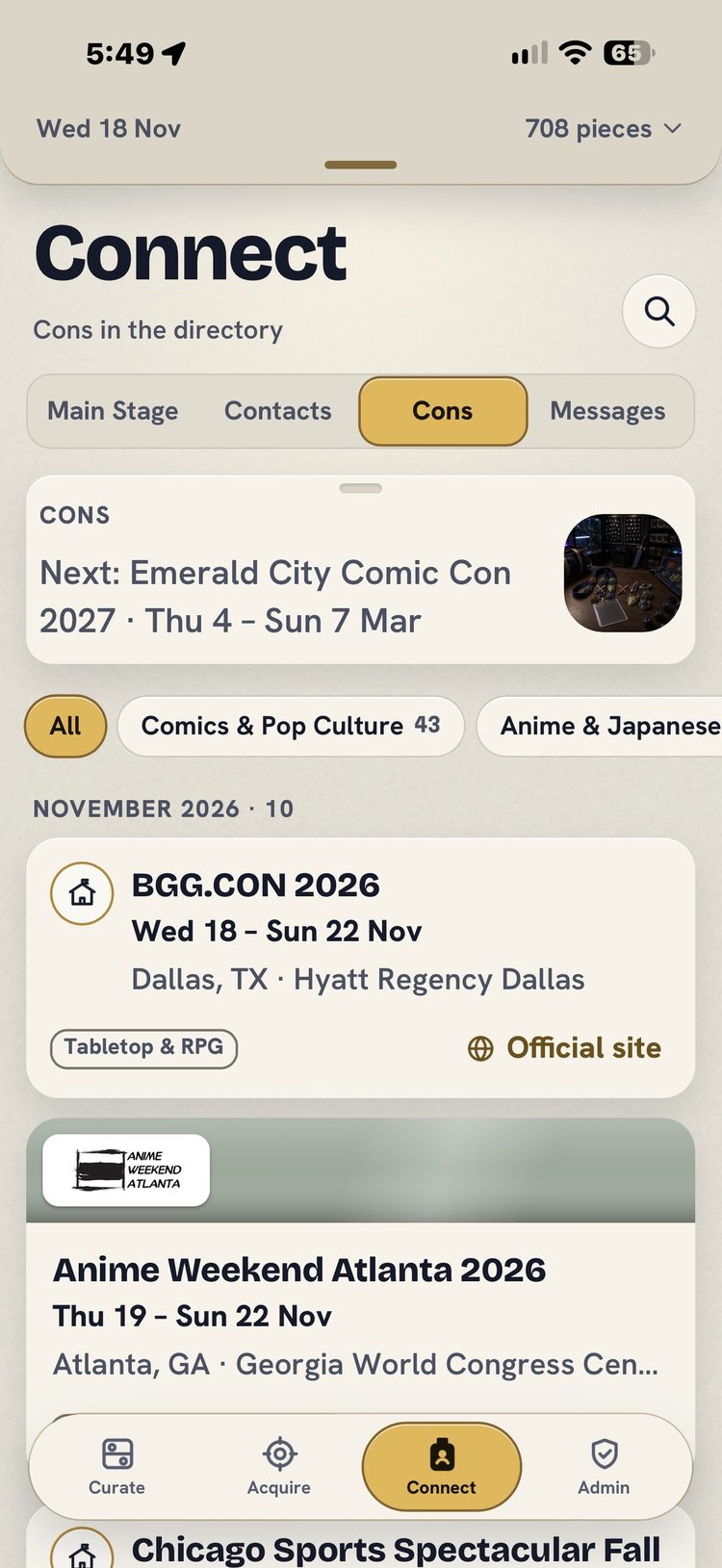
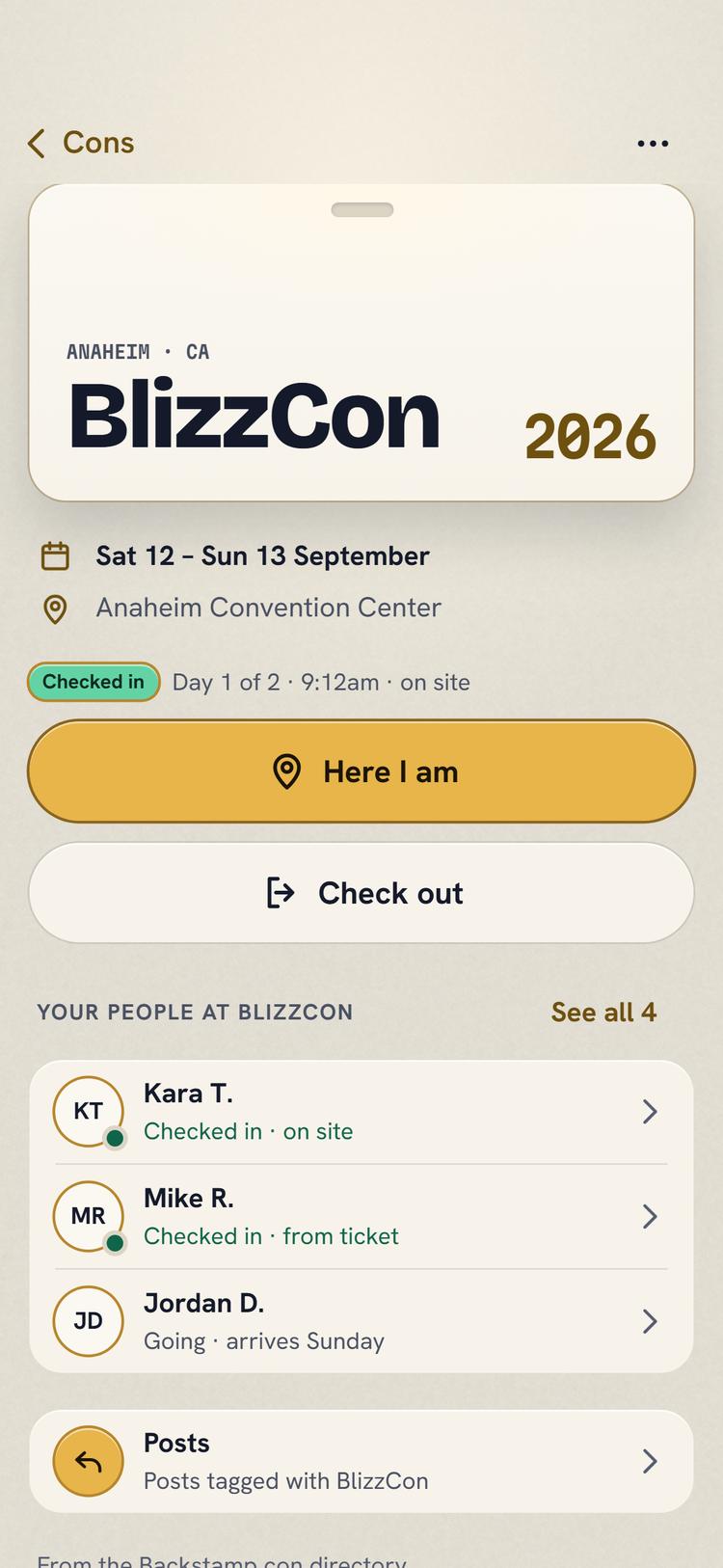
How do I find a con and say I am going?
Back to ContentsOn Connect tap Cons. A plate under the control names the con you are at (“You’re at BlizzCon 2026 · day 2”), else a con you are going to: “On now: …” while it runs, else “Next: …” for the nearest one. Only when you are going to none does it name another con on now, or the nearest. Tap the line to open that con. The list is grouped by month, with a heading for each month and how many cons it holds. Each con is a card: a band in the con’s own colour with its banner whole on a small tile at the left, then its name, its days, its place and its category. A con with no banner starts with its words. Tap a category chip to narrow the list to it, and All to show every con again. The magnifier, Search cons, searches by a con’s name or city, or by someone’s whole email address. While a search narrows the list, a line under the chips says Cons matching “…” with your words; tap Clear at its end to see the whole list again (a category you picked stays on).
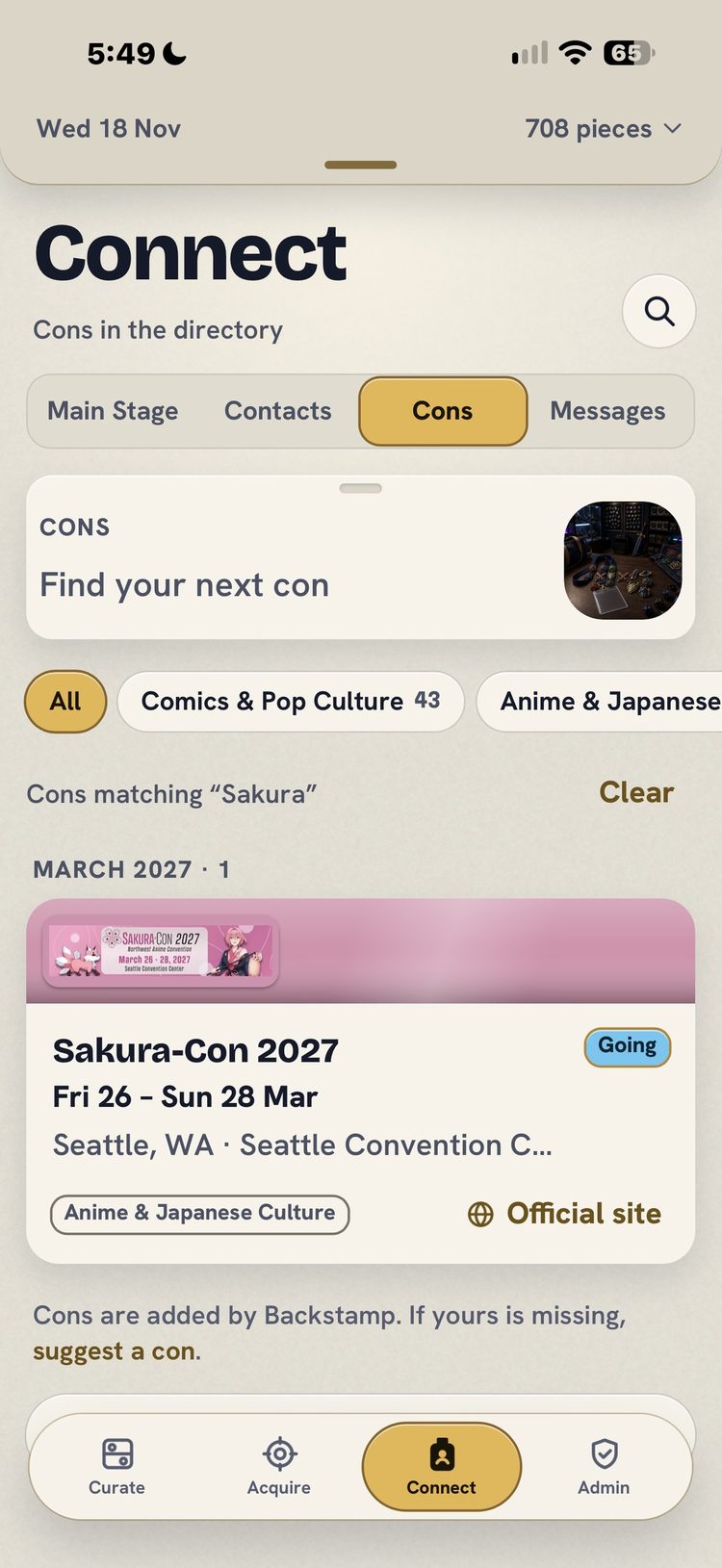
Tap a con, then tap I’m going. It shows on your shade as coming up, and your contacts can see that you are going. To take it back, tap Not going at the end of the Going line on the con’s page. It asks first, with one red option, Not going after all. More, then Not going after all, does the same.
How do I visit a con’s own website?
Back to ContentsOn a con’s card, tap Official site. On the con’s page the same link is there. It opens the con’s own website in your phone’s browser. Only a secure (https) address is opened. A con with no website has no link.
How do I suggest a con that is not listed?
Back to ContentsOn Connect, tap Cons, then Suggest a con under the list. The small print at the foot of the list, “Cons are added by Backstamp. If yours is missing, suggest a con,” leads there too. Fill in Name, City, Venue, Starts and Ends, add a Note if it helps, and tap Send suggestion. The name and the first day are needed, and a day is typed like 25 Aug 2027. Backstamp looks up the venue’s location from its name, for “I’m here” check-in. Council accepts or declines the suggestion. The page lists your suggestions as Waiting, Accepted or Declined.
To suggest a change to a con that is already listed, open its page, tap More, then Suggest an edit.
How do I add a banner picture to a con I suggest?
Back to ContentsOn Suggest a con, under Note, tap Add a banner picture and choose a picture from your photo library. The picture shows on the form. Choose a different picture swaps it and Remove drops it. Tap Send suggestion as usual. The picture goes up right after the suggestion. If it does not, an alert says “Your suggestion was sent, but its picture wasn’t” and offers Try again. The suggestion is with the reviewers either way.
A reviewer sees the picture with your suggestion. If they accept the suggestion, the picture becomes the con’s banner. If they decline it, the picture is thrown away. Until then your suggestion in the list says “Banner picture sent”.
How do I check in?
Back to ContentsOn the con’s page tap Check in, on one of the con’s days. Then choose:
- I’m here uses your location once and shows as on site. You have to be at the venue.
- Just check me in needs no proof and shows as self-reported.
“You’re checked in” opens. Under “Who sees you’re here” choose Contacts, Everyone here or Only me; what each means is under Privacy. Leave Check out automatically on and Backstamp checks you out when the con ends. Off the grid is under it: what it does. Switch to Hall Pass, when it is offered, turns on the high-contrast theme for the hall and hands your own theme back at check-out. Your collection’s value shows on your shade as it always does, at a con or not.
Once you are checked in, the con’s page puts Your people at the con first, right under the check-in buttons, ahead of Your Here I ams, Who has one here, Your badge, Official site, Posts and the Pinny Arcade pins. A Who sees you’re here row under Check out shows your current choice (Contacts, Everyone here or Only me) and opens the same sheet. With more than three of your people there, See all and their number (such as See all 4) beside the heading lists everyone, and Show fewer folds the list back. Before you check in, the order is as it was.
What does a PAX show’s page add?
Back to ContentsA PAX show’s page has a Pinny Arcade pins row, which opens that show’s pins in the Pinny Arcade catalog, such as “PAX West 2026 · 32 pins” (the catalog). Once you are checked in there, Who has one here lists the Pinny pins that people at the show have marked for trade and that fit your wants, each with whose it is; the first three show, and All with their number, beside the heading, lists every one. While your lanyard card names a PAX show, its “Will trade” leads with your Pinny Arcade trade stock.
How do I put my badge photo on my lanyard card?
Back to ContentsWhile you are checked in, the con’s page has Your badge under the buttons. It needs a signal.
- Tap Add my badge photo. The line under it says “Crop out your name and the barcode”. Choose Take a photo or Choose from library. The iPhone’s crop screen opens. Crop so your name and the barcode are out of the picture. Nothing is sent until you have. Backstamp cannot check that you did.
- Turn on Show my badge on my lanyard card. The line under it says “Only while you’re checked in here”.
Your badge photo is private until you turn that switch on. With it on, the photo shows beside your handle on your lanyard card, and on the card of yours that a person gets when they scan your code, while you are checked in at that con. It comes off the card when you check out, turn the switch off or remove the photo. With Only me as who sees you are here, your card names no con, so it shows no badge either; a line under the rows says so.
Change my badge photo replaces it. Remove my badge photo asks first, then takes it off Backstamp and off your card.
What are ribbons?
Back to ContentsA ribbon is a con you checked in at, at the venue. You earn it by checking in with I’m here on one of the con’s days. If you checked in another way (a friend’s code, your badge photo or Just check me in) and Offer check-in when I arrive is on, your phone earns it for you the next time it sees you arrive at the venue: if Backstamp may already use your location, it sends it quietly, and nothing pops up. Tap Ribbons · 3, beside Show code, to open Ribbons, newest on top; tap the chevron to fold them away. Your newest three ribbons also hang from the foot of your lanyard card. Each ribbon takes its colour from the con’s banner and says First time, or how many years you have a ribbon from cons of that name. People who may see a check-in of yours see its ribbon on your card and your page; a check-in set to Only me earns its ribbon but it is not shown, even on your own card. Taking a con off My cons takes its ribbon with it.
How do I check out?
Back to ContentsTap Check out on the con’s page or on the open shade. The sheet says how many people you met there, for example “You met 3 people. They are in your Contacts.” Tap Done. Check-out does not ask you to keep anyone: everyone you met stays in your Contacts until you remove them.
If you left Check out automatically on, the same sheet opens the next time you open Backstamp after the con ends. If you come back for another day, tap Check in again.
Can Backstamp offer to check me in when I arrive?
Back to ContentsYes. In Settings tap Notifications and turn on Offer check-in when I arrive. The iPhone asks to send notifications and to use your location all the time. After that, when you reach the venue of a con you marked I’m going, on one of its days, your phone shows a notification that asks “At BlizzCon?”. Tap it to open the check-in choices. It shows once on each day of the con. The watching happens on your phone, and where you are is not sent anywhere. If you are already checked in at that con some other way, nothing pops up: your phone quietly sends your location, as I’m here does, which earns the con’s ribbon. Scanning the code of a friend who is checked in, and who has you as Close, can also offer to check you in.
If the switch cannot start watching, it goes back off and says why under it: location set to While Using or Never instead of Always, Location Services or Precise Location off, or Background App Refresh off, each with what to change in the phone’s Settings.
Connect › Cons › Here I am
Back to ContentsWhile you are checked in at a con, a Here I am tells one person where to find you inside it, and ends by itself.
How do I tell someone where I am at a con?
Back to ContentsA Here I am tells one person where to find you inside a con, with your words and, if you like, a photo, a pin and a spot. You can send one only while you are checked in at that con, by either way of checking in. The person it goes to does not have to be checked in; they may still be walking in. Start one from:
- A contact’s page: tap Here I am, under Start a trade. It goes to them.
- A trade’s page: tap Here I am, over the steps. It goes to the other person. It is not offered once the swap is done or the trade is called off.
- The con’s page: tap Here I am. Nobody is picked, so it goes as a link (see below).
The sheet has, in order:
- Photo, if you want one: Selfie, The spot (a pillar marker, a sign, a booth) or No photo. Selfie opens the front camera and The spot the back one. Retake takes it again.
- Say where: your words, 140 characters at most, such as “Hall D, pillar 34. Blue hoodie, Totoro bag.” The words are not required: Send and Copy a link for Messenger turn on as soon as there are words, a picked spot, Pin where I’m standing is on, or a photo.
- Pin where I’m standing sends where your phone is. “Send again to move it.” It starts on, unless you are Off the grid.
- Live while we walk keeps your dot moving on their phone while Backstamp is open, and with your phone locked too if you let Backstamp use your location all the time. It shows only when the person is one of your Close contacts. It starts on, unless you are Off the grid.
- A spot from the con’s list, picked or scanned (see How do I add or pick a spot?).
Then tap Send to @handle. Or tap Copy a link for Messenger: the iPhone’s share sheet opens with a link, and you send it however you like. The first member who opens the link is the only one it works for, and it never works for you. Nobody else can open it after that. You can see who opened it, and cancel it. Someone who has no Backstamp gets a plain page on backstamp.quest saying a member wants to meet them, with a way to join the test. That page shows none of what you wrote.
If the phone cannot say where you are, the Here I am goes anyway with your words and photo and no pin, and an alert tells you. If the pin was all there was, nothing is sent: it says why, and to add a few words, pick a spot or add a photo. If a photo was all there was and it does not get through, nothing is sent either: the alert says “The photo didn’t go” and to try again or add a few words. A Here I am that is waiting for its photo alerts nobody until the photo has landed. If you are not checked in at the con, the sheet says so and a send is refused. At most 10 Here I ams an hour can go to people who are not your contacts, and a link counts as one of them. At the foot, the sheet says “The photo and your pin delete themselves when this ends.”
What do I see when someone sends me a Here I am?
Back to ContentsAn alert titled Here I am says only “@kara is here”. It never says where, so the place does not sit on a lock screen. Tap it to open the page: their photo if they sent one, their words, the spot they picked, and a line such as “Sent 2 min ago. Ends in 28 min.” If they sent no words, a plain line stands in their place: “They didn’t add words. Go by what they sent.” You do not have to be checked in.
Under that is the finder, with two views, Arrow and Map.
- Arrow shows an arrow and how far, such as “40 m”. It points from where your phone is, the way your phone faces, at their live dot if they are sharing one, else their pin, else their spot. A live dot reads “Live, moving” while it is moving. Where your phone is, and which way it faces, stay on your phone.
- If the phone cannot say where you are (an iPad without GPS cannot), it says “This device can’t tell where it is (an iPad without GPS can’t). Use their spot, their photo and the map.” If you said no to location, Open Settings is there. The Map still shows their pin and their spot, and the con’s other spots while you are checked in. If the phone can only say roughly where you are (Wi-Fi), the distance reads “About 120 m” and the arrow is faded, and when the guess is bigger than the distance itself it says “You’re close. Look for their photo.” instead of an arrow. If the compass is too rough to trust, you get the distance alone. If they sent no pin, no spot and no live dot, you go by their words and photo; with no words either, the finder says “No pin or spot. Go by their photo.”
- Map is the con map: a street map you can move and zoom, with pins for you, the person you are meeting or their live dot, and the con’s spots, and the con’s floor plan laid over the building where Admin has placed one.
Send mine back opens a Here I am addressed to them, as an answer. We found each other ends it for both of you. More, at the top right, has Report and Block. Report asks for a reason and Send report; it does not block them. Block asks first and tells them nothing: this Here I am ends, and they cannot send you another. To stop these alerts, see Which alerts can I turn on and off?.
How do I update or stop a Here I am I sent?
Back to ContentsYour side opens as soon as you send. It shows who has it (“Sent to @mira”), or for a link “Link not opened yet” and then “Opened by @mira”; what you sent (titled “No words” when you sent none) and when your pin was set; whether it is live (“Live while you walk” or “Not live”) with the time left (“Ends in 27 min”); and under “From @mira” what they sent back, or “Nothing back yet.” The page asks again every 10 seconds while it is open.
- Update my spot opens the sheet again: change your words or your spot, switch Live while we walk on or off, or turn the pin on to move it to where you are now. A photo is sent once, with the Here I am, so there is none to change. Tap Update. Each update gives you 30 more minutes. Only one of your Here I ams can be live at a time: switching Live while we walk on for one switches it off on your others. Once the person you sent it to has reported it, its words and photo can no longer be changed (the spot, the pin and live still can), so council reads what was reported.
- Stop sharing, then Stop sharing again, ends it for both of you.
- For a link, Share the link again shows while nobody has opened it. Cancel the link (or Not @mira? Cancel the link, once someone has) asks first, then ends the Here I am. Nobody can open the link after that.
When does a Here I am end?
Back to ContentsIt ends when:
- either of you taps We found each other;
- you tap Stop sharing, or cancel its link;
- 30 minutes pass since you last sent or updated it (a live dot does not add time);
- you are no longer checked in at that con;
- one of you blocks the other, or is suspended.
The page then says “This has ended”, and “The photo, the words and any pin were deleted.” That is what happens: the server deletes the photo, the words, the pin, the spot and any live position, and the link stops working. What is left is that you sent one to that person, at that con, and when, and the alert, which says only “@kara is here”. The one exception is a Here I am its person reported. Its words and photo, never its pin, are kept for council until council decides, and are then deleted too. The phone does not keep where you or they are.
What is Off the grid?
Back to ContentsOff the grid is a switch in Settings, Privacy, under “At cons”, and on the “You’re checked in” sheet. With it on, Pin where I’m standing and Live while we walk start switched off on every Here I am. Your words and photo still go, and you can turn the pin on for one Here I am. It starts off.
How do I add or pick a spot?
Back to ContentsA spot is a named place inside one con, such as “Hall D, pillar 34” or “Food court”. Members who are checked in at the con can see its spots; saying you are going is not enough. A spot lasts for the con’s days.
To pick one, open a Here I am. Under the switches is the list. Tap a spot to pick it, and tap it again to take it off. The person you send to reads its name, and the finder can point at it. Add a spot here and Scan a spot’s code are under the list.
To add one, stand where it is, tap Add a spot here, type a Name for the place you are standing at (60 characters at most) and tap Add spot. The spot takes its position from your phone, and everyone at the con can pick it. It needs a check-in made with I’m here, and your phone has to be inside the con’s ring. Just check me in is not enough, and nor is a con with no venue position. Two people who give the same name within about 30 metres share one spot. One person can add up to 20 at a con. Nobody is shown who added a spot.
How do I show, print or scan a spot’s code?
Back to ContentsEach spot has a code that anyone can show on a phone or print, for a trader’s table or a host gathering people.
- To show or print it, tap the small code button on the spot’s row in the list. The spot’s page fills the screen with the code at full brightness, with the spot’s name, the code’s eight characters and the con’s name. Print or share saves that as a picture and opens the iPhone’s share sheet, which has Print.
- To scan one, use Scan a spot’s code in the list, or the scanner on Connect, Contacts (the same one as for a swap). The camera opens full screen. When it reads a spot’s code you feel a tap and hear a whistle, and the spot waits on a card until you tap Pick this spot, which picks it for a new Here I am if you are checked in at its con. If you are not, an alert asks whether to check in there, with Not now and Check in. Scanning a code does not show you are at the venue, so that check-in is self-reported, and you cannot add spots with it. Scanning needs a signal.
The Council or Admin tab
Back to ContentsCouncil members and admins have a fourth tab after Connect. Members do not see it, and can skip this part.
Who sees Admin, and what is in it?
Back to ContentsCouncil members and admins have a fourth tab, called Admin for an admin and Council for a council member, with a number on it for what is waiting. Settings has a row called Admin too, which raises a short menu of the same places. Nobody else sees either.
The tab opens on Needs you: one list, oldest first, of everything that waits on a reviewer, under a line such as “5 waiting · oldest 2 days”. Pull it down to ask again. Each row has a mark for its kind, a line about it and how long it has waited. Tap one to decide it. The next one opens when you are done, and after the last you are back on the list. A row that is yours (something you reported, or an appeal of your own decision) reads Your report or Appeal of your decision over “With another reviewer”, has its mark faded, and opens read only. The kinds of row are:
- Report is one reported thing: a post, a comment, a person, a conversation, a Here I am, a spot or a shared catalog entry. It shows how many reports there are and why (Spam, Fake, Didn’t swap, Harassment, Offensive name or Other), the thing itself, and the person with their warnings before. A report of an offensive name shows the person’s display name and @handle as they are now, with Reset their name: after you confirm, they get a made-up handle such as @member-k7m2x9qa and no display name, their old handle is held for 90 days so nobody takes it (them included), and the reports of their name close. They are told, and asked for a new handle each time they open Backstamp until they choose one (what they see). Another reviewer resets it if you reported the name yourself. Keep it closes the reports with nothing done. Remove… takes down a post or comment: pick the house rule it broke, add a note if you like, and choose Just remove, Warn or Suspend for its author. On anything else, Remove… warns or suspends the person, naming the rule. A Here I am shows its words and photo while the report holds them, and a conversation shows its messages. A vouch note shows its words and chips, with Remove the vouch, which takes the vouch out of every count, chip total and trade, and tells nobody. A swap that went wrong shows the trade and what the reporter added; it never counts toward anyone’s flag.
- Held for review is a post waiting for a reviewer. Approve puts it in front of the community. Decline… asks for a reason, which the author sees.
- Hidden after reports is a post or comment that three members reported. A comment the word filter held is here too. Restore puts it back. Remove… asks which house rule it broke, and can warn or suspend the author too.
- Verify a piece is a piece sent for a proof check. Tap Verify or Not enough. When the piece has proof photos, a line under its details reminds you that a proof can be a receipt and may show a price: use it only to decide this piece, and do not repeat it.
- Con suggestion is a con a member suggested, or a change to one. Accept or Decline each one. A suggestion that came with a banner picture shows it, and accepting makes it the con’s banner.
- Appeal is a member’s appeal of a decision. Only a reviewer who did not make the decision, and did not report or write what it was about, can decide it. When no other reviewer can, the one who made the decision may decide it once it has waited 3 days: its card says “Your own decision: look again”, and a line to the member is required. Keep it… keeps the decision. Change it… puts the post or comment back, takes the warning back or ends the suspension. The member is told, and the answer is final.
- Flagged is a person three different members have reported. Clear… closes the reports and tells them nothing. Talk to them starts a private talk. Warn or suspend without talking… does what it says.
- An admin is never acted on from the desk. A warning or a suspension for an admin is refused with “Admins can’t be warned or suspended from the desk.”, and an admin’s posts, comments and photo with “An admin’s posts and photos can’t be taken down from the desk.”
- Private talk is a talk with a member that needs a reviewer, because they have answered or because seven days passed with no answer. Read it, write back, and close it with Close this talk…: Sorted, nothing further, Sorted, with a note for reviewers…, Warn them… or Suspend them….
Under the list are the Tools. One with something waiting shows its number at the right of its name:
- Cons lists every con, hidden ones too. Tap one to change its details, replace its banner, hide or show it, or place its floor plan (how).
- Add a con adds a con to the directory by hand. Starts and Ends can be typed, or a calendar button in each box opens the phone’s own date picker. While Name is empty, a line under it says “Add needs a name.” and Add stays grey.
- People, for admins only, lists members in three groups, Admins, Council and Members, each with its count and A to Z. A member you reported reads “You reported them” (how).
- Done lately lists your own decisions of the last 30 days, newest first, with what you did.
- Names to review lists the franchises and categories that members made for themselves, most used first. Make it a menu item, Merge into… or Leave (how).
- Entries to approve lists the pieces members offered to the shared catalog. Approve or Reject each one, and Hide an entry that is already in the catalog (how).
- Shops, for admins only, lists the shops Backstamp reads for the shared catalog, the shops members have suggested, and the Pinny Arcade catalog (how).
- Error reports, for admins only, lists the problems phones and the server reported by themselves, newest first, with All, Phones and Server at the top. Tap one to read it: its REF, what went wrong, the app version, the platform, when it happened and who was signed in. Reports are kept 30 days.
Who reported is never shown. A reviewer never decides what they wrote or reported themselves. Council members and admins are told by an alert when a report is filed, and a tap on it opens that report. An admin is also told when an error report comes in, and a tap on it opens the report. When a member files an appeal, every reviewer who may decide it is told, or every admin when none may. These alerts have no switch. An alert about a report never names who reported, and carries no words of the report.
How does a member become council?
Back to ContentsAn admin makes them council. Open the Admin tab, tap People under Tools, and search for the person by name, @handle or whole email address. Tap Make council. Make member takes the role back. Only admins see People. Admins are named by a setting on Backstamp’s server. Nothing in the app makes someone an admin.
Each row in People says how many reviewers’ notes a member has. Tap the row: their page has On their record, those notes, newest first. Only admins see it.
How do I change a member’s @handle?
Back to ContentsOnly admins can. In Admin tap People, search for the member, tap their row, then Change username…. The card starts with their handle in it. Type the new one and tap Save. As you type, the card checks it the way the member’s own Your @handle card does (the rules): 3 to 24 letters, numbers, _ and -, the shape, and the names kept for Backstamp. The reason shows under the box, and Save waits until it is right. Anything else Backstamp refuses (a rude or vulgar word, or a handle someone has or that is held) comes back on a card headed “That wasn’t changed”, in Backstamp’s words. A note says “Username changed”. It does not count as one of the member’s three changes in 30 days.
How do I move a member to a new email?
Back to ContentsThis is for a member who has lost their inbox and has no passkey or backup email to get back in with. Do it only after you are sure it is really them. Only admins can; council members cannot.
- In Admin tap People, search for the member and tap their row, then Move to a new email…. A row offers nothing for yourself, another admin or Apple’s review account.
- Type the new address and tap Next.
- A red card asks, for example, “Move Kara T. to name@example.com?” and says what happens: their account signs in with the new address from now on, the old one stops working, they are signed out on every phone, their passkeys and backup email are removed, and both addresses are emailed to say so. Tap Move.
A note says “Moved to the new email”. If the email to them could not be sent, a card says “Moved, but the email didn’t go”, and you tell them yourself. An address that another account uses is refused. The move is recorded.
How do I change a con or its banner?
Back to ContentsIn Admin tap Cons. The list holds every con, and a con that members cannot see is marked Hidden. A test con is marked Test, and only an admin sees it. Type in the search field to narrow it (“Name, city or venue”; every word you type must be found), and tap Load more for the rest. Tap a con to open Edit con:
- Banner shows the picture the con’s card uses. Replace banner takes a wide picture from your photo library; Backstamp keeps its own copy in two sizes and removes the old one. Remove banner asks first. The con goes back to its typeset plate, and Backstamp’s banner tool may fetch the con’s website picture again.
- Show to members hides the con from the directory when it is off, and Save asks first. Council members and admins still see it here.
- Test con: only admins see it is a switch only an admin sees. A test con is for rehearsing: members and council members never see it.
- Details are Name, Year, Category, City, Region, Venue, Starts, Ends and Website. “Where and when it counts” are Latitude, Longitude, Check-in radius (m) (50 to 5000), Time zone and Closes at (UTC). Empty a field to clear it. Without the latitude and longitude, nobody can check in there with I’m here.
- Floor plan opens placing the con’s floor plan.
Tap Save at the top right. Leaving with changes not saved asks first.
How do I place a con’s floor plan?
Back to ContentsIn Admin tap Cons, tap the con, then Floor plan. Placing a plan uses the map.
- Tap Choose the floor plan picture and pick the plan from your photo library. It lands on the map over the venue, about 200 metres across, as tall as its own shape.
- Drag the two corner handles over the building: the south-west corner and the north-east one. The plan is laid north up, so turn a plan drawn at an angle in Photos first. The plan is drawn between the handles as you move them.
- Tap Save. The plan must be between 10 m and 5 km each way, or the page says “That floor plan won’t fit”.
Choose another picture swaps the picture. A plan that is already placed opens where it was, and you can move its corners and Save without a new picture. Remove floor plan asks first and takes it off. A con with no venue position has nowhere to open the map: the page says “This con has no venue position”. Give the con its latitude and longitude under Cons first.
The plan is kept with the con. Members’ Map view on a Here I am draws it over the building.
How do council members rename or remove a spot?
Back to ContentsA spot’s page has Rename and Remove under its code for council members and admins, and for nobody else. Open it with the small code button on the spot’s row in a Here I am’s spot list. Rename opens “Rename spot”: change the name and tap Save. The code stays the same. Remove asks first. The spot comes off the list for everyone at the con, and its code stops working. Any member can tap Report this spot on the same page; the server takes a report only from a member checked in at that con, and it reaches the Admin tab as a Report.
How do I review members’ own names?
Back to ContentsCouncil members and admins can. In Admin tap Names to review. The title counts the names waiting, such as “Names · 4”. Each name is a card with the spelling most members use, how many members use it (“14 members use it”, and “held by the word filter” when the filter holds it), a Franchise or Category mark, and two example pieces. It never says who. Tap a card to open it. There are three choices:
- Make it a menu item (“Pick the category it joins”). For a franchise, a menu asks Which category?; tap one. For a category, a card asks first, then adds it to the menu.
- Merge into… (“Fold it into a name already on the menu”). Search A name on the menu, tick the right one and tap Merge into and its name. The page says what will happen, and Back steps out. A name typed again later is filed under the menu’s.
- Leave (“Stays the member’s own. Nothing changes”). The name comes back only if more members use it than when you left it.
When a name joins the menu, either way, the members’ pieces and wants under it move to the menu’s name on their own, with no alert. Their badges for that franchise are awarded at once, dated back to when each piece was added, and the moment plays the next time they open Backstamp. A name that the word filter holds stays the member’s own until you decide.
How do I approve an entry for the shared catalog?
Back to ContentsCouncil members and admins can. In Admin tap Entries to approve. Its title is “To approve”, with the count, and its three views are Waiting, with a count such as “Waiting · 3”, In the catalog and Hidden; Unhide brings a hidden entry back.
Each offer in Waiting shows the picture (the member’s own photo, only when they said yes to it), its name, who offered it and when (“Offered by Kara T. · 3 Oct”), and its fields as lines: Franchise, Kind, Series, Year, Maker or brand and Edition, those it has. Under Might be the same · 2 are likely duplicates already in the catalog, side by side, each with its source.
- Approve asks first. The entry joins the catalog, and the member’s piece is linked to it on its own.
- Reject asks for a note, which is optional. The member’s piece stays theirs, unlinked.
- Merge into this, on a duplicate, asks first and folds the offer into that entry. Pieces and wants linked to the offer move to the entry kept.
- Hide it, or Hide on a duplicate, asks first and takes the entry out of the catalog.
In the catalog searches the entries already approved, a shop’s too (“Search the shared catalog”), and each has Hide. That is the way to hide a shop’s entry nobody offered against. A shop’s price is not shown on this page. If another reviewer decided an offer first, the page says so and lists what is left.
How do I add a shop to the shared catalog?
Back to ContentsOnly admins can. In Admin tap Shops. Each shop that has a reader is read once a week; a product comes in only when it fits one of the 16 kinds and names a franchise on the menu, and everything else is skipped. A product that council hid stays hidden.
- Requests · 2 lists the shops members suggested (how): the name, the address, what they sell, and “Asked by 2 members, 3 Oct”. Add adds the shop by the address it came with. Not now declines it.
- Shops · 6 lists each shop with a mark for where it stands (Reading, Reading now, Not read yet, Last pull failed, Paused, Needs a reader or Read by hand) and a line such as “1,284 products · last pull 2 days ago”. Tap one for Read it now (not offered for a shop read by hand, or one with no reader yet) and Pause, which asks first: “The weekly read skips it until you start it again. What it brought in stays in the shared catalog.” A paused shop offers Start reading again.
- Add a shop, at the top right, opens a sheet: the Shop address, and the Shop name if you like. Tap Add the shop. “A Shopify shop is read at once; any other shop waits until Backstamp has a reader for it.” A shop that is already on the list answers Already on the list.
- Catalogs has the Pinny Arcade row: how many pins Backstamp holds and when PinnyPals was last read, with a mark (Reading, Reading now, Not read yet or Last read failed). It is read once a week by itself. To read it now, tap the row, which also says what its last read did, and tap Read Pinny now. It answers with what changed (“1,823 pins · 12 new · 1,786 with release details”), or that nothing has changed on PinnyPals, or why it could not read.
The shade
Back to ContentsPull down from the top of any tab, or tap its edge, and the shade comes down over it: your collection’s value, what is new, your next con, your counts and achievements, and at the foot Lanyard, Show code and Add. Your initials at its top right open Settings.
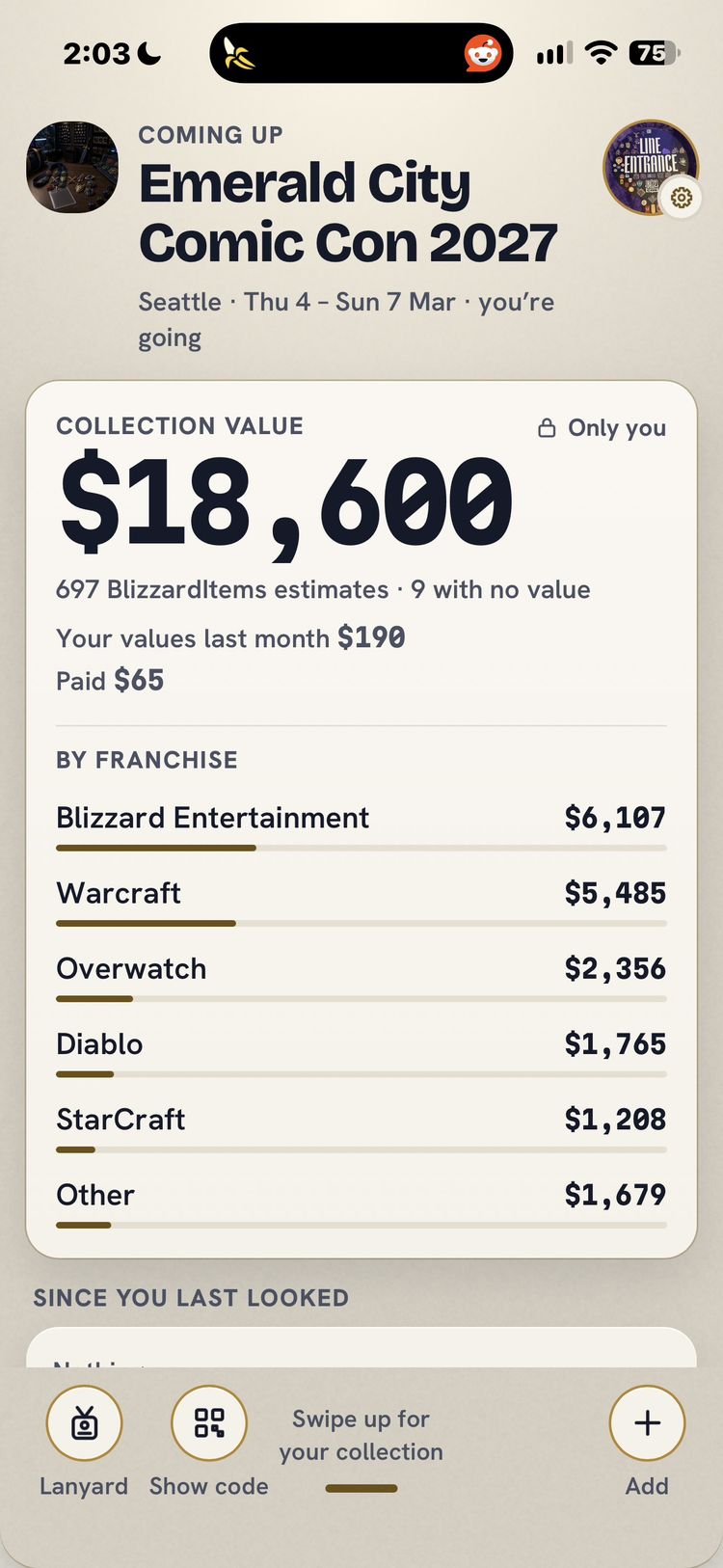
What is the window shade?
Back to ContentsThe strip across the top of every tab is the edge of the shade. It shows the date, the day of the con while one of yours is on, and how many pieces you have, such as “692 pieces”, with a small arrow. When something is new, a mark such as “3 new” takes its place. Tap the edge, or pull it down (a quick flick down is enough), to open the shade. Until you have opened it three times, the edge says Pull down: code and settings for a few seconds, a couple of seconds after the app starts, and the shade dips once to show how it opens.
Open, the shade shows a small picture at the top, the con you are at or your next one, and your “Collection value”, with “Your values last month” under it. Under that a line says Paid and what you paid for the whole collection, it is left out when Backstamp does not know what you paid, or it is $0. One Only you lock at the top of the card covers all of it, Paid included. The value includes BlizzardItems’ estimates for pieces that have no value of yours. A line under it says how many of the pieces are estimates, and how many have no value at all; tap “N with no value” to open your wall on No value yet. The card draws the last twelve months as bars once three months of values are on record; until then, the change beside “Your values last month” says what happened. By franchise lists the franchises your collection is worth most in. Under the value card is “Since you last looked”: the newest five things (six on an iPad), such as a trade, a vouch, new posts or new pieces in the catalog, each with a small mark for its kind, and See everything for the rest (see What is Since you last looked, and what is See everything?). Under that is the con’s own line: Check out while you are at one, the next con coming up, or Find a con. Then come counts of Pieces, Trade stock and Open trades. Tap one to open what it counts: Pieces opens your wall, Trade stock opens it on For trade, and Open trades opens your trades. Under the counts is the Achievements row: a picture of your newest badge, your points, and the next achievement within reach with a thin bar, such as “Next: Binder Boss · 3 to go”. When none is within reach it says “Nothing within reach right now”. Tap it to open your achievements. Under it, while some pieces you typed in yourself look like entries in the shared catalog, a Pieces to link row says how many; tap it for the list (what is that?). Tap a line to open what it is about. A line goes once you have seen it. At the foot, Lanyard opens your lanyard card, Show code opens your code (how to swap codes), and Add opens the form for a new piece. Push the shade up to close it.
What is Since you last looked, and what is See everything?
Back to ContentsSince you last looked is the card under your collection’s value on the open shade, ahead of the counts. It lists what is new since you last opened the shade, newest first: five rows on an iPhone, six on an iPad. Each row has a small mark for its kind, and a tap on a row opens what it is about. If you have never opened the shade, it looks back 24 hours. See everything, under the card, opens the last 14 days, grouped by day.
The kinds of row:
- The ones the shade always had: trades, vouches, replies, a contact arriving, wishlist alerts and the rest.
- Community posts: new posts from Main Stage’s Community view since you last looked, never your own, and never ones Main Stage itself leaves out (a post held for review, a hidden one, or one from someone you blocked or who blocked you). A couple are named, and the rest fold into one row, such as “and 6 more posts”. Tap it to open Main Stage on Community.
- New in the catalog: new pieces from BlizzardItems’ daily copy, all four of its sections, counted by kind, such as “4 new pins · 1 patch in the catalog”. New products at BlizzPins have a row of their own, such as “3 new at BlizzPins”. Tap a row to open a list of just those pieces. The rows and the list carry no price.
- Your standing: “Pin Collection: 8th → 6th”, only when your place on a BlizzardItems leaderboard changes (see How do I give my BlizzardItems name, and what is my standing?).
- New for trade: “@kara added 3 for trade”, one row per person, from your contacts and the people you follow, and only for pieces you could already see on that person’s page.
- Achievements you earned: “You earned Even Trade”, with the family and tier under it, such as “Trading · Common”. Tap it to open your achievements. It is never sent as an alert.
A row counts things; it does not list them one by one. If the list cannot be loaded, the shade shows the rows it had before. See everything and the lists of new pieces need a signal.
Your lanyard card and your code
Back to ContentsTwo things open from the shade’s foot for the hall: your lanyard card, to hold up or wear, and your code, to swap with someone in person.
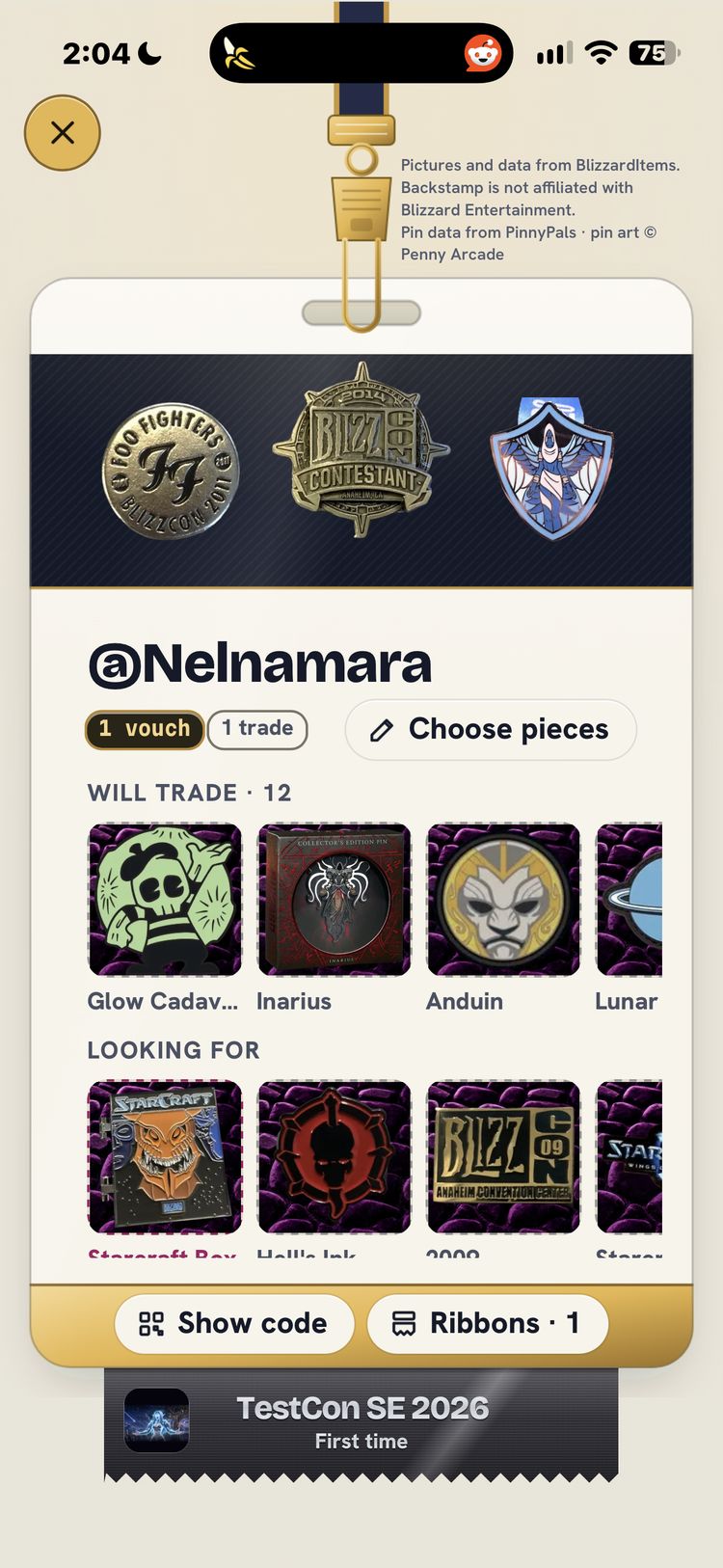
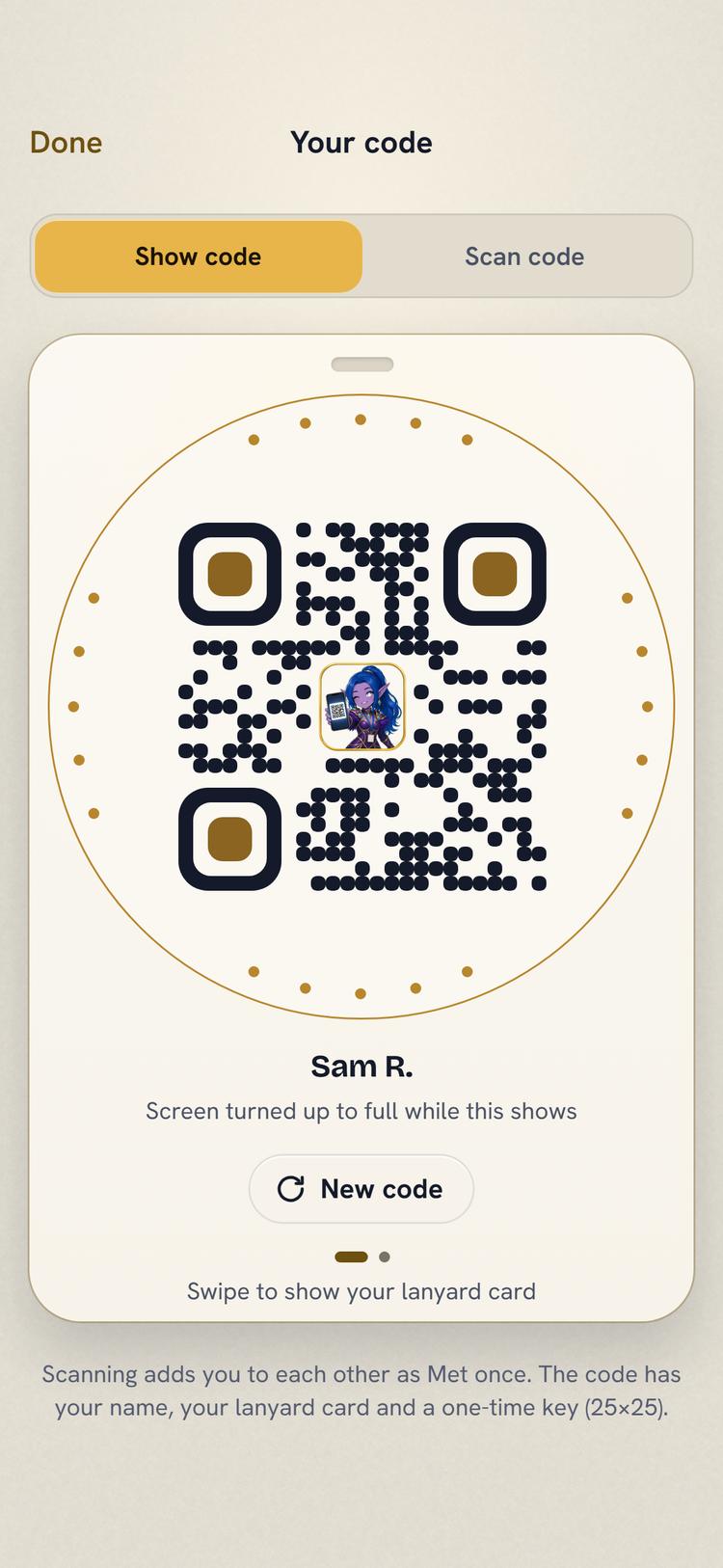
What is the lanyard card?
Back to ContentsPull the shade down and tap Lanyard. The card fills the screen at full brightness, to hold up or wear at a con. It shows your handle, how many vouches and trades you have, your pieces under “Will trade”, your wants under “Looking for”, up to three of your pieces across the top, and the con you are checked in at unless you chose Only me. Your pieces and wants sit in rows you swipe sideways, up to 24 of each, with the next one peeking at the edge. Each want is a tile as big as a piece’s, with its picture where the catalog has one (BlizzardItems or Pinny Arcade) and its name under it, a grail’s in the grail colour. A want with no picture is a plain dashed tile with its name. While the card names the con, the con’s banner fills the top of the card behind your pieces. It never shows a price or a ceiling. A Met once contact, and anyone who scans your code, sees up to four pieces and four wants. While a catalog picture is on the card, its credit line (BlizzardItems’, Pinny Arcade’s, or both) stands above the card, to the right of the strap, and under the card on Show code’s second page. On the smallest iPhones (an SE) the card scrolls, so Show code is never off the bottom of the screen.
To choose pieces, tap one of them or the Choose pieces button (a main button when the card is empty; a small one under your handle, beside your vouches and trades, when it has pieces, a pencil alone at the largest text sizes), tick up to three of your trade stock, and tap Save. They lead the row, and your newest trade stock follows. Show code is at the foot of the card, and beside it Ribbons · 3, with how many you have (see ribbons). If you chose to show your badge, a small picture of it sits beside your handle (see below).
How do I choose the pieces at the top of my card?
Back to ContentsTap a piece under “Will trade” (or Choose pieces), scroll to Top of the card, tick up to three of your pieces, and tap Save. The first one you tick stands in the middle, a little larger. Until you pick, the card uses your Crown jewels: your three most valuable pieces, by your own values or BlizzardItems’ estimate where you logged none. The card never shows what any of them is worth, and nobody who sees it is told whether you picked them. Use my Crown jewels goes back. A piece with a catalog picture stands free on the card, cut out of its background; a piece with a photo of your own sits on a small backing card.
How do I swap codes in person?
Back to ContentsOne of you shows a code and the other scans it. It works with no signal.
- To show, pull the shade down and tap Show code in its foot, or Lanyard, then Show code on the card. Or on Connect, Contacts, tap Show my code at the top. Your code fills the screen at full brightness, and the screen stays awake while it is up, so the phone does not dim and lock while someone scans it. Hold it up. Done, at the top right, closes it. Under your code, New code gives the next person a fresh one-time code: a code already shown on this visit is never shown again. With none left on the phone and no signal, the code on screen stays and a note says “No new code on this phone yet. Codes refill when you have signal.” The two page dots at the foot take you to the second page, the lanyard card, and back. Swiping left and right does the same. Under the dots, Swipe to show your lanyard card says the second page is there; it goes for good, on this phone, once you have gone to it.
- To scan, on Connect tap Contacts, then the scan button at the top. (On the “Your code” screen, Scan code does the same.) The scanner has Show my code at the bottom, so you can show yours without going out and in again; it is there when the camera is not allowed too, and left off while a code you scanned is being answered. Hold the phone steady over their code until the twelve cells fill. A code with a full card on it takes a little longer to fill them. The same scanner reads a spot’s code, which is not a swap (see How do I show, print or scan a spot’s code?).
- Their lanyard card opens first (what it shows). Under it their name appears, and with a signal how many contacts you share. With no signal the line says “Contacts in common show when you’re back online”. Nobody has been added yet. Tap Add as Met once.
You are now each other’s contacts at Met once, and their page opens so you can move them up. A code works once, and you show a fresh one each time. Scanning someone you already hold in a higher tier leaves that tier as it is. The phone also buzzes once when the swap goes through, so you feel it in a loud hall. A code kept on the phone for later, with no signal, does not buzz. On an empty Main Stage, Scan a code and Invite someone stand under New post, and on an empty Contacts list Scan a code stands under Invite someone.
For a friend without Backstamp, tap No app yet? under your code. Your code is swapped for one still code, a plain web link that is the same for everyone, with nothing of yours in it, and any phone’s own camera can open it. With Backstamp, it opens the app on Scan code; without it, a page on backstamp.quest (what it says). Back to my code brings your code back.
What does a friend without Backstamp see?
Back to ContentsTap No app yet? under your code and they point their phone’s camera at the still code it shows. It offers a backstamp.quest link. On an iPhone the page says someone is showing them a Backstamp code and offers Join the test on TestFlight. On Android or a computer it says Backstamp is in testing on iPhone and the Android version is for invited testers for now. The link holds no code of yours, so the page cannot make you contacts. Once Backstamp is on their iPhone, they open it and use Scan code on your code.
What do I see when I scan someone’s code?
Back to ContentsTheir lanyard card, first. As soon as the code is read, the card opens over the camera, with the add step under it as before. It shows the three pieces across the top, then Will trade and Looking for. If they chose Full trade lists, each of those lists is whole, not cut to four. Each piece has its name, its kind and, where the catalog has it, the catalog’s picture. The names and kinds need no signal; the pictures do. It never shows a photo of theirs, a price or a value.
Tap Add as Met once and the card stays on their contact, so their page shows it when the page cannot load, such as with no signal. When the add goes through, Backstamp replaces it with their card as it has it. If you scan someone and do not add them, nothing is kept. A card kept on a contact goes when you remove or block them. A code from a phone that has not updated has no card, and you see their name as before.
What does my code carry?
Back to ContentsYour name, your lanyard card and a one-time key. The card is the three pieces across its top, up to four of the pieces under Will trade and four of your wants under Looking for, each by name and kind and, where it has one, its catalog reference. Every code you show carries it. The choice under your code, Full trade lists, changes only the two lists. It does not carry a photo, your handle, a tier, a con, your badge, your ribbons, a count or a price. Anyone who points a camera at your code can read what is in it. Once it has been scanned it cannot be used again. The code is always dark on a light plate, drawn in your look (in Pin Wall, a round cream disc with a gold rim), with Backstamp’s mascot in the middle.
What is Full trade lists?
Back to ContentsUnder your code on Show code is a two-way choice: Basic lanyard card, the default, or Full trade lists. It is saved on your account, so it is the same on every phone you use, and it takes effect at the next scan. The code does not get longer and does not take longer to scan.
With Full trade lists, a signed-in person who scans your code while they have signal sees all of your Will trade and all of your Looking for, as names and kinds, not only the first four of each. Never a photo, a price or a count. A person you have blocked, or a code that is used or expired, gets nothing. With no signal at the scan they get the basic card, as before.
Settings
Back to ContentsPull the shade down and tap your initials at the top right. Settings is your account: your name and handle, how you sign in, your look, and where the house rules and this manual are.
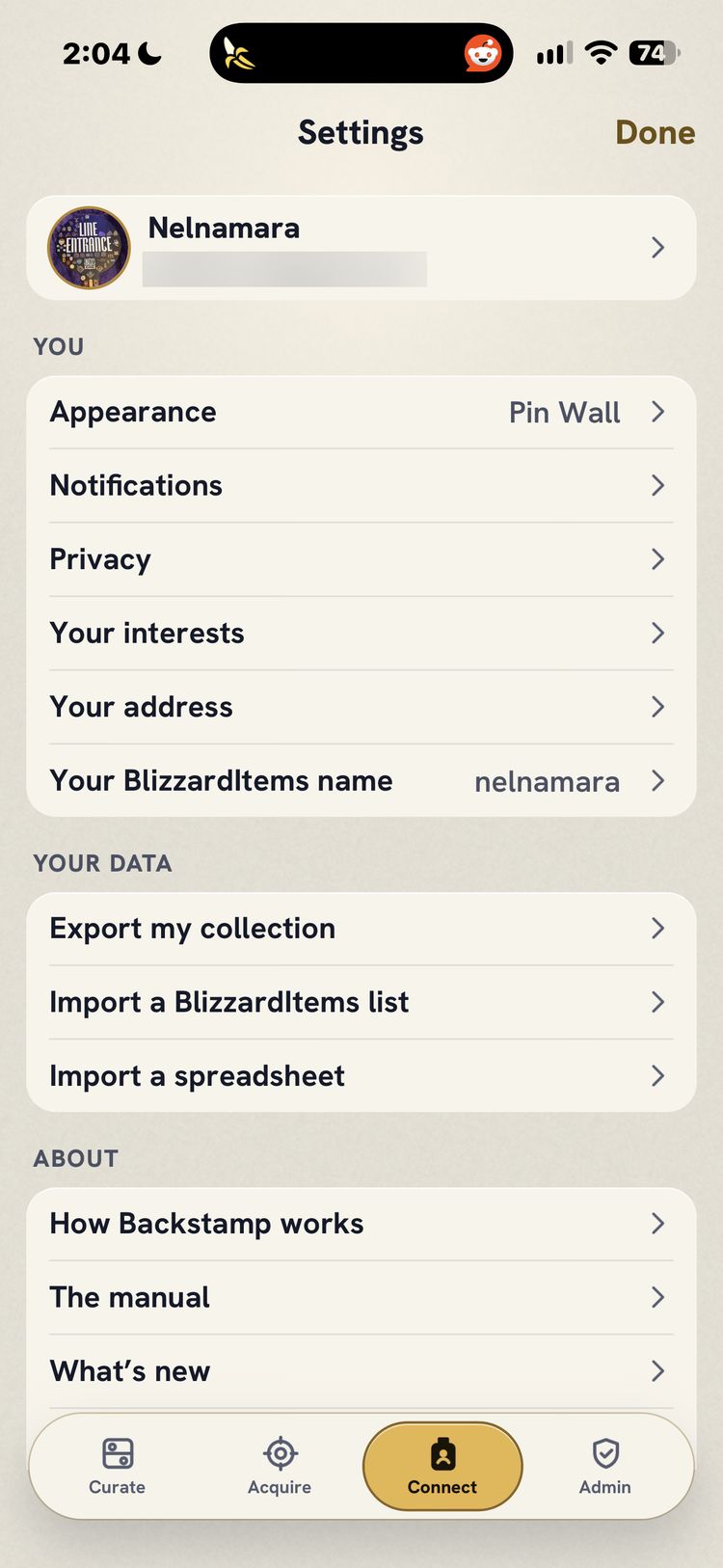
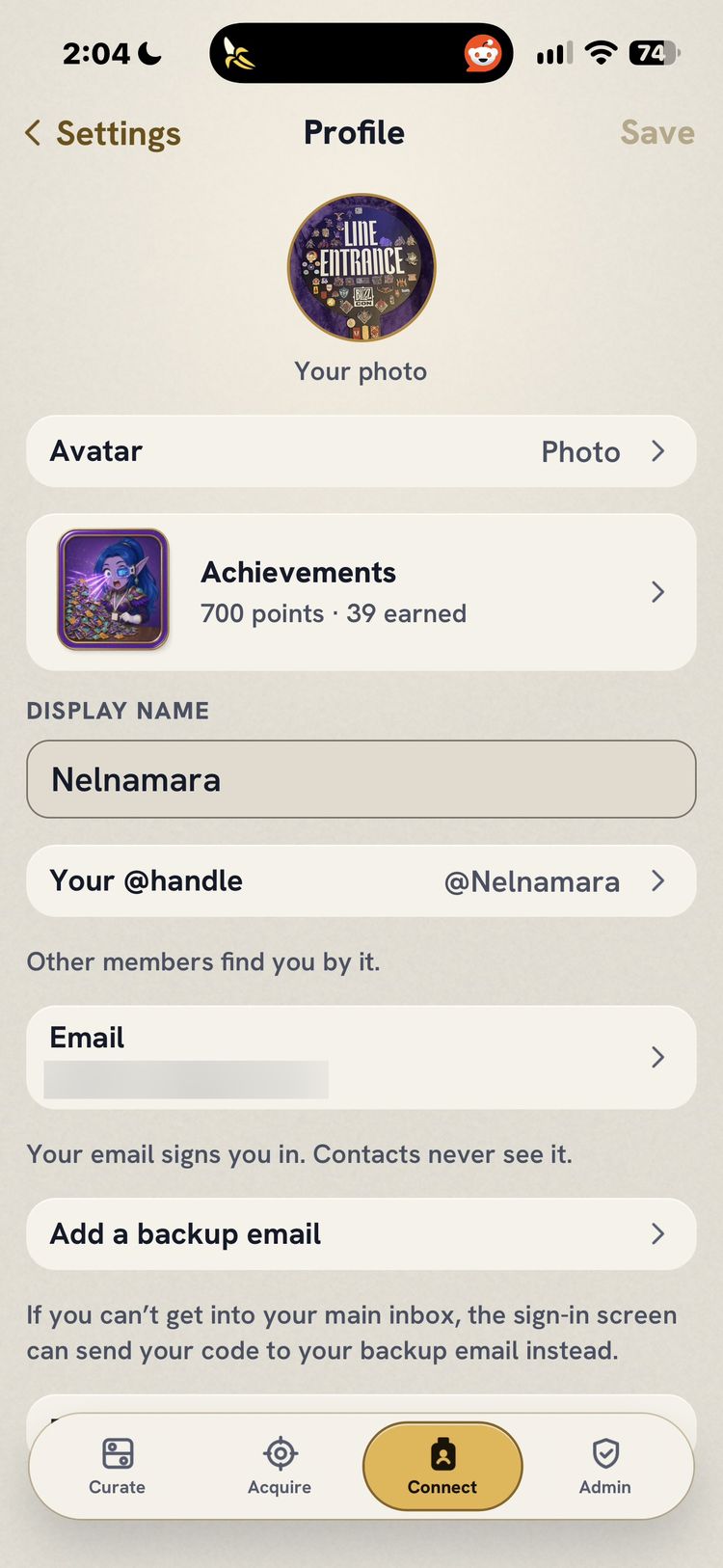
How do I open Settings?
Back to ContentsPull the shade down and tap your initials at the top right. Done closes Settings. Sign out and Sign out everywhere are in Settings.
The row with your name at the top opens Profile. It holds your avatar with an Avatar row (how), an Achievements row, your Display name, Your @handle, your Email row (tap it to change your email), Add a backup email and Add a passkey (or Passkeys), Find me on, For a new contact (How to reach you and Groups and marketplaces), and the Followers and Following lists. Save at the top right keeps your name and links.
The rest of Settings is in groups. You has Appearance, Notifications, Privacy, Your interests (what it is), Your address and Your BlizzardItems name. Your data has Export my collection, Import a BlizzardItems list and Import a spreadsheet. About has How Backstamp works, the manual, the notes for each update, the update you are running, the privacy policy, the house rules, the terms of use and Credits and trademarks (the list). Under them are Sign out, Sign out everywhere and Delete account, and Fonts and licences is at the foot.
How do I change the theme?
Back to ContentsIn Settings tap Appearance. There are three themes: Registry (paper and ink), Pin Wall (felt and gold rims, the one you start with) and Hall Pass (high contrast for a bright hall). Each changes the shapes as well as the colours. Under “Light or dark” pick Phone, Light or Dark. Your Light or Dark choice also goes to the iPhone, so Share and the photo picker match it; Phone hands the choice back. Under “At conventions”, Offer Hall Pass at check-in and Hall Pass switch on the shade decide whether Backstamp offers the hall theme while you are at a con. Under “App icon”, tap one of the three icons to change the icon on your home screen. It is its own choice and does not follow the theme.
How does Backstamp follow my phone’s settings?
Back to ContentsBackstamp follows five settings in the iPhone’s own Settings, under Accessibility, and reads them each time it opens.
- Reduce Motion: animations are reduced, and a video on Main Stage waits for your tap.
- Reduce Transparency: photo buttons, the iPad sidebar, a video’s play mark and the confirm card turn solid.
- Bold Text: every text steps up to its next heavier weight.
- Increase Contrast: lines, field edges and faint words are drawn stronger, in each look’s own colours.
- Smart Invert and Classic Invert: your photos, Backstamp’s pictures and your code are kept from inverting.
At the larger text sizes, buttons, bars, chips and toasts wrap instead of being cut short.
How does Backstamp work with VoiceOver?
Back to ContentsRows, cards and panels you can tap are read as buttons, and a row that is a choice says whether it is on. Each switch is named for its row. The two-finger scrub closes any sheet that a tap outside also closes. A swipe row’s actions are on the row itself: swipe up or down, then double-tap. An error under a field is read out when it appears, and an avatar with the green dot is read as “Kara T., here now”. An error note stays for 10 seconds, and a tap or a swipe clears it.
How do I choose my own @handle?
Back to ContentsYour handle is the @name other members find you by. It is on your lanyard card, in alerts and in the pieces you trade away. An email sign-up starts with a made-up one, such as @member-k7m2x9qa.
In Settings tap the row with your name at the top (Profile). Under Display name is Your @handle, with your handle on it and the line “Other members find you by it.” Tap it, type the new one and tap Change. A note says “You’re @kara”, and Profile and Settings show the new one.
A handle is 3 to 24 letters, numbers, _ and -. It starts with a letter or a number, does not end with _ or -, has no _ or - twice in a row, and is not only numbers. The card checks these as you type, and the names kept for Backstamp below too: the reason shows under the box, and Change waits until it is right. Then Backstamp checks it the way it does when you join. It refuses a rude or vulgar word, a handle someone else has (in any capitals) or one that looks like theirs, a handle that starts with member- or deleted- (Backstamp’s own), and the names kept for Backstamp itself: backstamp, admin, administrator, council, support, help, staff, official, moderator, mod, system, team, blizzarditems, blizzpins, pinnyarcade, pinnypals, blizzard, pax, everyone, all, here, anonymous, deleted, unknown, security, privacy, abuse, noreply and null. If it refuses, the card comes back headed Try another, with the reason and what you typed. A change of capitals alone is fine. A handle you already have stays, even if it is longer or shorter than these rules allow.
You can change your handle up to three times in 30 days, so a typo can be fixed. The third change starts 90 days with no changes; if you try then, the card says the day you can change it again. A change of capitals counts as a change. The handle you let go is held for you for 90 days, so nobody else can take it, and you can take it back. In the pieces you traded away, “Traded with” and “Owners before you” now show your new handle. Alerts and activity lines already sent, and the handle burned into a trade photo, stay as they were. Choosing a handle needs a signal.
Your Display name is checked when you save it too. Rude or vulgar words are refused, and so is a name made only of Backstamp, Admin, Administrator, Council, Moderator, Staff, Support or Official, which would look like Backstamp’s own people. Invisible characters are taken out, and a letter keeps at most two accents. A display name can be 40 characters.
If someone’s name is offensive, report them from their page and pick An offensive name (how). Backstamp’s reviewers can reset it: the member gets a made-up handle, such as @member-k7m2x9qa, and no display name, and cannot take the old handle back for 90 days.
If council resets your name, you are told. A row on the shade and in See everything, and an alert that has no switch, say “Council reset your name because it broke the house rules”. The Your @handle card then asks you for a new one: at once if Backstamp is open, otherwise the next time you open it. The box starts empty, and that line is over the card’s words. Tap Later to close it for now: it comes back each time you come back to Backstamp until you choose a handle. Tapping the row or the alert opens it too. This change does not count as one of your three in 30 days, and you can make it even during a 90-day wait. While your account is suspended, the card waits until the suspension ends. Your display name was cleared as well; set a new one under Display name if you like.
How do I choose my avatar?
Back to ContentsYour avatar is the small round picture beside your name. It starts as your initials. You can use a photo of your own, or a badge you have earned, in their place. Everyone sees it wherever your name shows: on posts and comments, in messages, in Who has one, on a con’s page, among contacts and on your page. There is no setting to show it to contacts only, so if you would rather not show your face, use a badge.
In Settings tap the row with your name at the top (Profile), then Avatar. Tapping your own avatar on your page opens it too. Your avatar as it is now stands at the top, and under it are four choices:
- Take a photo opens the camera, facing you to start. You can turn it.
- Choose a photo opens your photo library.
- Use a badge lists the badges you have earned, drawn as the Achievements page draws them. Tap one. With none earned, it says “You haven’t earned a badge yet.”
- Back to initials puts your initials back.
After a photo, Move and zoom opens. Drag to move it and pinch to zoom: what is inside the circle is what people see. Tap Use photo to keep it, or Cancel. Nothing is sent until you tap Use photo. A photo shows in a circle. A badge keeps its own rounded frame and is never cut into the circle, so it reads as earned. The one in use is marked In use, and the shade and Settings show it too.
Backstamp keeps one small copy of your photo, with no location or camera details, and deletes the old photo when you change it or go back to initials. A photo that has been reported is kept until council decides. Council can remove a photo that breaks the house rules, and you are told (how reports of a photo work).
How do I change my email address?
Back to ContentsIn Settings tap the row with your name at the top. Tap the Email row, type the new address and tap Send link. A card says “Check your new inbox”, and the page keeps saying so under the row until the link is used. Your email has not changed yet.
Open that email on this phone and tap its button. Backstamp opens, your email changes, and a note says “Your email is now” with the new address. The link works once and lasts 15 minutes. If you ask again, only the newest link works. The email goes to the new address alone, and it does not say who asked. If you open it on a computer, the page that comes up says to open the email on the phone where you use Backstamp.
When the email changes, Backstamp writes to your old address to say so, with the new one partly hidden, and to say where to write (hello@backstamp.quest) if it was not you. From then on only the new address signs you in. Your other phones stay signed in.
An address that another Backstamp account has is refused, with a message that says so, and nothing changes. A few asks are allowed in 15 minutes. A phone signed in to a different account than the one that asked is told so, and nothing changes. A suspended account cannot change its email.
If you joined with Apple and chose Hide My Email, Apple gave Backstamp a private address that Backstamp does not keep, so Profile shows no email. The row then reads Add email and works the same way. Once an email is added you can also sign in with a link. If your email is one of Apple’s private relay addresses (it ends in @privaterelay.appleid.com), Profile says that Apple passes Backstamp’s emails on to the address you gave Apple.
How do I add a passkey, and sign in with it?
Back to ContentsA passkey signs you in with Face ID or Touch ID. There is no code to wait for.
To add one, open Settings, tap the row with your name at the top (Profile), and tap Add a passkey. The iPhone’s own sheet opens; follow it. A note says “Passkey added”. Backstamp names the passkey for the device, “iPhone” or “iPad”. Your main email address is told that a passkey was added.
Once you have one, the row reads Passkeys, with how many you have. Tap it to open the Passkeys page. It lists each passkey with when it was made and when it was last used, such as “Made 3 Oct · Last used 21 Oct”, or “Not used yet”. Tap a passkey for Rename or Remove passkey. Add a passkey at the foot of the page adds another. You can have 10. A removed passkey stops signing you in, and it stays in your Passwords on the iPhone until you delete it there.
To sign in with one, tap Sign in with a passkey on the first screen, under Continue with email, and use Face ID or Touch ID. If you close the iPhone’s sheet, nothing happens. A passkey only signs in to the account that has it. It never makes a new account; to join, use Sign in with Apple or email.
How do I add a backup email?
Back to ContentsA backup email is a second address of your own. If you can’t get into your main inbox, the sign-in screen can send your code to it instead (how).
- Open Settings, tap the row with your name at the top (Profile), and tap Add a backup email.
- Type the address and tap Send link. A card says “Check that inbox”. Nothing has changed yet, and the page keeps saying “Check that inbox” under the row until you use the link.
- Open that email on this phone and tap its button. Backstamp opens and a note says “Your backup email is now” with the address.
The link works once and lasts 15 minutes. If you ask again, only the newest link works. It must be opened on a phone signed in to your account. Your main email address, or an address that another Backstamp account uses, is refused with a message that says so. Your main address is told when a backup is added, changed or removed.
Once it is set, the row reads Backup email with the address under it. Tap it for Change backup email (your current one stays until you use the new link) or Remove backup email, which asks first. If you joined with Apple’s Hide My Email and have no email on file, there is no backup row; tap Add email first (How do I change my email address?).
What if I cannot get into my inbox?
Back to ContentsThere are three ways back in. Try them in this order.
- A passkey, if you added one: tap Sign in with a passkey on the first screen.
- Your backup email, if you added one. Tap Continue with email, type your main address and tap Send link, then tap Paste the code. On the code step, tap Can’t get into this inbox?. The step then says “If this account has a backup email, a code is on its way there.” It says the same whether or not you have a backup, so it tells nobody else. Look in the backup inbox and type the code in the box as usual. Once you are in, a card says “You signed in with your backup email” and offers Change email now, which starts a change of your main email, or Not now.
- Someone to move your account. Write to hello@backstamp.quest. An admin can move your account to a new email address once they are sure it is you (how).
How do I add my Facebook, Instagram or Discord?
Back to ContentsIn Settings tap your name, then fill in Find me on. For Facebook type your handle or your profile address. For Instagram type your handle. For Discord type your username. Each can be 100 characters at most. Tap Save. If a link is not one Backstamp can keep, it says why and saves nothing. Leave a box empty to show nothing. The people you added as contacts see your links on your page. Nobody else does.
How do I say how to reach me, and where I trade?
Back to ContentsOn Profile is a group called For a new contact, with two rows. Each shows what you picked, such as “Discord, Instagram +1”, or “Not set”.
- How to reach you opens a sheet that says: “Pick every way that suits you. Close and Trusted contacts see it.” The chips are Backstamp messages, Discord, Instagram, Facebook, In person at cons and Other…. Other… adds a box, “Say where”, of 60 characters at most.
- Groups and marketplaces opens a sheet that says: “Where you trade and talk pins outside Backstamp. Close and Trusted contacts see it. Never a listing or a price.” The chips are Blizzard Pin Trading (Facebook), BlizzPins Discord, r/BlizzardPins, BlizzCon trading floor, eBay, Mercari and Other….
Pick as many as you like and tap Save. Close and Trusted contacts see your picks on your page, under How to reach them. Met once contacts and followers do not. A Met once contact sees only “How to reach them shows once you’re Close or Trusted.”
Where are the house rules and the privacy policy?
Back to ContentsThey are on Backstamp’s website, at https://backstamp.quest. The home page says what Backstamp is, in the words the app uses. The house rules are at https://backstamp.quest/rules, the privacy policy is at https://backstamp.quest/privacy, the terms of use are at https://backstamp.quest/terms, and this manual is at https://backstamp.quest/manual. The website has no sign-in, and no member’s page is on it. The app shows the house rules too, the first time you post to Everyone in Backstamp, and again when they change. There are six. Rule 6, “What others see about your collection”, was added on 25 Oct 2026 with achievements. Rule 5 says that reports are looked at within 3 days, on the page and in the app. The home page also links to a Testing page, for people who want to join the test.
In Settings, the About group has How Backstamp works, which shows the welcome pages again; The manual, which opens this manual on the website in the app’s own browser; What’s new, the notes for each update, newest first (after an update the newest note shows as a sheet each time Backstamp opens, until you tick Don’t show again until the next update and close it); Update, which names the update Backstamp is running, such as “31 Oct 2026 · 01a18617”, and opens nothing; Privacy policy, House rules and Terms of use, which open those pages in the app’s own browser; Credits and trademarks, a short page that says Backstamp is not affiliated with Penny Arcade, PAX or Blizzard Entertainment, and whose pin art and names these are (tapping the credit line at the foot of the Pinny Arcade catalog opens it too); Contact, which opens Mail addressed to hello@backstamp.quest; and Suggest a shop (how). Fonts and licences is the last row of Settings, at the foot.
What is kept on my phone, and what happens when I sign out?
Back to ContentsBackstamp keeps a copy of your wall, your wishlist, Main Stage, your contacts, your lanyard card, your achievements and the boards you opened on the phone, so they show with no signal. It also keeps anything you saved with no signal until it has been sent.
To sign out, open Settings and tap Sign out, then Sign out. Backstamp first sends what is waiting. If some of it cannot go, a second sheet lists it and you choose Sign out anyway or Stay signed in. Once you are signed out, the copies are removed from the phone and alerts stop. Pieces, photos, scanned codes, posts, trade proposals, trade steps (Agree and We swapped (or received)) and messages that were still waiting stay on the phone, for you only, and go up when you sign in on this phone again. Wishlist changes that were still waiting are lost.
How do I sign out everywhere?
Back to ContentsIn Settings tap Sign out everywhere, just under Sign out, then Sign out everywhere again. The question reads “Every phone signed in to your account is signed out, this one too.” Use it for a phone you have lost or lent. What is waiting on this phone goes up first, as it does with Sign out. Then Backstamp ends every sign-in of yours and signs this phone out. If Backstamp cannot be reached, nothing is changed and you stay signed in, with a message saying so.
Settings › Notifications
Back to ContentsWhich alerts reach your phone, and what they say.
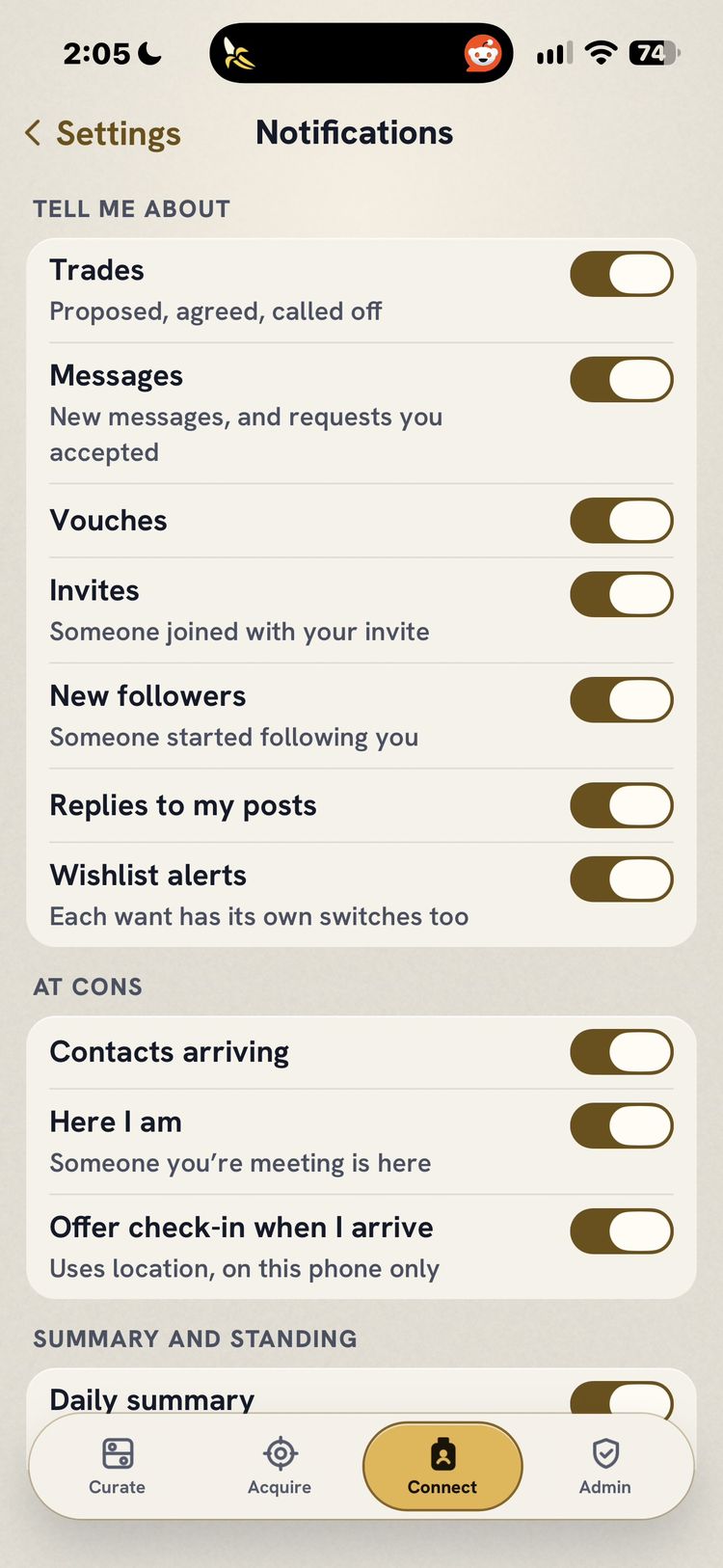
Which alerts can I turn on and off?
Back to ContentsIn Settings tap Notifications. If the phone is not letting Backstamp send alerts, a card at the top says so. When you said no to the phone’s question, it reads “Notifications are off on this phone”, and Open Settings takes you to the phone’s own Settings for Backstamp, the only place to turn them back on. When the phone has not been asked yet, it reads “Notifications aren’t on yet”, and Turn on notifications puts the phone’s question. Backstamp does not ask when you sign in. It asks the first time you save a want, first with its own question, “Tell me when a want turns up?” (Yes, tell me or Not now), and only then the phone’s. Trade and message alerts need the phone’s leave too. Under “Tell me about” there are Trades, Messages (new messages, and requests you accepted), Vouches, Invites (someone joined with your invite), New followers (someone started following you), Replies to my posts and Wishlist alerts. Under “At cons” there are Contacts arriving and Here I am (“Someone you’re meeting is here”). All nine start on. Two more, Daily summary and Standing changes, start off (see What are the Daily summary and Standing changes alerts?). A first message from someone who is not your contact never alerts you, whatever the switch says, until you accept it (see What are Requests?). A comment on your post comes under Replies to my posts. A like never alerts your phone; it shows on your shade only. Earning an achievement does not alert your phone either: it shows on your shade as “You earned”, and it has no switch. Offer check-in when I arrive is a different kind of switch and is explained under Cons. Each want also has its own three switches. Turning a switch off stops the alert on your phone. The news still shows on your shade.
What does an alert say, and never say?
Back to ContentsAn alert has a short title for its kind (Trade, Vouch, Reply, Set, Grail hit, Wishlist, Standing, Contact arrived, New contact, Here I am, Message, New follower, Your post, Backstamp or Backstamp’s reviewers) and one line, such as “Kara T. wants to swap”. A suspension and the answer to an appeal put their own words in the title. It never carries a price, a value or a ceiling, the note on a vouch, or the name of the contact behind a wishlist alert. The line of a Here I am alert is only “@kara is here”: never their words, and never where they are. A Daily summary alert is counts only, and a Standing alert names a board and your place on it, never an amount. A message alert says only who wrote, such as “@kara sent you a message”, never the words; a new follower’s says “@kara followed you”. A report alert, for council and admins, never names who filed the report and carries no words of it. A lock screen can be read by anyone holding the phone.
While Backstamp is open, an alert is not the phone’s banner: Backstamp shows it as its own small enamel pin at the top of the screen, with the same words, and the news is on the shade too. Tapping an alert, or the pin, opens what it is about: the trade, the post, the want, the con, the person, the Here I am, the conversation or the private talk. A new follower’s alert opens their page. A new report opens its decision on the Admin tab. A warning, a removal, a suspension or the answer to an appeal opens its decision card (how to appeal). An alert about nothing in particular, such as an error report, has no page of its own, so the shade comes down where its row is. A warning, a removal or a suspension from Backstamp’s reviewers, council’s decision on your own post, the answer to an appeal and a message in a private talk have no switch and always arrive. Alerts stop on a phone when you sign out of it.
What are the Daily summary and Standing changes alerts?
Back to ContentsBoth are in Settings, Notifications, and both start off: Backstamp sends neither until you turn it on.
- Daily summary is one alert a day, and only on a day when something is new. It holds counts only, such as “4 new pins · 2 new for trade · 6 posts”, and never a value or a price. A tap opens the shade. It comes in the morning, about 9, by your own clock. With the switch on, Morning or Evening (about 6 pm) shows under the two switches and picks the time. Your phone sends its time zone with its alert address so that Backstamp knows your clock; without one, Backstamp uses US Pacific time. The time zone is used for nothing else.
- Standing changes is an alert on the day your place on a BlizzardItems leaderboard changes, worded as the row on the shade: “Pin Collection: 8th → 6th”. It needs your BlizzardItems name (see How do I give my BlizzardItems name, and what is my standing?).
Turning a switch off stops the alert. The news still shows on your shade.
Can I keep Backstamp quiet at night?
Back to ContentsUse the phone’s own Focus or Do Not Disturb; Backstamp has no quiet hours of its own. On an iPhone, open the phone’s Settings, tap Focus, pick one such as Sleep or Do Not Disturb, and set a schedule. While it is on, Backstamp’s alerts stay silent unless you add Backstamp to the apps that may still alert you. On Android, open the phone’s Settings, Notifications, Do not disturb, and add a schedule. Alerts that come while it is on wait quietly in the phone’s list of notifications, and everything is on your shade when you open Backstamp.
Settings › Your data
Back to ContentsYour data brings lists in and takes your collection out. Your BlizzardItems name is under You.
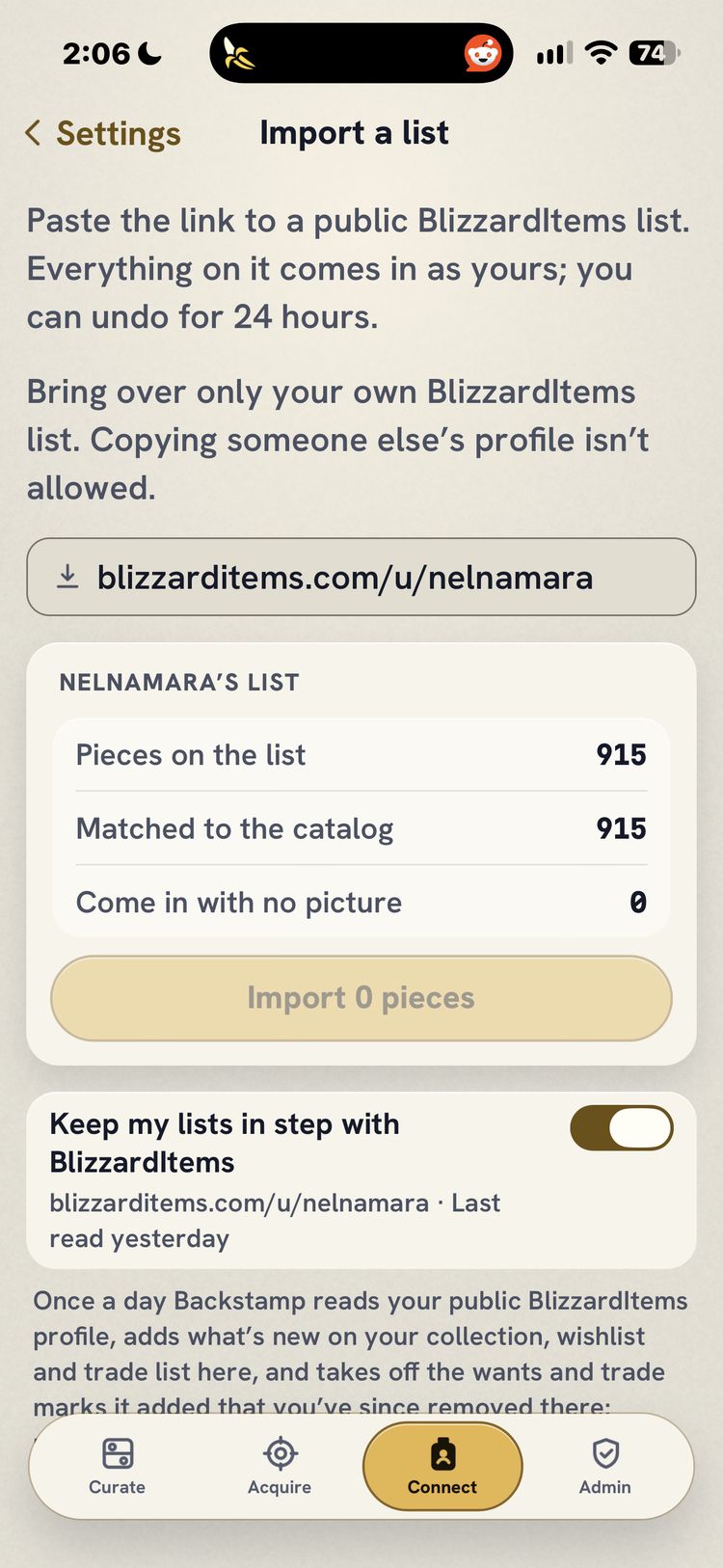
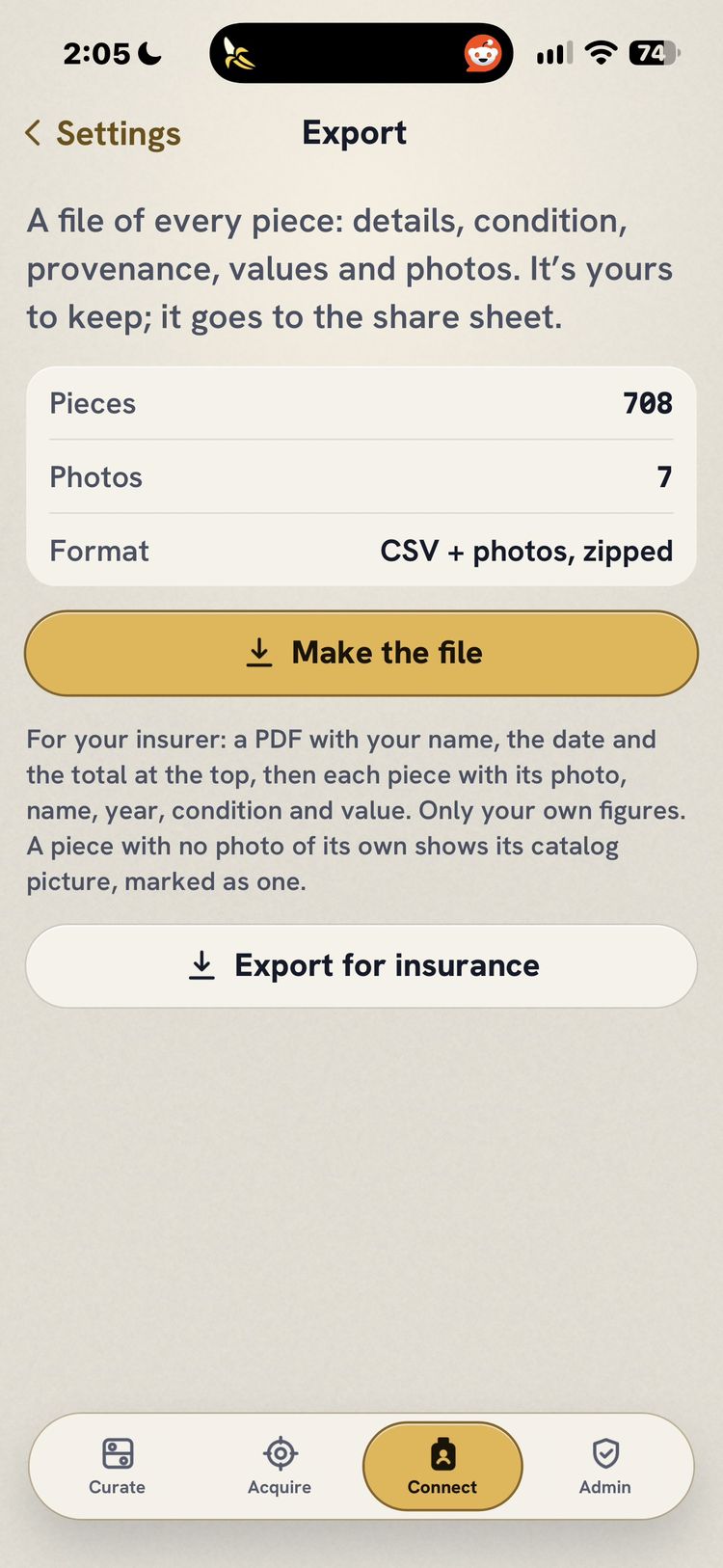
How do I bring my spreadsheet over, and undo it?
Back to ContentsSettings, Import a spreadsheet reads your export’s collection.csv back in (how to make the file). A sheet you made or edited yourself works too: the columns are found by their names in the header row, in any order, and only Name has to be there. It only ever adds pieces.
Choose a file opens the phone’s own file chooser (Files, iCloud Drive and the rest). On a build older than build 20 it is dimmed, with the line “Choosing a file needs the next version of the app.”; install the newest build from TestFlight (how).
You can open the page in Settings, under Your data, Import a spreadsheet, or from the foot of your wall on Curate: a quiet Import a spreadsheet button under the last piece, or under Add your first piece on an empty wall.
- Tap Choose a file and pick the CSV. The page names it, and Choose another file swaps it.
- Backstamp reads it and shows What comes in: Rows, New pieces, For trade, Already on your wall, and No name or Name can’t be kept when there are any. First rows lists the first five that come in and counts the rest. Left blank lists cells that did not read as what their column holds, with the row, the column and why, and counts the rest; the pieces still come in. An amount that is not in US dollars is left blank, with the note that Backstamp keeps amounts in dollars only. Franchises and categories in the file that are new to you come in as your own. Rows that say Verified come in unverified, because only a reviewer verifies a piece. Photos and proofs are in the export’s ZIP, not the spreadsheet, so add them to each piece.
- Nothing is added until you tap Import 42 pieces, with your own number. All of it lands or none of it does.
A row that is the same piece as one you already have (the same catalog link, or the same name, kind, series, origin and edition) is skipped, so reading the same file twice adds nothing. A file can hold up to 5,000 rows, 60 columns and 300,000 cells, and one import adds at most 100 new franchises, categories and series together. Over a limit the page says so in words, before anything is added. Importing needs a signal.
To undo, open Import a spreadsheet again within 24 hours. The page shows “42 pieces imported”, “You can undo it until Fri 14:05. A piece you’ve changed since stays.” and Undo import. A note says how many pieces were removed, and how many stayed because you changed them since.
Imported pieces do not count toward achievements, the worth other members see, or want alerts until the 24-hour Undo window has closed. Your own wall shows them at once.
How do I bring my list over, and undo it?
Back to Contents- In Settings tap Import a BlizzardItems list.
- Paste the link to your public BlizzardItems list. The screen says: “Bring over only your own BlizzardItems list. Copying someone else’s profile isn’t allowed.” Backstamp can first ask you to show the list is yours (how). Then it reads it and shows how many pieces are on it, how many match the catalog and how many come in with no picture.
- Tap the button under the counts. It reads like Import 42 pieces, with your own number.
Your collection comes over as pieces, and what you marked for trade becomes trade stock. Your wishlist comes over as wants. Only what is new to you is added. An imported piece shows the catalog’s picture and facts, and an estimate marked as BlizzardItems’, until you add a photo of your own. Nothing changes on BlizzardItems. Imported pieces do not count toward achievements, the worth other members see, or want alerts until the 24-hour Undo window has closed. Your own wall shows them at once.
To undo, open Import a BlizzardItems list again within 24 hours and tap Undo on the bar at the top. Anything you changed since the import is kept.
How do I keep my lists in step with BlizzardItems?
Back to ContentsTurn on Keep my lists in step with BlizzardItems and Backstamp reads your own public BlizzardItems profile once a day and brings what is new there into your lists here. The switch is in two places. On Import a list it stands under the card of counts once you have pasted your list link, and stays there while it is on. On Your BlizzardItems name in Settings it keeps the profile of the name you saved there; with no name saved it says Save your name first.
Turning it on asks first (Keep your lists in step?) and reads the profile at once. A note says what came over, such as “Kept in step. 12 pieces and 3 wants brought over.” While it is on, a line under the switch gives the profile and how the last read went: “Last read today”, or “Couldn’t read your profile yesterday. Check it’s still public”. Each day, what is new on your collection, wishlist and trade list comes over, and the wants and trade marks that this switch added, and that you have since taken off on BlizzardItems, come off here. No piece is ever deleted, and nothing is ever sent to BlizzardItems. Switch it off and nothing more is read (“Stopped. Nothing more is read from BlizzardItems.”); what it brought over stays. It is for your own profile only: one BlizzardItems profile can be kept in step with one Backstamp account at a time. Switching it on can ask you first to show the profile is yours (how). It needs a signal.
How do I show a BlizzardItems list is mine?
Back to ContentsBefore it reads a list, on Import a BlizzardItems list or when you switch on Keep my lists in step with BlizzardItems, Backstamp can ask you to show the list is yours. A card, Show it’s your list, names one pin with its picture and says: “Add this pin to your Wishlist on BlizzardItems, then come back and tap Check. You can take it off again straight after.” Open it on BlizzardItems opens that pin on the site. Add it to your Wishlist there, come back and tap Check. If it is not there yet, the card says “It isn’t on your BlizzardItems lists yet. Add it, give it a moment, and tap Check again.” Once it is, the card says “That’s your list. You can take it off your Wishlist now”, with the pin’s name, and the list is read.
For a day after, that pin is left out of what comes over from the list, so it never lands as a want. Backstamp keeps the profile’s name, when you showed it and which pin, until you delete your account. One person at a time can show a profile is theirs: if someone else shows yours later, your proof goes, and so does your Keep my lists in step for it; your pieces stay. Lists you were already keeping in step before this was asked keep running.
How do I give my BlizzardItems name, and what is my standing?
Back to ContentsIn Settings tap Your BlizzardItems name, type your @handle from blizzarditems.com (40 characters at most) and tap Save. To stop, tap Clear my name. Backstamp keeps the name until you clear it or delete your account. It uses it to find you on BlizzardItems’ public leaderboards and, if you turn on Keep my lists in step with BlizzardItems on the same page (how), to read your own public profile. It does not ask you to prove that the name is yours, because your place is shown to you alone and to nobody else.
Once a day Backstamp reads the leaderboards page of blizzarditems.com: one page, and nothing more from the site. If you are on a board, a row on Since you last looked says so, and says when your place changes: “Pin Collection: 8th → 6th”, “Pin Collection: you joined at 9th” or “You left the Pin Collection top 10”. Each board shows only its top ten (six on Legendary Pins), so you have a place only while you are on one, and falling off a board is a change too. The Pin Collection Value board ranks by value: Backstamp shows your place on it and never any amount from it. To be told by an alert on the day your place changes, turn on Standing changes under Settings, Notifications. It starts off. Saving the name needs a signal.
How do I export my collection or delete my account?
Back to ContentsTo export, in Settings tap Export my collection, then Make the file. One file goes to the iPhone’s share sheet. It holds your collection (every piece, with its category, franchise, series, the catalog entry or Pinny Arcade pin it is linked to, its condition, where it came from, its values and your photos), your wishlist (every want, with its ceiling and its Tell me when switches) and your own sets, with which piece or want is in each place. It does not hold your posts, comments, contacts, trades or vouches. What you paid, your values and your ceilings are in it, so keep it to yourself. Pieces you let go are not in that file. They are in `let-go.csv` in the same ZIP, with their photos, and each row says what the piece was let go as, its day, its Sold for and its note (how). The insurance sheet leaves them out too. Import a spreadsheet reads its collection.csv back in (how).
For your insurer, the same page has Export for insurance, under Make the file. It makes a PDF, Letter size. At the top are your name, handle and email, the day it was made, and the total value with how many pieces (and how many have no value logged). Then each piece has a row: its photo, its name with its kind, where it came from and its edition under it, its year, its condition, and its latest value with the day that value was logged. A piece with no photo of its own shows its catalog picture, tagged Ref and marked as one. The button reads “Making the PDF” while it works, then Share the PDF, which opens the iPhone’s share sheet. It holds only your own figures, and it goes nowhere but where you send it. The spreadsheet of everything, with what you paid and the day you bought each piece, is in Export my collection.
To delete, in Settings tap Delete account. Tap Export my collection first if you want a copy. Type DELETE and tap Delete account. You are signed out on every phone. For 7 days nothing is removed: tap Undo, keep my account and sign in again, and it is all back. After 7 days your collection, photos, values, posts and videos, the messages you sent and the photos in them, your follows, your achievements and the figures the boards are made from, your passkeys and backup email, your BlizzardItems name and time zone, your saved address and every address you shared or were shared are gone for good from the app. The server’s nightly backup of the database can still hold copies of them for up to 14 days. (Here I ams are left out of that backup.) Trades you finished stay in your partners’ history under your initials. Anything still waiting on the phone to be sent is dropped when you delete.
Privacy
Back to ContentsThe answers from here on are about the whole app. First, who sees what. Your usual choices are in Settings › Privacy.
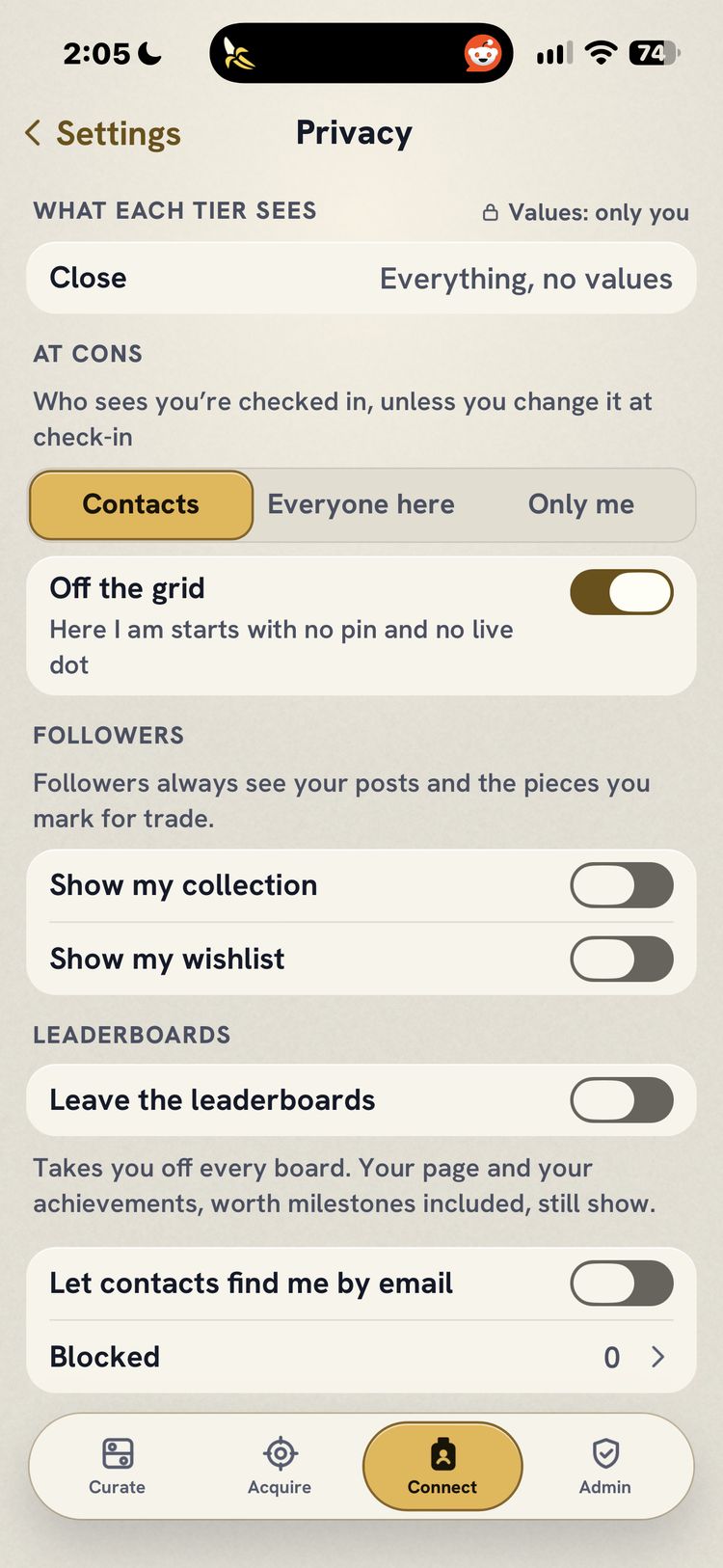
What does nobody else ever see?
Back to Contents- What any one piece is worth to you, and every value you logged for it.
- What you paid.
- The ceiling on a want.
- Your BlizzardItems name, and your place on its leaderboards.
- The shop’s asking price for a BlizzPins product that you linked a want to.
- The total on your shade, until you have seen the worth notice. After that, one total is shown to other members (what they see).
- Your email address.
- Which tier you gave someone.
- Which posts you have saved, and which you have hidden.
- Your address, except to the one person you share it with, for as long as the share lasts.
- Your tracking numbers, except to the other person in that trade.
- Your messages, except to the other person in the conversation, and to council once one of you reports it.
- Who offered a piece to the shared catalog, and the offer itself until council approves it. Council sees the name on an offer. An approved entry never names the member who offered it.
What you paid, what a piece is worth to you and the ceiling on a want show only on your own screens, with a lock beside them. Nothing another person sees or is sent carries them: not a post, a trade, an alert or your lanyard card. Only a photo you add yourself could show one: a receipt you add as proof, which a reviewer sees, or a photo you add to a trade, which the other person in it sees. Some prices do show, each under its own rule: the two BlizzardItems prices on the catalog show to every member; a shop’s price on a shared catalog entry shows to every member, as the shop’s own, and never counts toward worth; Pinny Arcade’s original price on a pin’s sheet shows to every member, as what the pin sold for; and a BlizzPins asking price shows only to the member whose want is linked to that product. The one exception is your collection’s total worth, in the next answer.
What do other members see about my achievements and my collection’s worth?
Back to ContentsAnyone who can open your page sees the achievements you have earned, your points, and your counts: cons, trades, people met, posts, pieces, and pieces by franchise. They cannot see one you have not earned, and nobody sees a hidden feat before you earn it.
One number is different from the rest. Backstamp adds up what your whole collection is worth, in whole dollars, counting each piece at the latest value you logged for it, or at BlizzardItems’ estimate where you logged none. Other members see that one total, rounded to two figures (so $4,280 shows as $4,300), with the words “with estimates”; the worth achievements it earns, such as “Collection worth · $1,000”; and your place on the Worth board. If you own only one piece, the total is that piece’s value, rounded the same way. You always see your own exact total. It shows at a con as it does anywhere else. It starts only after you have seen the worth notice.
They never see what you paid, a value for any one piece, a list of pieces with values, or the ceiling on a want. House rule 6 says the same: “Your achievements, your points and your collection’s total worth, counted with estimates, are shown to other members, and so is your place on Backstamp’s boards unless you leave them in Settings, Privacy. What you paid and what any one piece is worth to you are never shown.” There is no switch that hides the total from your page. Leave the leaderboards takes you off the boards and nothing else (how). A block hides the two of you from each other on the boards and on your page.
What does each tier see?
Back to Contents- Close: Your whole collection, your trade stock and your wishlist. That you are at a con and which one, wherever they are.
- Trusted: Your trade stock and your wishlist. That you are here, only while they are checked in at the same con.
- Met once: The trade pieces and the wants on your lanyard card. That you are here, only while they are checked in at the same con.
- Not a contact: Your name, how many vouches you have, and your achievements and total worth (see the answer above). Any piece you mark for trade that fits one of their wants, with its condition and your name, through Who has one (and Who has one here at a PAX show). If you chose Everyone here, people checked in at the same con also see that you are there.
- A follower (anyone who follows you): As well as their tier: your posts to Everyone in Backstamp and every piece you mark for trade. Your collection and your wishlist only if you turned on Show my collection or Show my wishlist under Followers.
No tier, and no follower, sees what any one piece is worth to you, what you paid, or a ceiling. Your collection’s total worth is the one number every member can see, once you have seen the worth notice. Your Facebook, Instagram and Discord show only to your contacts. A contact’s page shows what the tier they gave you lets you see: how to look through it.
Who learns that I am at a con?
Back to ContentsIt depends on “Who sees you’re here”. You set your usual answer in Settings, Privacy, under “At cons”. You can change it for one con on the “You’re checked in” sheet, or later from More on the con’s page.
- Only me: nobody. Your lanyard card leaves the con off too.
- Contacts: a Close contact is told that you are at a con and which, wherever they are. A Trusted or Met once contact sees that you are here only while they are checked in at the same con.
- Everyone here: the same, and also anyone else who is checked in at the same con.
When you check in, the contacts who may see it get a line such as “Kara T. is at BlizzCon”. Someone you blocked never sees you. Before you check in, I’m going shows to your contacts, unless your answer is Only me.
With no signal
Back to ContentsWhat works with no signal?
Back to ContentsThe edge of the shade reads “Offline · saved on this phone”. Halls are bad for signal, so the things you do face to face do not need one.
Works as usual:
- Looking at your wall, a piece, your wishlist, Main Stage and your contacts, as they were when you last had a signal.
- Searching your wall and your wants.
- Your lanyard card, Show code and Scan code.
- Your Achievements, and each board you opened, as they were at your last look.
Saved on the phone, and sent when you are back:
- A new piece with its photos, its condition and where it came from. It hangs on your wall marked Waiting.
- Changes to a piece, a value you log, and a photo you remove. There is no Undo for these.
- Changes to a want, and removing one.
- A post of words and pieces, to Close, Close and Trusted or Everyone I know. It sits at the top of Main Stage marked Waiting. Tap its More, or hold its words, to delete it. A post with photos, or one to Everyone in Backstamp, needs a signal.
- A trade proposal you were writing when the signal went.
- Words in a message, shown as yours and marked Waiting. A photo needs a signal.
- Agree and We swapped (or received) on a trade: the button turns into Waiting, and the step goes when you are back.
- A code you scanned. The person is added when you have a signal.
Needs a signal:
- Signing in, adding a new want, searching the catalog and importing a list.
- Checking in and out, and changing who sees you.
- Calling a trade off, vouching, and liking, saving or commenting on a post.
- Sorting the wall.
- Putting a piece on display, moving it to the front, and taking it off; the For trade and On display switches on a piece’s page.
- Sets, another person’s page, deleting a piece, proof and verification, changing the pieces on your lanyard card, inviting, reporting, blocking and exporting.
- Sending, updating or stopping a Here I am, and seeing one you were sent. Adding a spot, the spot list, and scanning a spot’s code.
- A contact’s whole collection and wishlist, the list of all your trades, and Community narrowed to one kind of post.
- Your badge photo, and Sign out everywhere.
- Another member’s achievements, sharing an achievement, joining or leaving the leaderboards, and adding a passkey or a backup email.
- A photo in a message, following, searching posts, editing or hiding a post, your address and its shares, tracking, and a post with a video.
- See everything and the lists of new pieces, finding, linking and unlinking a want at BlizzPins, and saving your BlizzardItems name.
- Offering a piece to the shared catalog, withdrawing an offer, and linking or unlinking a piece and a catalog entry.
- Choosing your @handle, changing several pieces at once with Select, deleting a value from a piece’s history, and bringing a spreadsheet over.
- The Pinny Arcade catalog and a pin’s sheet, and suggesting a shop.
Appeals and private talks
Back to ContentsHow do I appeal a council decision?
Back to ContentsCouncil can remove a post or comment of yours, warn you, or suspend you. You are told by a row on the shade, in See everything, and by an alert that has no switch. Tap the row to open the decision card.
The card’s top line is Council decision. Its title says what happened: “Your post was removed for breaking rule 2: Be decent” (or “Your comment was removed...”), “A warning from Backstamp’s reviewers”, or “Your account is suspended until 25 Oct”. A box under it holds the reviewer’s note, if there is one. The foot says “You can appeal until 1 Nov.” You have 30 days from the decision.
- Tap Appeal…. The Appeal this decision sheet opens with the decision and what it was about, such as “Your post · 18 Oct”. Tap that line to see it.
- Under “Why should council look again?”, write your side, up to 1,000 characters.
- Tap Send appeal.
The sheet says: “A reviewer who didn’t make this decision reads it. They see what you write, the decision and what it was about.” And at the foot: “One appeal per decision. Council’s answer is final.” Once it is sent, the card says “Appeal sent 20 Oct. A reviewer who didn’t make this decision will answer here.”
The answer comes to the same card, under Appeal answered. It is either “Council changed its decision: your post is back” (“your comment is back”, “the warning is taken back” or “your suspension has ended”; a removal that came with a suspension says “your post is back, and your suspension has ended”), or “Council looked again and kept its decision”. The reviewer’s line comes with it if they wrote one, and the card ends “This is final.” A post that is put back comes back with its photos, and Open post opens it. When the 30 days are over the card says “Appeals for this closed on 1 Nov.”
If you are suspended, you can still sign in. When you try to post, comment or like, a note with a red rim says “Your account is suspended until 25 Oct.” with Appeal in it. Tap it for the same sheet. After you send, the note says “Your account is suspended until 25 Oct. Your appeal is with council.” Trying again says “You’ve already appealed this decision.”
What is a private talk?
Back to ContentsSometimes reviewers want your side before they decide. They start a private conversation with you, from “Backstamp’s reviewers”. It is pinned at the top of your Messages, with a line such as “Private · about a trade”, “Private · about your messages” or “Private · about a Here I am”. You are told by a row on the shade.
Open it. A card at the top says Private: “Only you and Backstamp’s reviewers can read this. Nothing has been decided, and nothing here is shown to anyone else.” Under it: “Please answer by Mon 27 Oct. Without an answer, reviewers decide without your side.” That is seven days from the start. A mark says what it is about, such as “About a trade of yours”. Write your answer in the box and tap send. The camera button adds a photo. There is no Block, Report or Delete here.
If you have not answered after five days, a banner says “Backstamp’s reviewers are waiting for your answer”, with the day, and a row on the shade says so too.
A talk ends with a card in the thread: “Closed 24 Oct. Sorted: nothing further will happen.”, “Closed 24 Oct with a warning.” or “Closed 24 Oct with a 7-day suspension.” The last two say “You can appeal until...” and have Appeal…, which opens the sheet above. The box then says “This talk is closed.” and the pinned row reads “Private · closed 24 Oct”.
A suspended member cannot answer in a talk. The box says: “Your account is suspended until 25 Oct, so you can’t answer here. Reviewers may decide without your side. You can still appeal the suspension from its notice.”
What if Trades are paused for now?
Back to ContentsIf you start a trade, or accept one, and a card says Trades are paused for now, trading waits. The card says: “Backstamp’s reviewers are looking into something. Trading waits until they’ve decided, usually within a few days. Nothing has been decided, and if they need your side they’ll write to you in Messages.” On accepting a trade it begins “This trade can’t be accepted yet.” Tap OK. The card says nothing more than that. If reviewers do need your side, they write to you in a private talk.
If something goes wrong
Back to ContentsWhen a screen cannot be shown, Backstamp says so in plain words, says that nothing in your collection was changed, and offers a way on.
What does this message mean?
Back to Contents- “No signal. Signing in needs one.”: Find a signal and try again.
- “That code doesn’t match.”: Check the six characters. They last 15 minutes. After five wrong tries they stop working; the link in the same email still works, or tap Send it again.
- “That invite has been used.” or “That invite code isn’t one we know.”: Check the code with the person who invited you, or tap Back and Continue with email. You do not need a code to join.
- “Too many tries from this connection.”: Wait the minutes it names. An email you already have still works.
- “That email address is already used by another Backstamp account.”: Use a different address for your email, or sign in to that account instead.
- “We’ve already sent a few emails to that address.” or “You’ve asked to change your email a few times already.”: Wait the time it names. Use the newest email you have.
- “That link has expired.”, “That link has already been used.” or “That link isn’t one we know.”: Ask for a new link: Settings, your name, Email. Only the newest link works.
- “That link was asked for by a different Backstamp account.”: This phone is signed in to another account. Sign in to the account that asked, then open the link again.
- “Sign out Kara T. and sign in with this link?”: Someone else is signed in on this phone. Choose Stay signed in or Sign out.
- “If this account has a backup email, a code is on its way there.”: You see this whether or not the account has a backup email. Look in the backup inbox. If no code comes, try a passkey, or write to hello@backstamp.quest.
- “Your backup email wasn’t added”: The link was too old, was already used, or was asked for by another account. Ask for a new one: Settings, Profile, Add a backup email. Only the newest link works.
- “You have 10 passkeys. Remove one to add another.”: Open Settings, Profile, Passkeys, tap one, and tap Remove passkey.
- “That passkey isn’t on a Backstamp account.”: That passkey was removed in Backstamp, or its account is gone. Sign in with Continue with email instead.
- “You’ve already shared this one.”: An achievement can be shared once. Open the post from View post, or delete the post to share it again.
- “You’ve changed your @handle 3 times in 30 days. You can change it again on” a date: Wait for that day: three changes in 30 days start 90 days with none. The handle you let go is held for you for 90 days (how).
- “That username is taken” or “That username is kept for Backstamp itself”: Choose another handle. One that looks like someone else’s, or that a member let go in the last 90 days, is refused as taken. One that starts with member- or deleted- is Backstamp’s own.
- “That name has a word Backstamp doesn’t allow. Try another.”: Your handle or display name has a rude or vulgar word in it, perhaps run together with other letters. Choose another.
- “That name is kept for Backstamp itself. Try another.”: A display name made only of words like Backstamp, Admin, Support or Moderator looks like Backstamp’s own people. Add your own name to it, or choose another.
- “That file has more than 5,000 rows.”, “That file has more than 60 columns.”, “That file has too many cells.” or “That file would add” a number “new franchises, categories and series.”: Split the spreadsheet into smaller files and import each one (how). One import adds at most 100 new franchises, categories and series.
- A screen that says it “didn’t load”, with Try again: Backstamp could not be reached. Nothing was changed. Tap Try again.
- “Backstamp didn’t answer. Try again in a moment.”: The connection is too weak or too busy. Try again.
- “Try again in a moment.”: Backstamp could not finish what you asked. Tap the button again.
- “That isn’t a picture Backstamp can use. Choose a JPEG, PNG or WebP.”: Choose a photo in one of those formats.
- “This link has expired. Send a new one.” or “This link has already been used. Send a new one.”: Tap Continue with email and ask for a new link. Only the newest link works.
- “Not all of it was saved”: The piece is saved. Tap Save again to send the rest. Nothing is sent twice.
- “Not everything went up” or “Sign out with no signal?” when you sign out: Stay signed in until you have a signal, or sign out and let it go up when you sign in here again.
- “Add a photo of proof first.”: Add a proof under Photos and receipts, then ask again.
- “That code can’t be used. Ask them to show a new one.”: The code was used or has run out. Ask them to open Show code again.
- “No code ready on this phone”: Codes refill when you have a signal. Open Backstamp once before you go into the hall.
- “Backstamp can’t see where you are”: Tap Open Settings and allow location, or tap Just check me in.
- “You don’t look to be at the venue yet”: Move closer to the venue and try again, or tap Just check me in.
- “Nobody can be found by that email”: They have not turned on Let contacts find me by email, or they use another address.
- “Check in at this con to send a Here I am.”: A Here I am is sent from inside the con. Check in there, then send it again.
- “Someone already opened this”: A Here I am link works for the first member who opens it, and nobody else. Ask the sender for a new one.
- “This has ended”: The Here I am is over, or its link was cancelled. Ask for a new one.
- “That’s your own link”: Send the link to the person you are meeting. It opens for them.
- “You’ve sent as many Here I am as an hour allows to people who aren’t your contacts.”: Wait the time it names. Ten an hour can go to people who are not your contacts.
- “Adding a spot needs a check-in made with I’m here” or “That spot doesn’t look to be inside the venue”: A spot is added from where you stand, with a check-in made by I’m here, inside the con’s ring. Move closer, or check in with I’m here.
- “Your account is suspended until” a date: A reviewer acted on a report. Until then you can sign in and out, look at everything you could look at before, export your collection, ask for your account to be deleted, mark your notices as read, appeal the decision, put away achievement moments you have seen, answer the worth notice, leave or rejoin the leaderboards, and take back an offer to the shared catalog. Everything else is refused, blocking and checking in included. The message names the day the suspension ends, and has Appeal while you can still appeal (how).
- “Trades are paused for now”: Reviewers are looking into something. Trading waits until they decide, usually within a few days. See What if Trades are paused for now?
- “Your appeal wasn’t sent”: The sheet stays open with what you wrote. Read the reason it gives, and tap Send appeal again.
- “Appeals for this closed on” a date: The 30 days to appeal have passed.
- “You’re adding pieces to the shared catalog faster than Backstamp allows. Try again in” a time: Wait the time it names. Ten pieces can be offered in any 15 minutes.
- “You’re suggesting shops faster than Backstamp allows. Try again in” a time: Wait the time it names. Ten shops can be suggested in any 15 minutes.
- “Something went wrong”, with a REF number: Tap Try again. If it comes back, tap Go back to my wall (it is left out where there is no wall to go to). Nothing in your collection was changed, and the problem was reported for you. Copy reference copies the REF number, and then reads Copied; quote it if you tell someone about it.
Not here yet
Back to ContentsThese are dimmed or missing today.
- From my ticket at check-in. The row is dimmed.
- Bringing your PinnyPals list over. Nothing reads your lists on PinnyPals (more).
- A page for someone else’s piece. A contact’s pieces, on their page and in Their whole collection, do not open. Nor does the piece on someone else’s post.
- Changing what Trusted and Met once see. The tiers are fixed, so Privacy has no rows for it.
- Alerts when a wanted piece is listed for sale on eBay or Mercari. Look on eBay and Look on Mercari take you to their searches, but Backstamp reads nothing from either site: eBay turned down the developer account on 18 Oct 2026, so automatic watching is parked. Alerts come from your contacts, the catalog and, for a want you linked, BlizzPins.
- Browsing BlizzPins as a catalog of its own. Its products show on the shade as new pieces and on a want you link, and the catalog search does not list them yet.
- Android. The app runs on iPhone and iPad only.
- Group conversations, read receipts and typing dots. None of these is planned for now.
- Reposts and quote posts. They are on the list, not built yet.
- A list of the Here I ams you have open. Your side opens as soon as you send one. If you leave it, there is no way back to it yet.
- An older build. This guide is build 22. If the calendar buttons beside a date are missing (type the day), Choose a file on Import a spreadsheet is dimmed, or the camera inside Backstamp, Sign in with Apple, I’m here, the notification switches or Make the file are dimmed, your copy is older. Install the newest build from TestFlight (how).
- Sharing a ticket, a PDF or a Wallet pass into Backstamp from another app. From build 20 Backstamp is not in other apps’ share sheets.
- A switch on a want for asking for a certificate. A want that has one is kept to it (see the alerts), but the want sheet has no switch for it yet.