For people in the test
What to test now (build 22)
Thanks for testing Backstamp! Build 22 is the newest (TestFlight lists it as 1.1.0 (22)), so update to it in TestFlight. Builds 7 to 11 are retired, so if you’re on one of those, or on build 20, get the newest from TestFlight.
Ideas and feature requests are as welcome as bug reports. To send one with a screenshot, take a screenshot in Backstamp, tap the preview in the bottom-left corner, tap Done, then tap Share Beta Feedback. Without a screenshot: open TestFlight, tap Backstamp, then Send Beta Feedback.
Heads-up: Backstamp is still in testing. A future release will wipe the database and set every account back to new, so what you add now (pieces, wants, posts, contacts) will be cleared then. Settings › Export my collection saves a copy of your list.
Build 22 now runs on newer versions of the tools Backstamp is built with, so the basics are worth a second look. It also brings everything changed since build 20. It carries every part of the app on every phone: passkeys (Face ID sign-in), the phone’s own date picker and the file chooser for Import a spreadsheet are all in it. The con tools only work while you’re checked in at a con, so ask us for a test con first (how, below).
What’s new
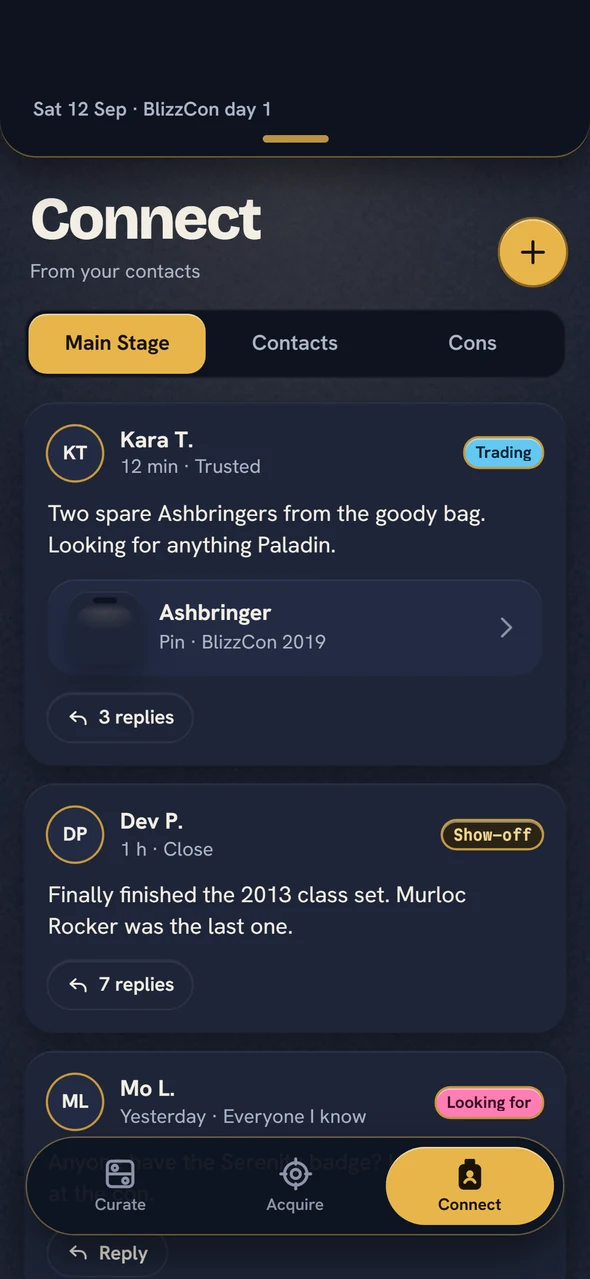
- The tab bar stays: it now stays at the bottom of most screens you open. Tap a tab to go back to it.
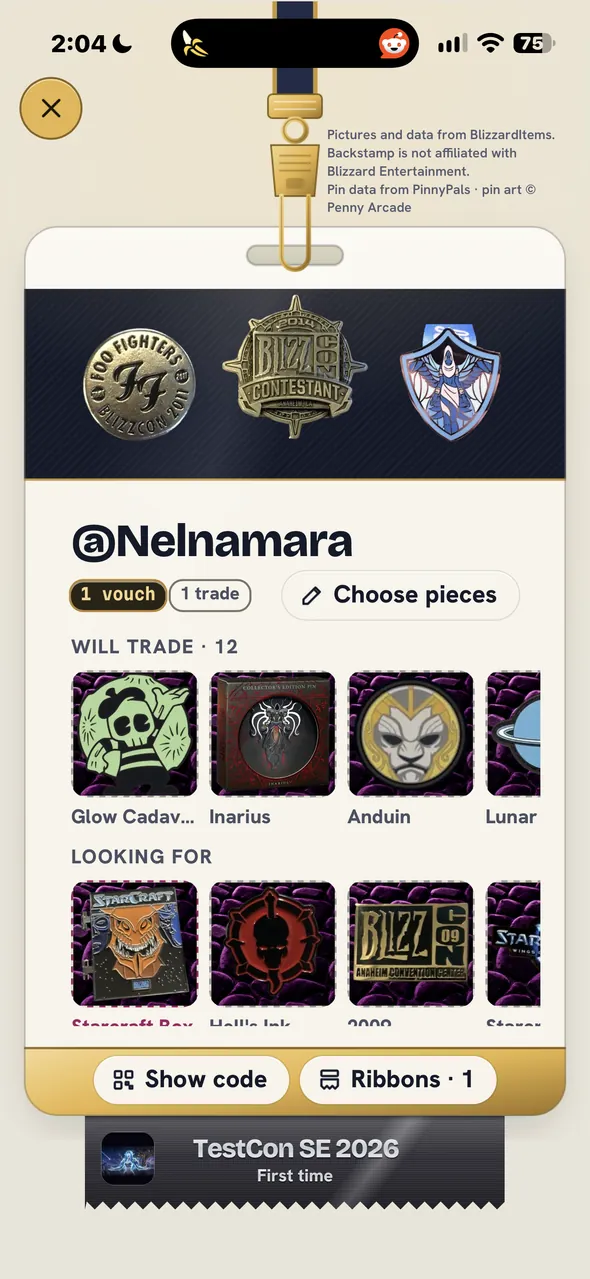
- Your lanyard card: Will trade and Looking for are rows you swipe sideways, so your card shows more pieces and wants. Choose pieces is at the top, under your handle, and your newest three ribbons hang from the card.
- Want and Trade marks: a want is a blue outline and Trade is filled violet. On Acquire, “has one to trade” is green words with the swap icon.
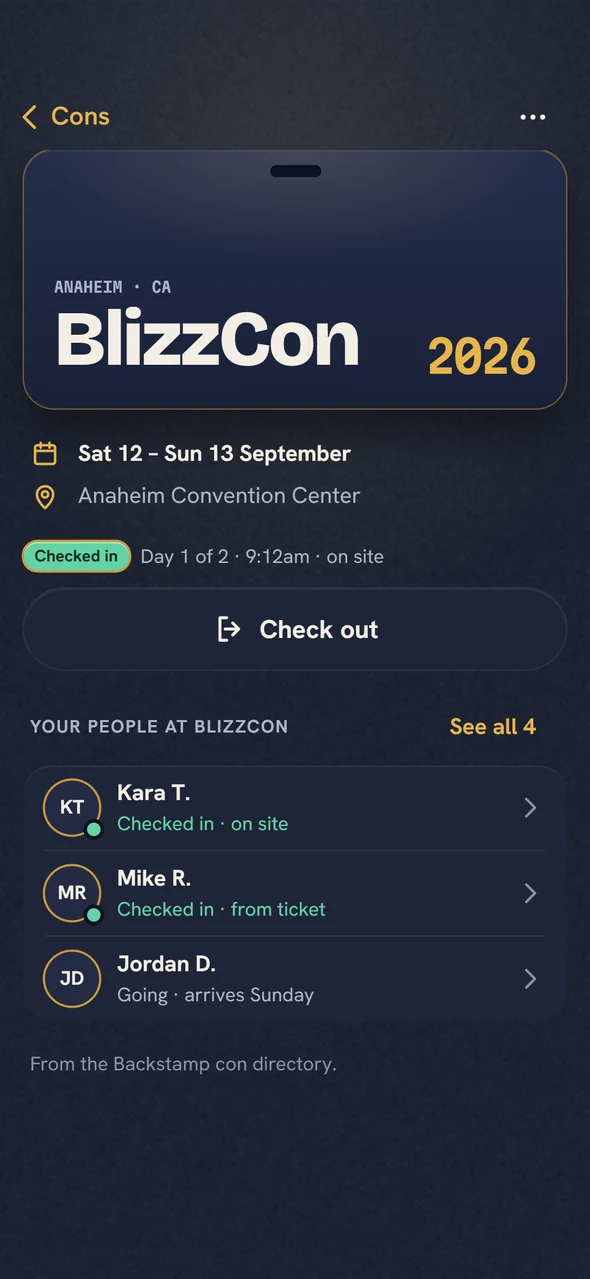
- Cons: in Connect › Cons each con has its own colour band, and the top names the con you’re at, or the one on now.
- Main Stage: on a post’s page, tap the author to open their page.
- Unsaved changes: leaving Condition, Where from, Profile and other forms with unsaved changes asks first.
- Catalog pictures no longer carry the Ref tag.
- Welcome pages show once, not after every sign-in. Settings › How Backstamp works shows them again.
- Your phone’s settings: Backstamp follows more of them: Bold Text, Increase Contrast, Reduce Transparency and the larger text sizes. VoiceOver reads more of the app properly.
Please try
- If you use a passkey, sign in with it. Did Face ID let you in?
- In the shade, tap Add: try the camera, pinch to zoom and the 0.5× lens.
- In the shade, tap Show code, then Scan code: try the camera, the Light, and reading a code.
- Swipe a row left (a want, a message) for its actions, and swipe back from the left edge.
- Tap a Backstamp notification. Does it open the right screen?
Tell us anything that broke or felt confusing: take a screenshot in TestFlight to send it, or write to hello@backstamp.quest.
Before you start
Getting a test con
At the bottom of Connect › Cons, tap Suggest a con. Name it “Test con – your name”, put a public place near you as the venue (a park, a café, a mall: not your home, because every tester can see test cons), add today’s date, and write “Test con please” in the note. We’ll set it up and let you know.
Or email hello@backstamp.quest with the place and the dates you want.
Test cons are taken down when you’re done.