The Backstamp app icon: a gold pin back with an owl on navy

Backstamp

The catalog for what you collect, and the people you trade with.

Now testing on iPhone

What it is

Backstamp is an iPhone app for people who collect convention pins, patches, plush and badges.

Photograph a piece once, front, back and the card it came on, and your wall becomes your record: its condition, where it came from, and what it is worth to you.

It carries a searchable copy of the BlizzardItems catalog, more than 1,200 pins, patches and figures, so you can add a piece or a want by searching for it. Anything that is not in the catalog you add by hand.

  • It can pull your collection and wishlist from BlizzardItems, and mirrors the public catalog.
  • Images mirrored from these platforms (BlizzardItems now; BlizzPins, eBay and Mercari when they are added) are for reference, and users are encouraged to post their own photos for value, rarity and provenance.

What it is for

Backstamp is built around the people side of collecting: meeting at a con, swapping codes face to face, trading in person and vouching for each other afterwards.

Main Stage is for new acquisitions, pictures of whole collections and all the fun stuff in between.

You decide what each person sees. What you paid and what each piece is worth to you stay on your own screens. Your collection’s total worth, with estimates, shows with your achievements, rounded to two figures for other members. It is open to anyone 16 or older, and you do not need an invite.

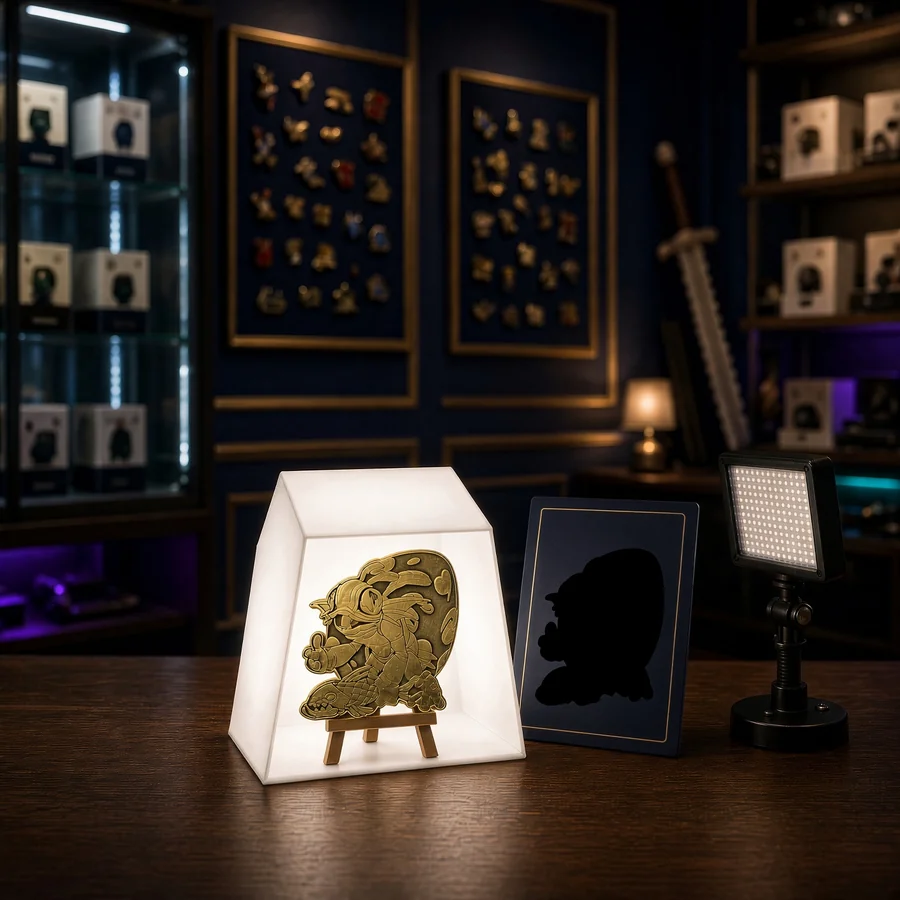
A collector’s room: framed pin boards on a navy wall and a gold pin under a light on the desk

A look inside

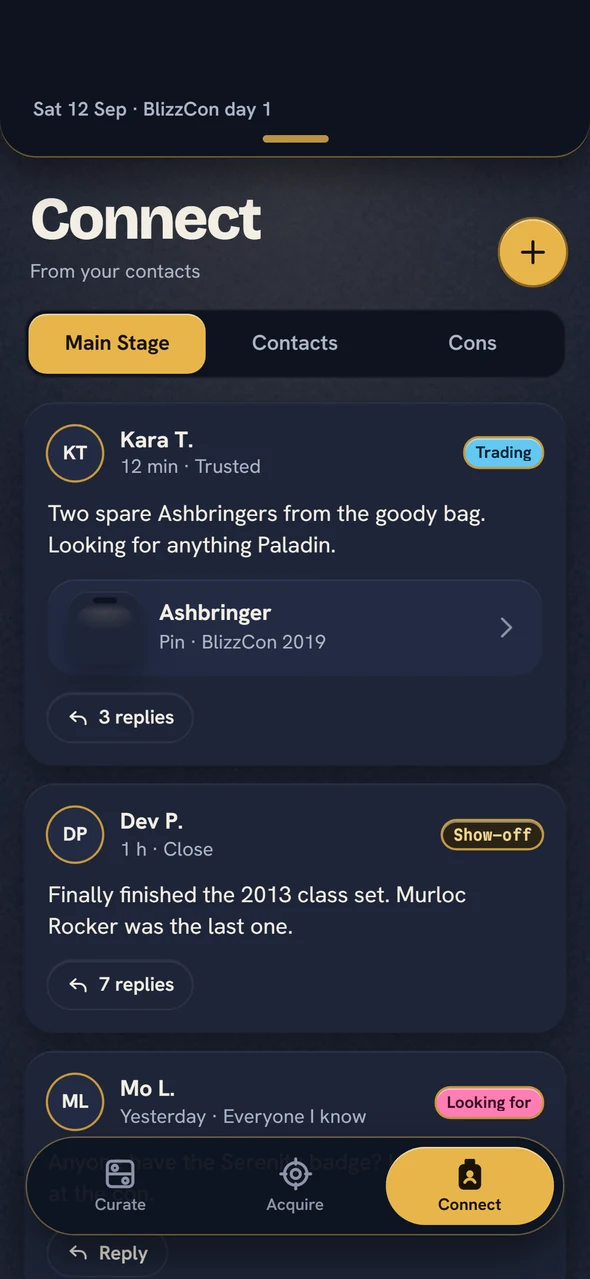
Main Stage: posts from contacts about pieces they have for trade and sets they have finished
Main StageNew pieces and whole collections, from your contacts or the whole community.
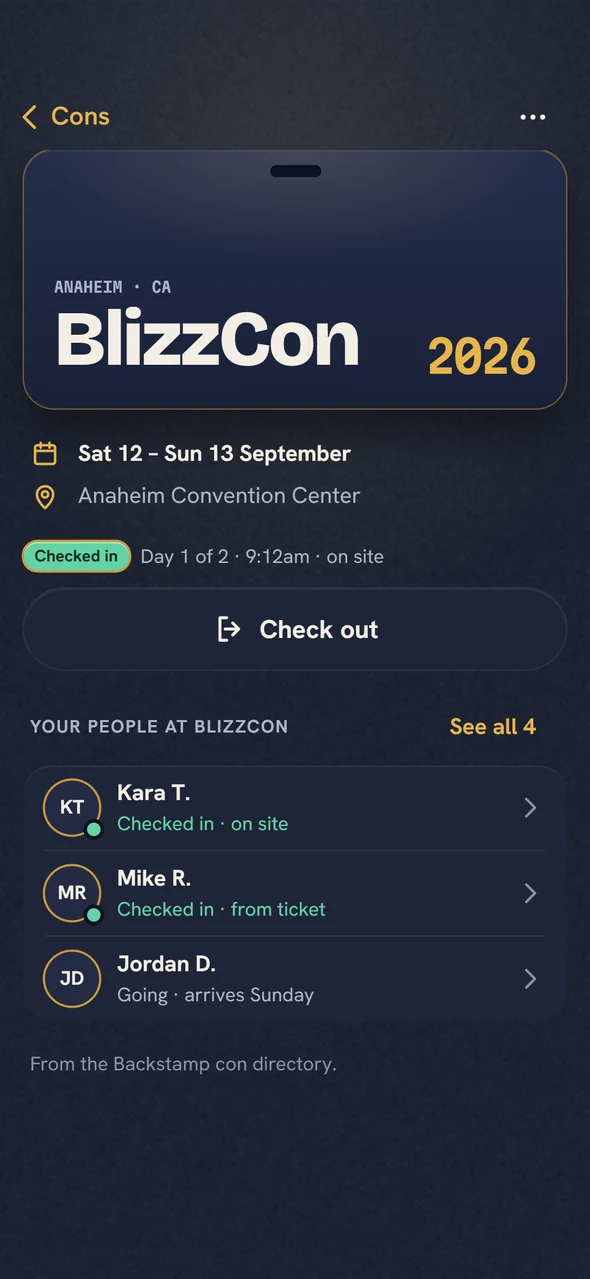
A con page: checked in, with a list of your contacts who are there
At the conCheck in and see which of your contacts are there.
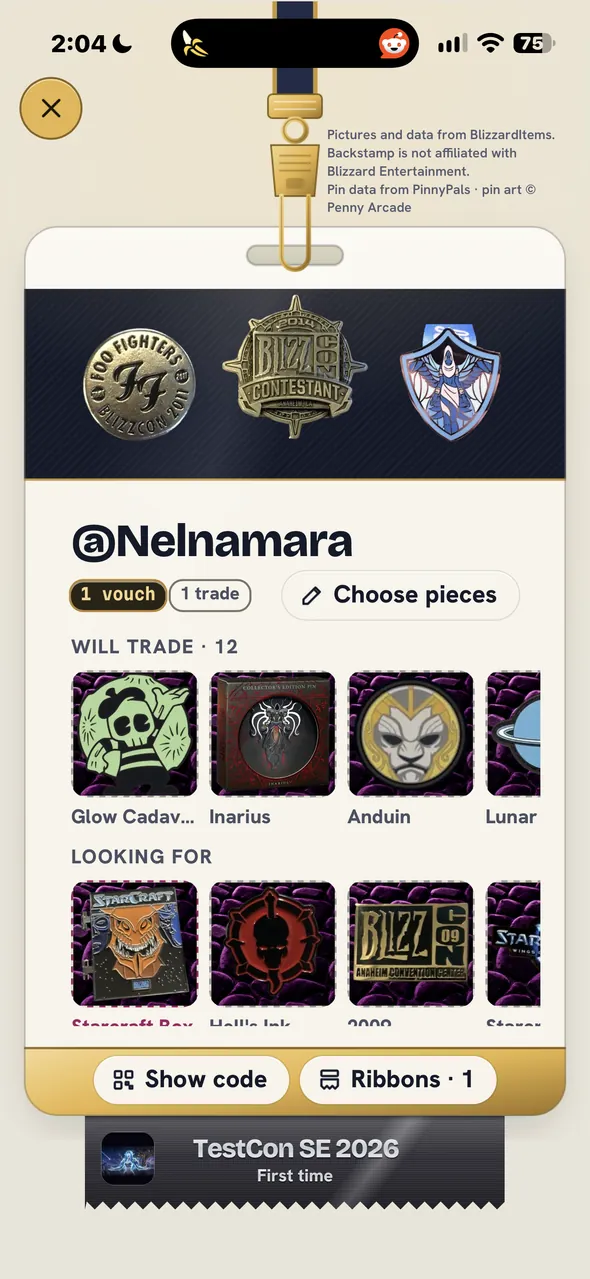
The lanyard card: a badge on a lanyard showing trade stock and what the member is looking for
Your lanyard cardYour trade stock and what you are hunting, ready to show.
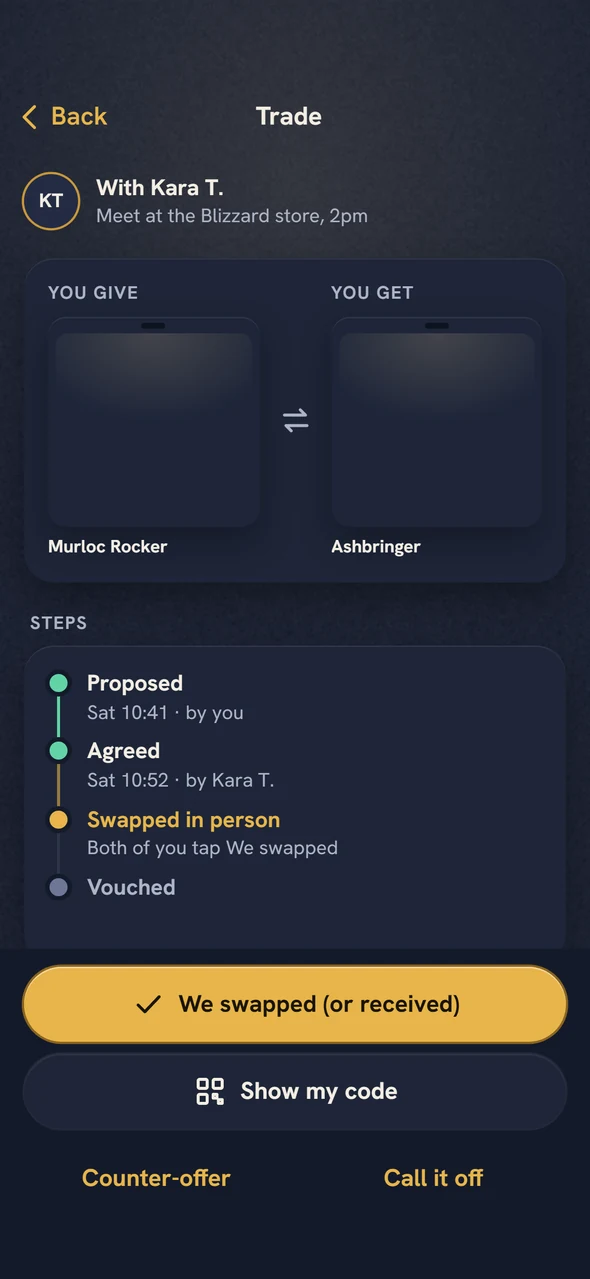
A trade: what you give and what you get, with the steps from proposed to vouched
A tradePropose, agree, swap in person, then vouch.

Screens shown with sample content.

In the test build

What works today

Your collection

  • Add a piece with your own photos: front, back and card.
  • Record its condition, where it came from and what it is worth to you.
  • Group pieces into sets and see what is missing.
  • Search your whole wall, with or without signal.
  • Collect from any franchise: Category and Franchise menus, 16 kinds, and names of your own that stay off everyone else’s menus.
  • Search a shared catalog beside BlizzardItems. Members and shops’ public lists fill it.
  • Be asked Is this the catalog’s …? when an approved entry looks like one of your pieces.
  • Pick several pieces at once to mark for trade, put on display, add to a set, re-file or delete.
  • Add a piece in four short parts, with a year, a note and tags that only you see.
  • Take photos with flash, a light, a grid and pinch to zoom.
  • Import a spreadsheet of your collection, and undo it for 24 hours.

Achievements

  • Earn 61 achievements, each with its own chibi Nel badge.
  • A badge wall greys out the ones you have not earned.
  • Six leaderboards. You can leave them in Settings, Privacy.

Catalog and wishlist

  • Search more than 1,200 pins, patches and figures from BlizzardItems.
  • Switch to Pinny Arcade for PAX’s exclusive pins since 2013, from PinnyPals, with PinnyDB’s release dates and original prices.
  • Bring over your public BlizzardItems list in one go.
  • Keep a wishlist ranked Grail, Want or Filler.
  • Be told when one of your wants turns up.
  • See BlizzardItems’ series as sets, and what you are missing from each.
  • Link a want to a pin at BlizzPins and be told when it comes into stock.
  • See who has one: members’ pieces marked for trade that fit a want.
  • Search and narrow your wants.

People and trades

  • Add a contact by swapping codes in person. It works with no signal.
  • Three levels of trust decide what each contact can see. Nobody is told their level.
  • Propose a trade, counter-offer, agree it, swap in person, then vouch for each other.
  • When both of you mark a trade swapped, the pieces move to each other’s walls.
  • Send direct messages, with photos.
  • Find people by email, or share an invite link.
  • With no signal, messages and trade steps wait, then go when you are back.

Main Stage

  • Post a new piece or a whole collection, with photos.
  • Like, save and comment.
  • Three views: For you, your contacts, or the whole community.
  • Follow people who are not contacts, search posts and hashtags, post a video, and edit a post.

Cons

  • A directory of cons. Say you are going, then check in when you arrive.
  • See which of your contacts are there.
  • A lanyard card that shows your trade stock and what you are hunting.
  • Use Here I am to tell someone where to find you at a con, even with just a spot, pin or photo.
  • Open a PAX show’s Pinny Arcade pins.
  • A con map, with floor plans where a con has one.

Looking after it

  • House rules, with block and report on every person and post.
  • Export your collection, wishlist and sets in one file.
  • Delete your account at any time, with seven days to change your mind.
  • Appeal a moderation decision. A reviewer can also talk with you in private.
  • Sign in with Apple or an emailed link. There is no password.
  • Sign in with a passkey, and add a backup email.
  • Choose your own @handle.

Want to help test it?

Testing runs on iPhone through Apple’s TestFlight. Anyone 16 or older can join, and there is nothing to buy. The first round has 100 places.

It is a test build. Expect rough edges, and say what you find.

QR code for the Backstamp TestFlight invitation
For people in the test

What to test now (build 22)

Thanks for testing Backstamp! Build 22 is the newest (TestFlight lists it as 1.1.0 (22)), so update to it in TestFlight. Builds 7 to 11 are retired, so if you’re on one of those, or on build 20, get the newest from TestFlight.

Ideas and feature requests are as welcome as bug reports. To send one with a screenshot, take a screenshot in Backstamp, tap the preview in the bottom-left corner, tap Done, then tap Share Beta Feedback. Without a screenshot: open TestFlight, tap Backstamp, then Send Beta Feedback.

Heads-up: Backstamp is still in testing. A future release will wipe the database and set every account back to new, so what you add now (pieces, wants, posts, contacts) will be cleared then. Settings › Export my collection saves a copy of your list.

Build 22 now runs on newer versions of the tools Backstamp is built with, so the basics are worth a second look. It also brings everything changed since build 20. It carries every part of the app on every phone: passkeys (Face ID sign-in), the phone’s own date picker and the file chooser for Import a spreadsheet are all in it. The con tools only work while you’re checked in at a con, so ask us for a test con first (how, below).

What’s new

  • The tab bar stays: it now stays at the bottom of most screens you open. Tap a tab to go back to it.
  • Your lanyard card: Will trade and Looking for are rows you swipe sideways, so your card shows more pieces and wants. Choose pieces is at the top, under your handle, and your newest three ribbons hang from the card.
  • Want and Trade marks: a want is a blue outline and Trade is filled violet. On Acquire, “has one to trade” is green words with the swap icon.
  • Cons: in Connect › Cons each con has its own colour band, and the top names the con you’re at, or the one on now.
  • Main Stage: on a post’s page, tap the author to open their page.
  • Unsaved changes: leaving Condition, Where from, Profile and other forms with unsaved changes asks first.
  • Catalog pictures no longer carry the Ref tag.
  • Welcome pages show once, not after every sign-in. Settings › How Backstamp works shows them again.
  • Your phone’s settings: Backstamp follows more of them: Bold Text, Increase Contrast, Reduce Transparency and the larger text sizes. VoiceOver reads more of the app properly.

Please try

  1. If you use a passkey, sign in with it. Did Face ID let you in?
  2. In the shade, tap Add: try the camera, pinch to zoom and the 0.5× lens.
  3. In the shade, tap Show code, then Scan code: try the camera, the Light, and reading a code.
  4. Swipe a row left (a want, a message) for its actions, and swipe back from the left edge.
  5. Tap a Backstamp notification. Does it open the right screen?

Tell us anything that broke or felt confusing: take a screenshot in TestFlight to send it, or write to hello@backstamp.quest.

Before you start

Getting a test con

At the bottom of Connect › Cons, tap Suggest a con. Name it “Test con – your name”, put a public place near you as the venue (a park, a café, a mall: not your home, because every tester can see test cons), add today’s date, and write “Test con please” in the note. We’ll set it up and let you know.

Or email hello@backstamp.quest with the place and the dates you want.

Test cons are taken down when you’re done.

Newest first

What’s changed while testing

· TestFlight build 22

Build 22: the tab bar stays, a fuller lanyard card and more of your phone’s settings

  • Backstamp now runs on newer versions of the tools it is built with, so the basics are worth a second look: passkey sign-in, the camera (pinch to zoom, the 0.5× lens), the scanner and its Light, swipe rows, and a tapped notification opening the right screen.
  • The tab bar stays at the bottom of most screens you open, and a tap on a tab goes back to that tab. A message thread, a post, a trade, Add a piece, the scanner, Your code and the lanyard card still cover it.
  • On your lanyard card, Will trade and Looking for are rows you swipe sideways, up to 24 of each. Choose pieces moved to the top, under your handle, and your newest three ribbons hang from the card. Your code and the cards people scan still carry four of each.
  • A want is drawn as a blue outline and Trade as a filled violet mark. On Acquire, “has one to trade” is green words with the swap icon, on a line of its own.
  • In Connect › Cons each con has its own colour band, and the top names the con you’re at, the one on now, or the next one.
  • On a post’s page, tap the author to open their page.
  • Condition, Where from, Profile, Your address, Your BlizzardItems name, Suggest a con and Add a con ask before unsaved changes are lost.
  • Catalog pictures no longer carry the Ref tag. The collection value card draws its twelve-month bars from the third month on record.
  • The welcome pages show once on a phone, not after every sign-in. Settings › How Backstamp works shows them again.
  • Backstamp follows more of your phone’s settings: Bold Text, Increase Contrast, Reduce Transparency, Reduce Motion for videos and the larger text sizes. VoiceOver reads more of the app properly.
  • Words: Load more (not Show more), Tap (not Press), Light (not Torch) on the cameras, Not now, wishlist, and “Backstamp didn’t answer. Try again in a moment.”
· TestFlight build 20

Build 20: first screens, a better camera and one set of parts

  • Build 20 carries every part of the app on every phone: passkeys, the phone’s own date picker and the file chooser for Import a spreadsheet. The share extension, which nothing in the app used, is out.
  • Curate puts your pieces on the first screen, with one Filter and sort chip, four new Show choices (No value yet, Estimate only, No photo of mine, Duplicates) and two new orders (Value and What you paid). Select, or a card held down, changes several pieces at once.
  • Add a piece and Edit details are in four parts, with menus for Category, Franchise, Series and Name, Save and add another, a Year, a Note and Your tags that only you see, and a line saying who sees trade stock. A piece’s page puts what it’s worth first, with Value history and switches for For trade and On display.
  • The camera takes Flash, a steady Light, a Grid, the 0.5× lens and pinch to zoom, and its buttons turn with the phone. A photo taken with the phone upright now stays upright.
  • A set of your own can hold a place for a piece you don’t have yet. Import a spreadsheet reads your export’s collection.csv back in, shows what comes in and what is left blank, and can be undone for 24 hours.
  • Acquire searches your wants and narrows them by Kind, Category and Franchise. An empty Contacts list offers Scan a code, Find someone by email and Share an invite. Main Stage has one filter button. A contact’s page leads with their trade stock, and a trade has Counter-offer and Offers. With no signal, messages, Agree and We swapped wait and go when you’re back.
  • Hold one of the other person’s messages, its words or its photo, to Copy it or Report this message…. The report sheet shows that one message, and council sees it with the report. More › Report still reports the whole conversation.
  • Export for insurance (Settings › Export) is a PDF with a photo on every row, in place of the spreadsheet.
  • On a con’s page, Your people at the con comes first, with Who sees you’re here and Not going. A Here I am can go with no words when a spot, a pin or a photo goes with it. Scan a spot’s code opens the camera full screen, with a tap and a whistle when it reads a spot. A PAX show’s page opens its Pinny Arcade pins.
  • The shade puts Since you last looked first, each count opens what it counts, and Show code is a round button in its foot. Your code is drawn in your look with the Backstamp mascot in the middle.
  • Connect’s first view is now called Main Stage, and it has a new first view, For you, with the posts about your interests first. Connect opens on it once you have picked interests or have a piece on your wall. New members pick franchises and kinds after the welcome pages, or Skip. Your interests, from Main Stage’s filter button or Settings, lists what you picked and what Backstamp learned from your wall, likes and wants; any can be taken off, more added, and one muted so its posts never show in For you. Community still shows everything.
  • Settings › Profile › Avatar: use a photo of your own or a badge you earned in place of your initials, with Move and zoom for a photo. Everyone sees it wherever your name shows. A member’s page has Report their photo in More, and council can Remove photo.
  • Show code carries your lanyard card: the three pieces on top, Will trade and Looking for. The phone that scans it shows the card first, with the add-contact step under it, and keeps it on the contact so it shows with no signal.
  • Choose your own @handle in Settings › Profile: 3 to 24 letters, numbers, _ and -, changed up to three times in 30 days, with the handle you let go held for you for 90 days. Rude, vulgar and sexual words are refused in handles and display names, a member’s page has a new report reason, An offensive name, and council can reset a name that breaks the house rules. Names already set stay as they are.
  • Other members see your collection’s worth rounded to two figures, so $4,280 shows as $4,300. You still see your exact total. Backstamp asks about notifications the first time you save a want, not when you sign in.
  • Every catalog picture, the dashed Ref tiles, shows the piece alone, cut out of its background, so a shop photo on a white box, a wood table or a bag looks like the rest.
  • While an update comes down, a small bar over the tab bar fills, then says An update is ready. Screens slide in and swipe back from the left edge, and rows such as your wants, Messages and Followers swipe left for their red action.
· Update for builds 10 and 11

Pinny Arcade, a second catalog

  • BlizzardItems | Pinny Arcade, at the top of the catalog screen, switches catalogs. Pinny Arcade has PAX’s exclusive pins from 2013 on, read from PinnyPals’ public list once a week, with PinnyDB’s release date, original price and notes where it lists the same pin.
  • Its pickers are PAX show, Year, Set, Status and Sort by. A card shows the show and year, then the edition size or the blind-box odds, such as PAX West 2019 · LE 1,700 or 1 in 8. A card never shows a price.
  • A pin’s sheet adds Released, Original price (what it sold for, never what it is worth) and How it was sold, then View on the PINdex, Posts about this, Look on eBay and Look on Mercari. I have it, I want it and I have extras to trade work as they do for BlizzardItems pieces.
  • Pinny Arcade is on the Franchise menu, under Video Games, and a Pinny pin files under it wherever it is filed. Its picture shows as Ref, with the credit Pin data from PinnyPals · pin art © Penny Arcade.
  • Once you have a Pinny piece or want, Sets lists every PAX show and Pinny Arcade set, and Since you last looked says how many new Pinny pins came. Show › Missing has the same switch.
  • Backstamp reads only PinnyPals’ and PinnyDB’s public pin lists, and PinnyPals’ pictures. No member’s data goes to either, and nothing reads your PinnyPals lists.
· Update for builds 10 and 11

Every kind of collection

  • Add a piece and Add a want ask for a Category, a Franchise and a Series / line, then a Kind from 16. A name that is not on the menu can be added as your own. It never appears on anyone else’s menu. A close match asks Did you mean …? first.
  • The name box searches BlizzardItems for a Blizzard pin, patch or vinyl figure, and the shared catalog for everything else. Add this to the shared catalog, on a piece, offers it to council. Link to a catalog entry ties a piece to one, and Who has one adds Might be the same.
  • Shops’ public product lists fill the shared catalog every week. A shop’s price is the shop’s own and never counts toward worth. Suggest a shop asks for another.
  • When council approves an entry that looks like one of your pieces, that piece’s page asks Is this the catalog’s …? with Link it and Not this one, and Pieces to link on the pull-down dashboard lists them. Nothing is linked until you tap.
· Update for builds 10 and 11

Missing on your wall

  • Show › Missing, on Curate, turns the wall into the BlizzardItems pieces you do not have, each drawn as a dimmed Ref card, with a count of how many are missing. Type, Franchise and Sort by narrow it.
  • A tap opens the catalog’s sheet, with I have it and I want it, and a piece you mark as had leaves the list. Pick All under Show to get your wall back.
· Build 11, and an update for build 10

Achievements

  • 61 badges, each with its own picture of Nel. Hidden feats stay veiled until you earn them. Badges you had already earned were awarded when this went live.
  • Open them from the round button at the top of Curate, from Settings › Profile › Achievements, or from the Achievements row on the pull-down dashboard. All is the badge wall, with what you have not earned greyed out. Summary and Statistics sit beside it.
  • A moment plays when a badge lands. When several land together they come one after another, and Skip clears them. Share to Main Stage puts a badge in a post.
  • Other members’ achievements show on their page.
  • Six boards: Pieces owned, Worth, Cons in 2026, Trades, People met and Achievement points. Leave the leaderboards, in Settings › Privacy, takes you off every board.
  • Your collection’s total worth, with estimates, shows on your page and on the Worth board after you have seen a notice about it. The notice comes once, with Carry on and Leave the leaderboards. What you paid stays private.
  • House rule 6 is new, so everyone agrees to the rules again before their next post to Everyone.
· Updates for builds 9, 10 and 11

A backup email, and passkeys on build 11

  • Settings › Profile › Add a backup email: a second address of your own, confirmed from that inbox. If you lose your main inbox, Can’t get into this inbox? on the sign-in code step sends the code to the backup. Your main address is told when a backup is added, changed or removed.
  • Settings › Profile › Passkeys: add one (it is named for the device), rename it or remove it. Then Sign in with a passkey on the sign-in screen, with Face ID or Touch ID and no code to wait for. Your main address is told when one is added. Build 10 shows none of it.
· Update for builds 9 and 10

Who has one shows who is here, and smaller iPhones

  • Who has one puts a green dot on a match’s picture when that person is checked in at the same con as you and lets you see it.
  • On the smallest iPhones (an SE) the lanyard card scrolls, so Show code is no longer off the bottom of the screen.
  • Marking a piece for trade asks for a photo of your own when it has none. Not now still marks it.
  • Where it came from now tells you that a reviewer sees your proof.
  • Bring my list over now says to bring over only your own BlizzardItems list.
  • The lanyard card carries the BlizzardItems credit line while a catalog picture is on it. Catalog pictures show as Ref tiles in What you could trade and on a person’s page.
· Update for builds 9 and 10

Trades show their pictures, and every toast goes on a tap

  • A trade shows each piece’s picture: your own photo, else the BlizzardItems catalog picture tagged Ref, else the empty frame. Propose a trade does the same.
  • Every toast goes away on a tap or a swipe up.
  • The wall’s Franchise menu lists the real franchises (Warcraft, Overwatch, Diablo and so on) instead of one “Blizzard Entertainment”.
  • Your collection’s worth card shows while you’re checked in at a con too.
  • The strip across the top of Curate, Acquire and Connect no longer runs into the handle at the larger text sizes.
· Update for builds 9 and 10

Appeals, Who has one, and how to reach me

  • The “this piece could not load” bug that ran for a few hours on 21 Oct is fixed.
  • A council decision (a removed post or comment, a warning, a suspension) opens as a card with Appeal for 30 days. Another reviewer decides it.
  • Who has one, on a want’s sheet, lists every member’s pieces marked for trade that fit the want. Propose a trade works on anyone’s piece. A want’s alert now reads “Someone lists one to trade”.
  • Settings › Profile has How to reach you (Backstamp messages, Discord, Instagram, Facebook, in person at cons, other) and Groups and marketplaces (the Blizzard pin groups, eBay, Mercari, other). Close and Trusted contacts see them on your page.
  • A tap puts a toast or a live alert away. The BlizzardItems credit line shows wherever the catalog’s pictures do. The arrival switch says why it is not watching.
  • Seven cons were added and six brought up to date from their own sites.
· Updates for builds 7 to 10

Series sets, more on a piece, your email and BlizzPins

  • Sets lists BlizzardItems’ series beside your own sets, with how many of each you have. Sort by offers Your sets first or Closest to complete. In a series, each piece shows as You have, Wanted or Missing, and Want on a missing piece adds the want in one tap.
  • Add a piece and Edit details take Bought on, private like What you paid. Edit details also takes Rarity, the Edition number and run size, and Redeemed.
  • Settings › Export has a second button: one spreadsheet of your wall, for insurance.
  • Settings › Profile › Change email sends a link to the new address. Open it on the phone and the address changes, and the old address is told. An account with no email sees Add email.
  • Your invites, under Invite someone, lists the invites you have made, with Revoke on one that is not used yet.
  • Bring my list over brings everything, by the name on the card when the catalog copy lacks it. A switch on Import a list keeps your lists in step with BlizzardItems once a day.
  • Find it at BlizzPins marks each match In stock or Sold out, and offers Search BlizzPins when there is none.
· TestFlight build 10, and an update for builds 7, 8 and 9

Build 10: Today, Backstamp’s own notices and sounds

  • Since you last looked, on the pull-down dashboard, is now a daily digest: new community posts, new pieces in the BlizzardItems catalog and at BlizzPins, your BlizzardItems standing when it changes, and new trade stock from your contacts and the people you follow. See everything shows the last two weeks by day.
  • Two alerts you can switch on, both off until you do: Daily summary and Standing changes. Standing changes needs Your BlizzardItems name in Settings.
  • BlizzPins is read once a day. Link a want to one of its products and you are told when it comes into stock. Look on eBay and Look on Mercari, on a want and a catalog piece, open those sites’ own search.
  • Backstamp’s own notices: toasts and alerts are enamel pins that drop in with a glint, and every “are you sure” is a Backstamp card. Build 10 adds their sounds, which follow the silent switch, and blurs what is behind the confirm card.
  • Admins and council have an Admin (or Council) tab, with a Needs you queue for reports, held posts and con suggestions.
· Update for builds 7, 8 and 9

Alerts while the app is open, reports, and the wall

  • A trade, a message or a report now shows as a banner, with its sound, while Backstamp is on screen. Before, only a closed app showed them.
  • Reporting someone no longer blocks them by itself: the report sheet has an Also block them switch, off each time. Unblock puts back the contacts a block took away.
  • On the wall, Back to top and To the bottom buttons float at the bottom right, the wall keeps your place when you come back from a piece, and Crown jewels show at a con too.
  • The want sheet has a close button, and the Variant line is gone.
  • Show code’s second page shows your lanyard card.
  • Change tier, the checked-in con page and Edit details scroll properly on smaller iPhones.
· Updates for builds 7 and 8, and TestFlight build 9

The social wave: messages, following, search and video

  • Message, on a post, on a piece marked for trade and on a person’s page, opens one conversation with that person. A first message from someone who is not your contact waits under Requests, with no alert, until you Accept or Decline it.
  • Anyone can follow anyone, with no request. A follower sees your posts to Everyone and every piece you mark for trade. Your collection and wishlist show to followers only when you switch that on under Settings › Privacy › Followers.
  • A search box at the top of Main Stage looks through post words, #tags, piece names and @handles. A #tag opens every post with it.
  • Edit post, in a post’s More, changes its words, photos, pieces and con tag, and the post then says “Edited”. Hide this post takes someone else’s post off Main Stage.
  • Save your address once, under Settings › Your address, and use Share my address to let one person see it. Each side of a trade can add a carrier and tracking number, and Track it shows both of you.
  • Build 9 brought video: a post can carry one video of up to 60 seconds. It plays without sound on Main Stage, and a tap turns the sound on.
· Updates for builds 7 and 8

Ribbons, your best pieces on your card, and trade stock

  • Ribbons: checking in with I’m here earns that con’s ribbon, in satin with foil print, folded under your lanyard card. Tap them to see them all.
  • The top of your lanyard card shows three of your pieces, your Crown jewels until you pick, standing free when the catalog picture can be cut out.
  • Looking for on your lanyard card shows a picture for each want from the catalog.
  • Add extras for trade from the catalog or from a piece you own, with How many?. Extras of the same piece show as one card marked ×3.
  • Mark for trade and Not for trade are one tap on any piece, and your wall has a For trade filter.
  • Kind now has Patch, Figure, Statue and Box as well as Pin, Plush, Badge and Other, each with its own condition form.
  • A What’s new card after each update, and Settings › About › What’s new for every note.
· TestFlight build 8

Build 8: the con map, Live with the phone locked, the iPad sideways

  • A map of the con, with its floor plan laid over it where council has added one.
  • Council and admins can place a floor plan on a con’s map by marking its two corners.
  • Live while we walk keeps going when you lock your phone, so your dot keeps moving for the Close contact following you.
  • Your phone buzzes when a swap-code scan finishes.
  • Show code keeps your screen awake while it is up.
  • The iPad can turn sideways. Held sideways, a Here I am shows the distance alone and asks you to turn the iPad upright for the arrow.
· Updates for builds 7 and 8

Fixes to Here I am, spots and badge photos

  • Your Here I am locations are no longer kept in backups.
  • Only one of your Here I ams can be live at a time. Turning Live on for another switches the first one off.
  • The time left on a Here I am, and whether it is still live, now go by Backstamp’s clock, so a phone with the wrong time no longer gets them wrong.
  • A Messenger link that gets no answer, because the signal is weak, is tried again by itself, and again when you tap the link again.
  • The map opens on their live dot, pin or spot, or on the con’s venue if they have not sent a place. With no place to show yet, it says so.
  • On a phone or iPad that cannot tell where it is, the finder says so and points you to their spot, their photo and the map.
  • A rough position shows as “About” a distance, with a faded arrow, and the finder says “You’re close” when the position is rougher than the distance.
  • A con’s list of spots is only for people checked in there. Saying you’re going is no longer enough.
  • Your badge photo stops showing on your lanyard card the moment you check out or switch it off.
· Update for build 7

The con wave: Here I am, spots and your badge on the lanyard card

  • Here I am. While you’re checked in at a con, tell one person where to find you: a line of words, a photo, a pin and a spot from the con’s list. A Close contact can also follow a live dot as you walk.
  • Send it to an @handle, or as a Messenger link that only the first member to open it can use. The alert says only “@kara is here”.
  • They get an arrow and a distance, with Send mine back and We found each other.
  • It ends after 30 minutes without an update, when either of you taps We found each other, when you stop it or check out, or if one of you blocks the other or is suspended. Then its photo, words, pin and live position are deleted. A reported one keeps its words and photo for council to read, never its place.
  • Off the grid (Settings › Privacy, and on the check-in sheet) starts your pin and your live dot switched off.
  • Spots. Named places inside a con, like “Hall D, pillar 34”. Add the one you’re standing at (you need an I’m here check-in), or scan a spot’s code to pick it for a Here I am. Council can rename or remove a spot, you can report one, and a con’s spots end when it closes.
  • Your badge. On a con’s page while you’re checked in, add a badge photo (crop out your name and the barcode) and choose Show my badge on my lanyard card. It shows only while you’re checked in.
  • Admin › Cons gives council and admins every con, hidden ones too, and a page for each. Admin can replace or remove a con’s banner, and Suggest a con takes a banner picture.
  • A Close contact’s whole collection and wishlist open from their page. All your trades are in one list. Community has chips for Show-off, Trading and Looking for.
  • I got it on a want opens Add a piece filled in. Patches, figures, statues and boxes have their own condition form.
  • Sign out everywhere is in Settings. A copy of the app that is too old is asked to update from TestFlight.
  • Ten cons are marked Confirmed in the con list, with dates and venues checked against their own websites.
  • The privacy page now says what Here I am keeps, and for how long.
  • The map, floor plans and Live with the phone locked came later, with build 8.
· Update for build 7

Pieces on display, trades that finish themselves, wants and the iPad

  • On display. Put up to 12 of your pieces in a row shown first on your wall, in the order you choose. Anyone who could already see a piece sees it there, and nobody gains sight of a piece.
  • Trades finish themselves. When you both mark a trade swapped, each piece given moves to the other person’s wall as a new piece marked “Traded with @handle on” the date, and stays in the giver’s history as traded away. The giver’s photos, condition notes, values and what they paid stay behind.
  • Trade photos. Either of you can add up to 12 photos to an open trade. Each has the uploader’s @handle and the date burned in, and both of you can see them.
  • Wants. A want can be paused, with no alerts and off the lanyard card, and resumed. A want can carry a variant line, and can be for something that is not in the catalog.
  • Tapping an alert opens what it is about. “I have it” can be chosen from a catalog result. Show code’s page dots work. The Cons list links to Suggest a con.
  • On an iPad the screens use an iPad layout, with centred columns and form sheets.
  • Settings has an About group with Privacy policy, House rules and Contact.
  • When you file a report, every council member and admin is alerted. The alert never says who filed it.

Build 7 (13 Oct 2026) is where this list starts. Builds 7 to 11 are retired.

Pictures from BlizzardItems. Release details from PinnyDB.

Backstamp is made by collectors and is not affiliated with Penny Arcade, Inc., PAX or Blizzard Entertainment. Pinny Arcade pin images, names, logos and the Kemper cat belong to Penny Arcade, Inc. and their copyright holders. Blizzard pins and names belong to Blizzard Entertainment and their makers. Pin data from PinnyPals and BlizzardItems.